

Work with tasks
Use a project's task board to open tasks, assign them, set dates, tick off subtasks, move cards along and switch to List and Timeline views.
Every project has its own task board. It shows what is to do, what is in progress and what is done, and you can look at the same tasks as a list or a timeline.
Open the project's board
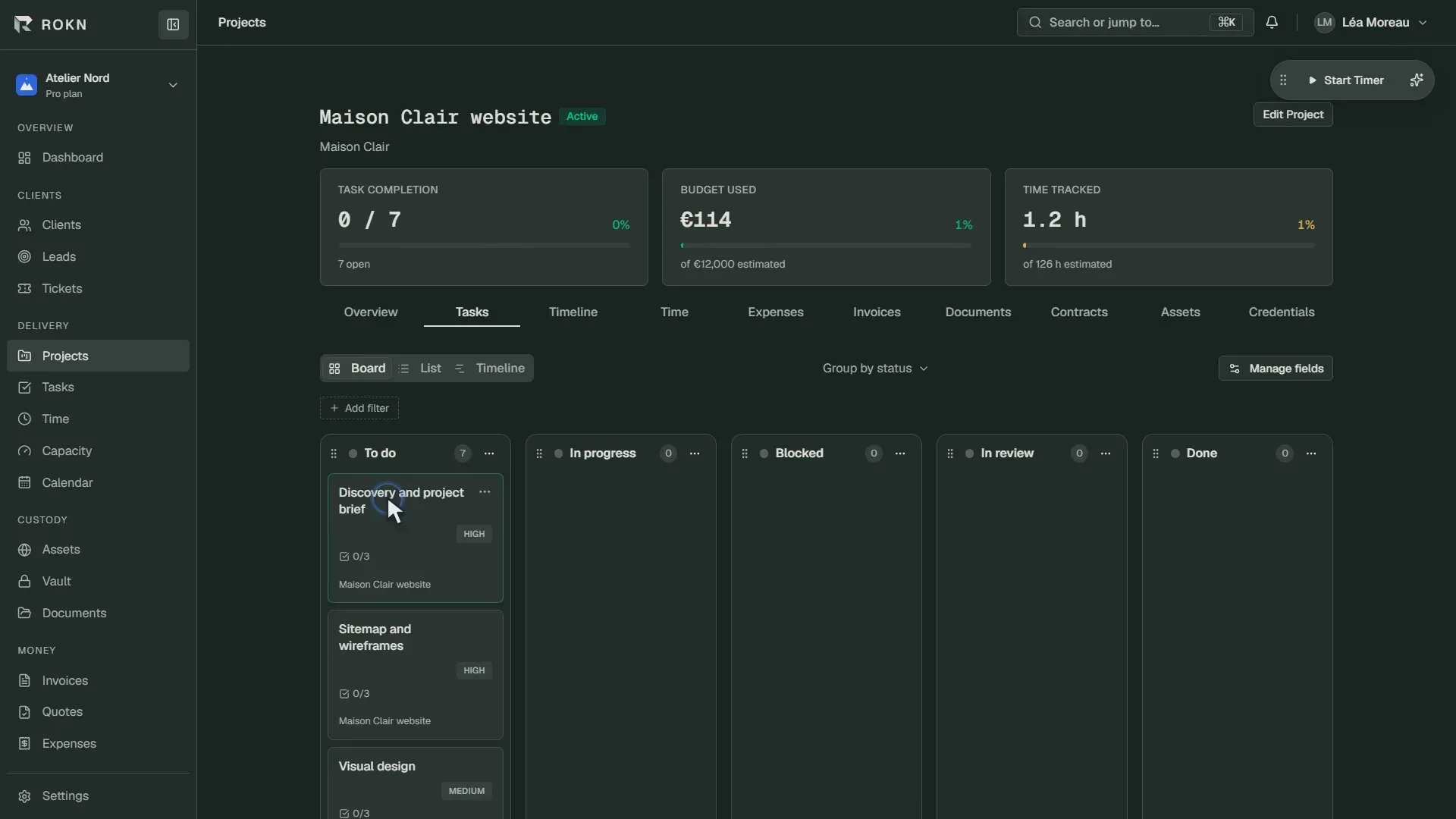
Open the project, and go to Tasks. Each column is a status. A card shows the task's priority, and how many of its subtasks are done.
Open a task, assign it and set dates
Click a card to open the task. Assign it to someone, and give it a start date and a due date. A task with a due date also shows on the workspace Calendar.
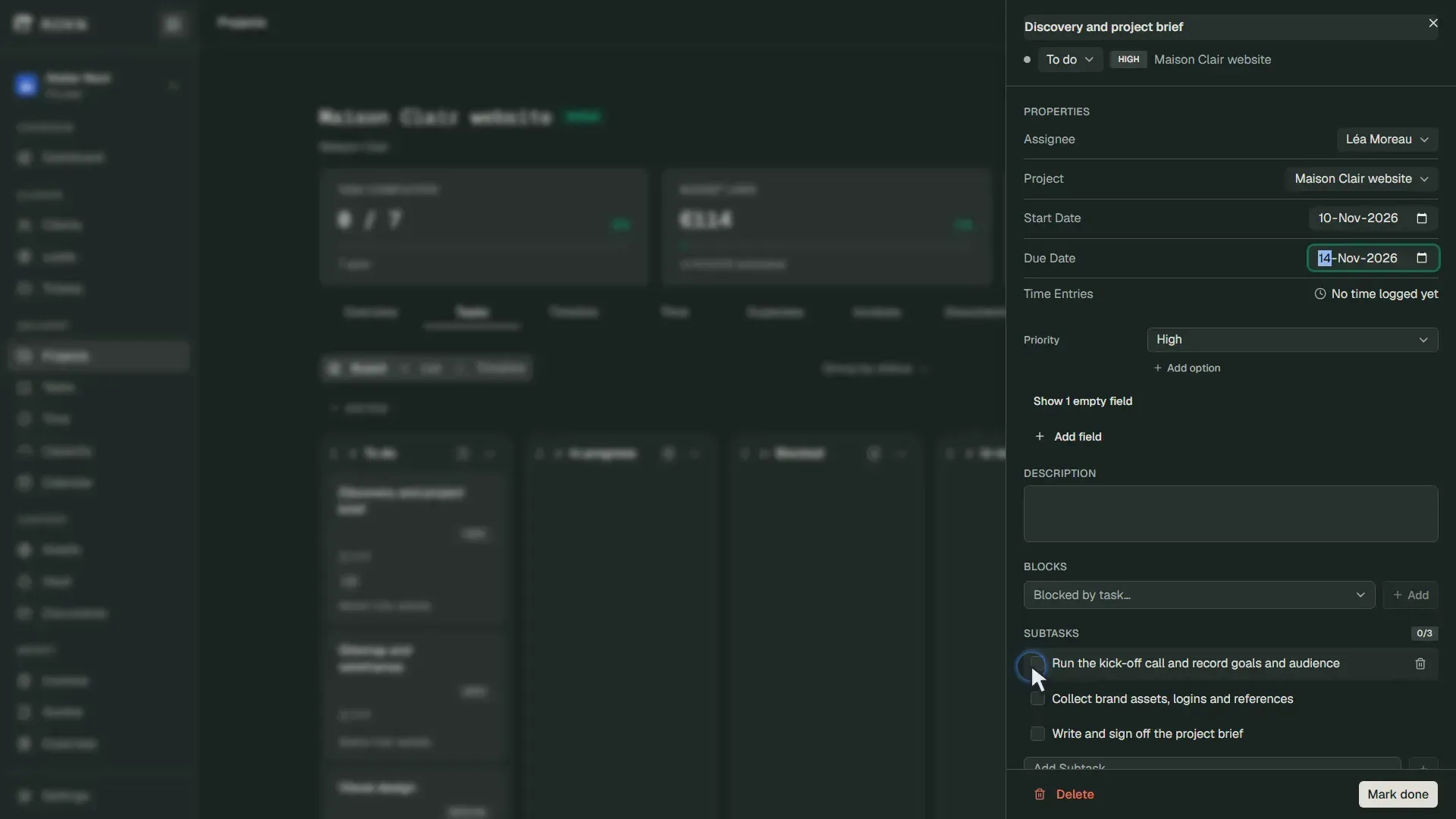
Tick off subtasks
As the work gets done, tick off its subtasks. The card on the board shows how many are done.
Move a task along
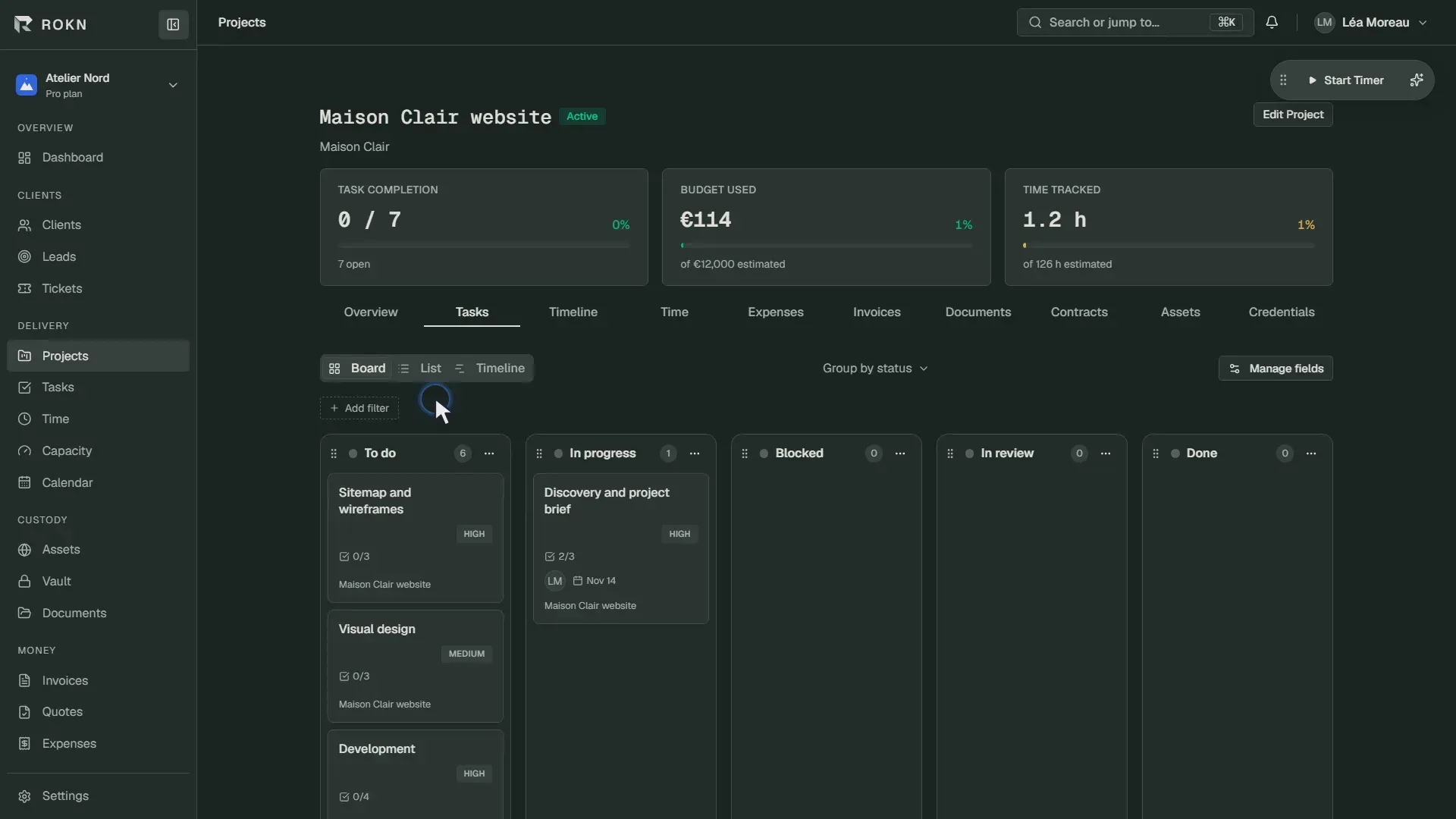
To move a task along, drag its card into the next column. Its status changes with it.
Mark a task as blocked
When a task cannot start until another one is done, open it and use Blocked by task to pick the task it waits for. The task shows as Blocked, and you can mark the blocker as no longer blocking once the other task is finished.
Switch to List and Timeline
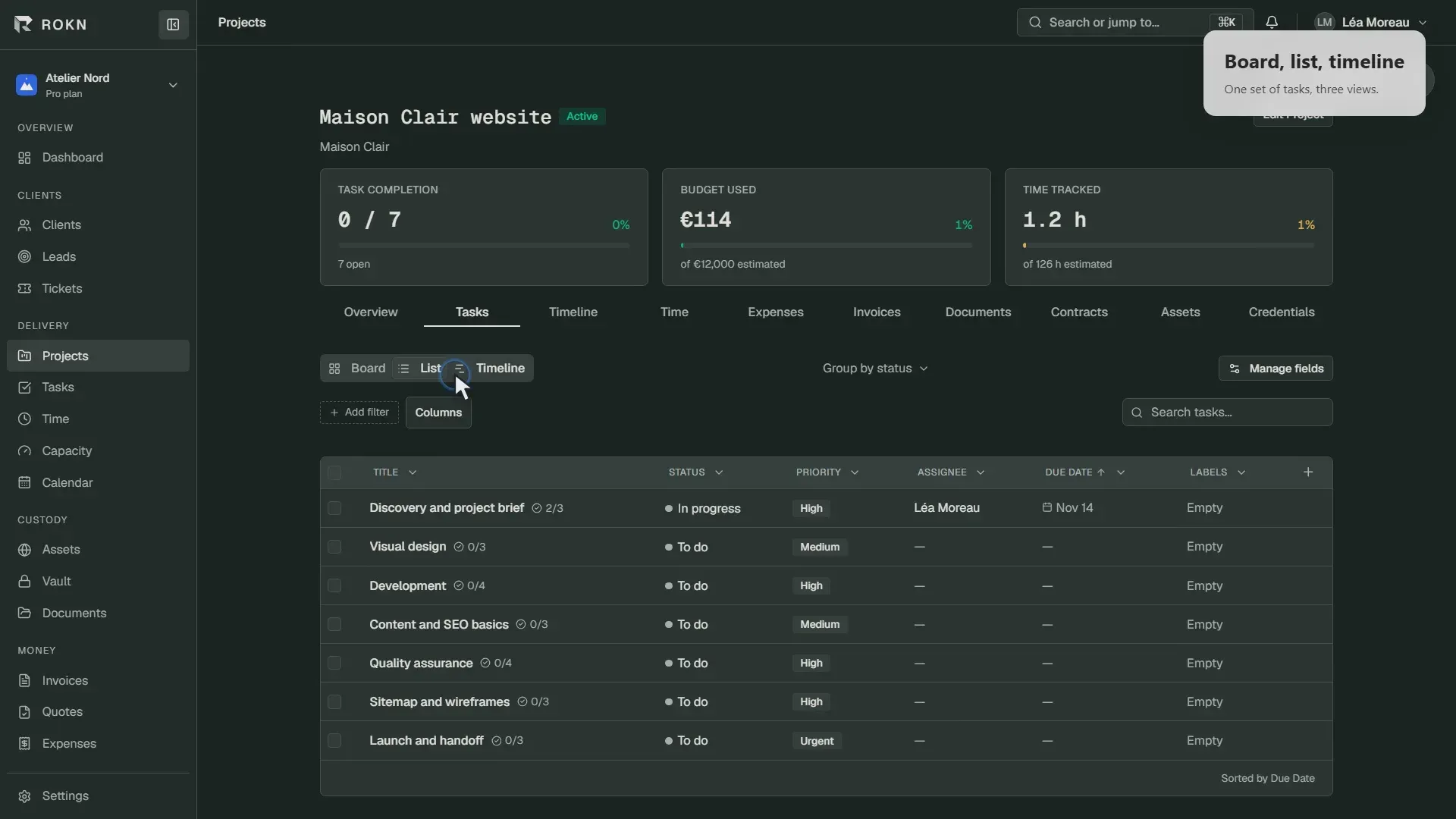
List shows the same tasks as rows, which is quicker to scan. Timeline lays out every task that has dates. Tasks without dates wait underneath until you give them some.
Change several tasks at once
In the List, tick the rows you want, or Select all. A bar shows how many are selected, with Change Status, Assign and Delete. Tasks that cannot take the change are left alone, and Rokn lists which ones were not changed.
Good to know
- Board, List and Timeline are three views of the same tasks.
Next step: track the time you spend on them.
November 10, 2026
Suggest an improvement