

Request a deposit
Bill a client part of an approved quote up front, as a deposit invoice that the final invoice later subtracts.
For a large job you may want part of the price before you start. Rokn makes the deposit invoice from the approved quote, with the same client and tax.
Open an approved quote
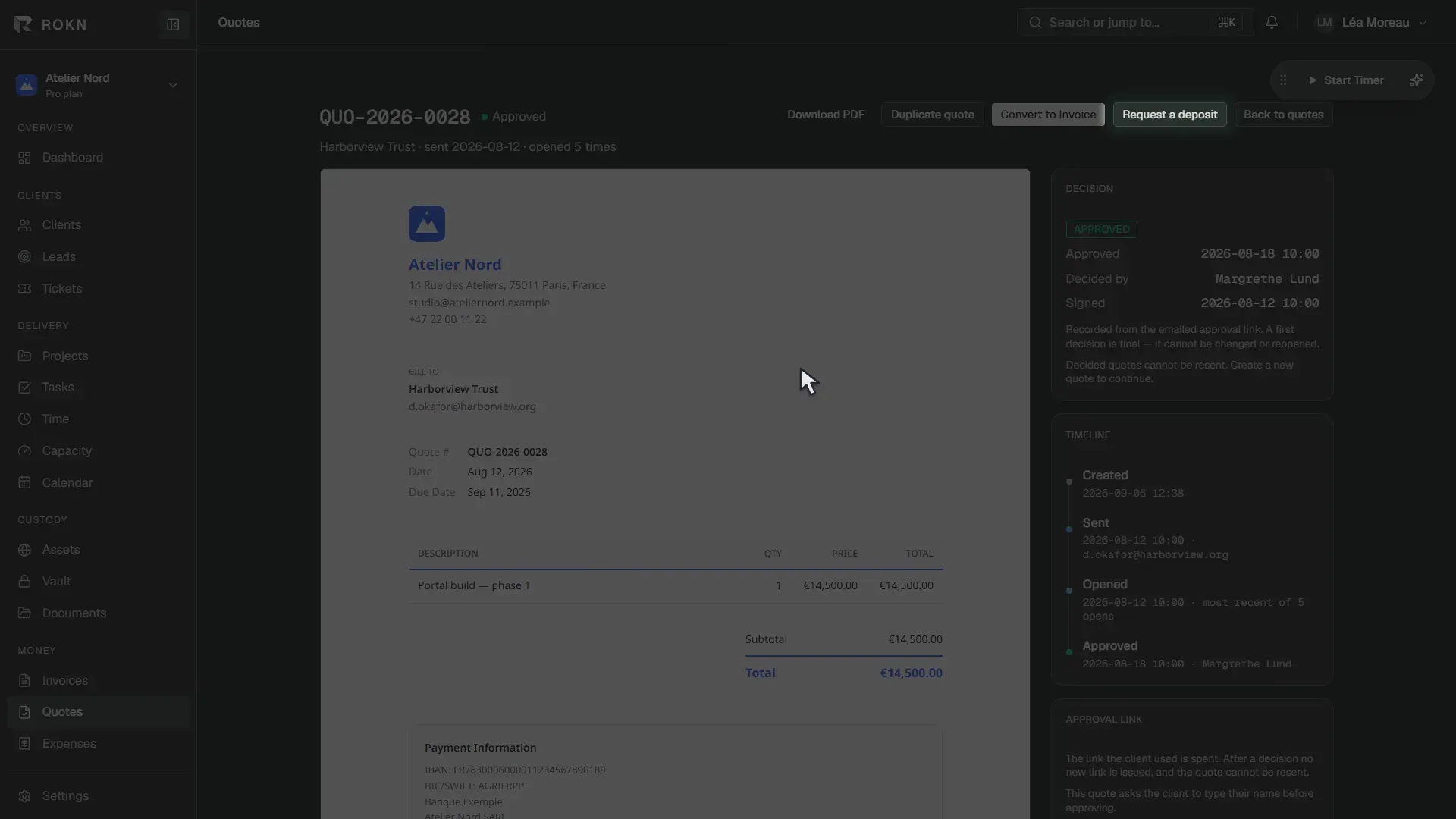
Open a quote your client has approved, for example QUO-2026-0028 for Harborview Trust, and choose Request a deposit at the top of the page.
Choose a percent or a fixed amount
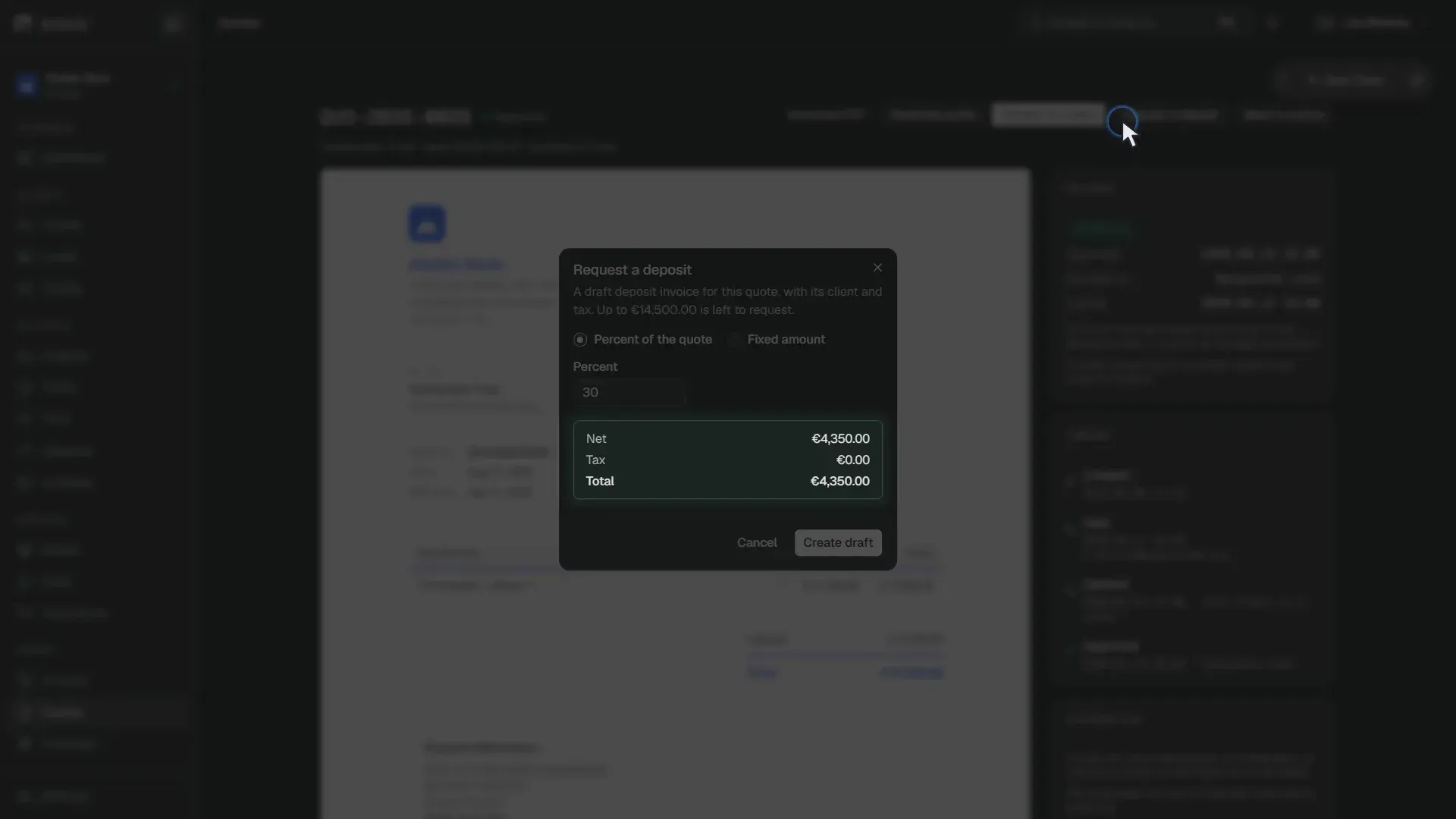
Choose Percent of the quote or Fixed amount. A percent starts at 30. The dialog also says how much of the quote is left to request.
Check the preview
Before anything is created, Rokn shows the deposit's net, tax and total, using the quote's own tax. Thirty percent of €14,500 is €4,350.
Create the draft
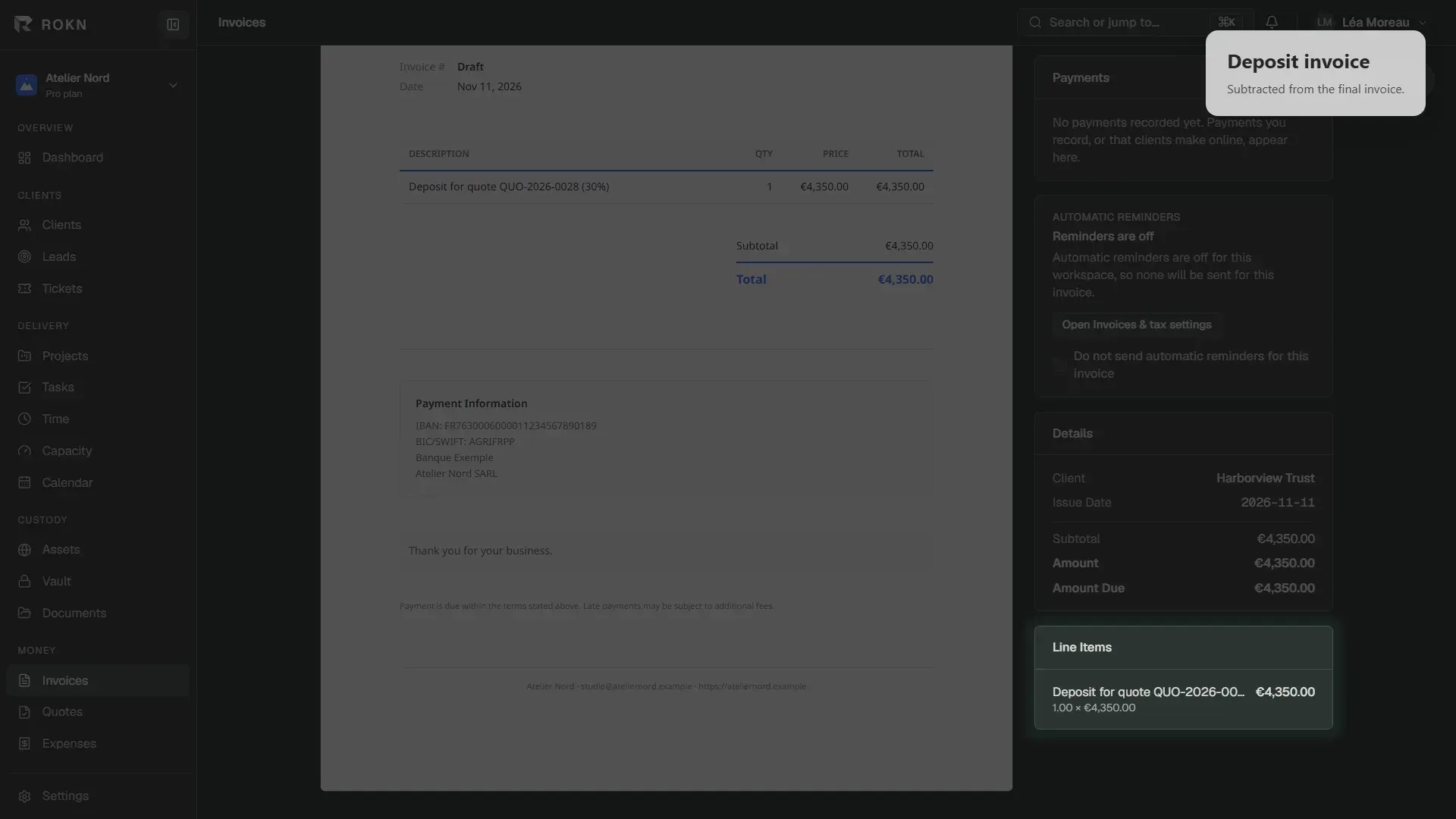
Choose Create draft. You land on a draft deposit invoice for the same client, ready to check and send like any other invoice.
Good to know
- When you later turn the quote into its final invoice, Rokn subtracts the deposits the client was billed.
- You can request more than one deposit, up to what is left on the quote.
November 11, 2026
Suggest an improvement