

Help desk settings
Turn your support email into tickets, set response targets with an SLA policy, and choose when clients get a satisfaction survey.
Settings, Help desk, turns your support email into tickets and sets the targets your team works to. Email-to-ticket and SLA policies need a plan that includes them.
Forward client emails to your support address
Open Settings, then Help desk. The Inbound email address card shows your support address, which looks like support-<your workspace>@in.rokn.dev. Forward client emails to it from Gmail, Microsoft 365 or any other provider. Each email becomes a ticket, or a reply on an existing one.
Add an SLA policy
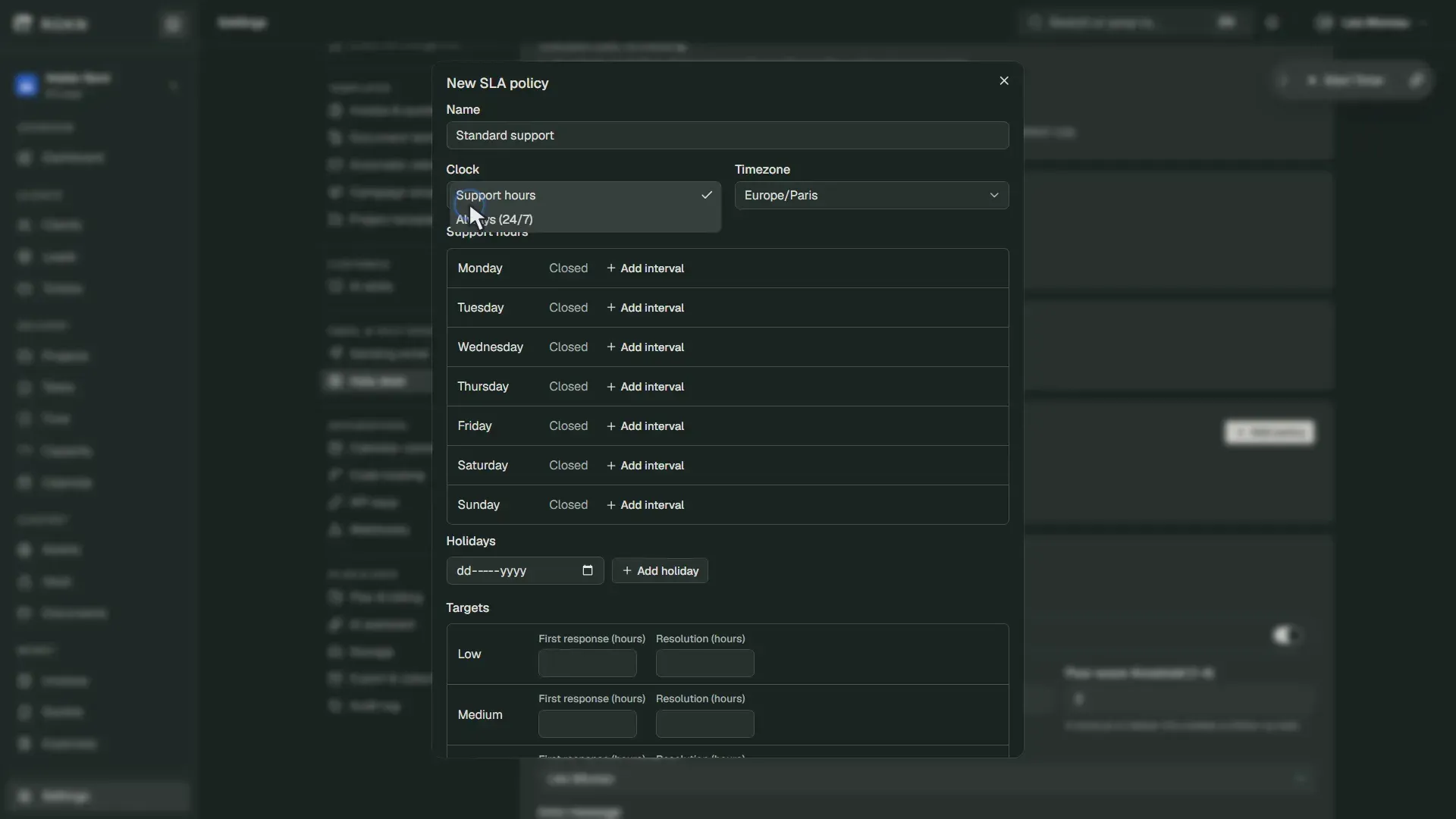
Response targets come from an SLA policy. On the SLA policies card, click Add policy. Name the policy, then choose its Clock: Support hours, or Always (24/7).
Set the targets and save
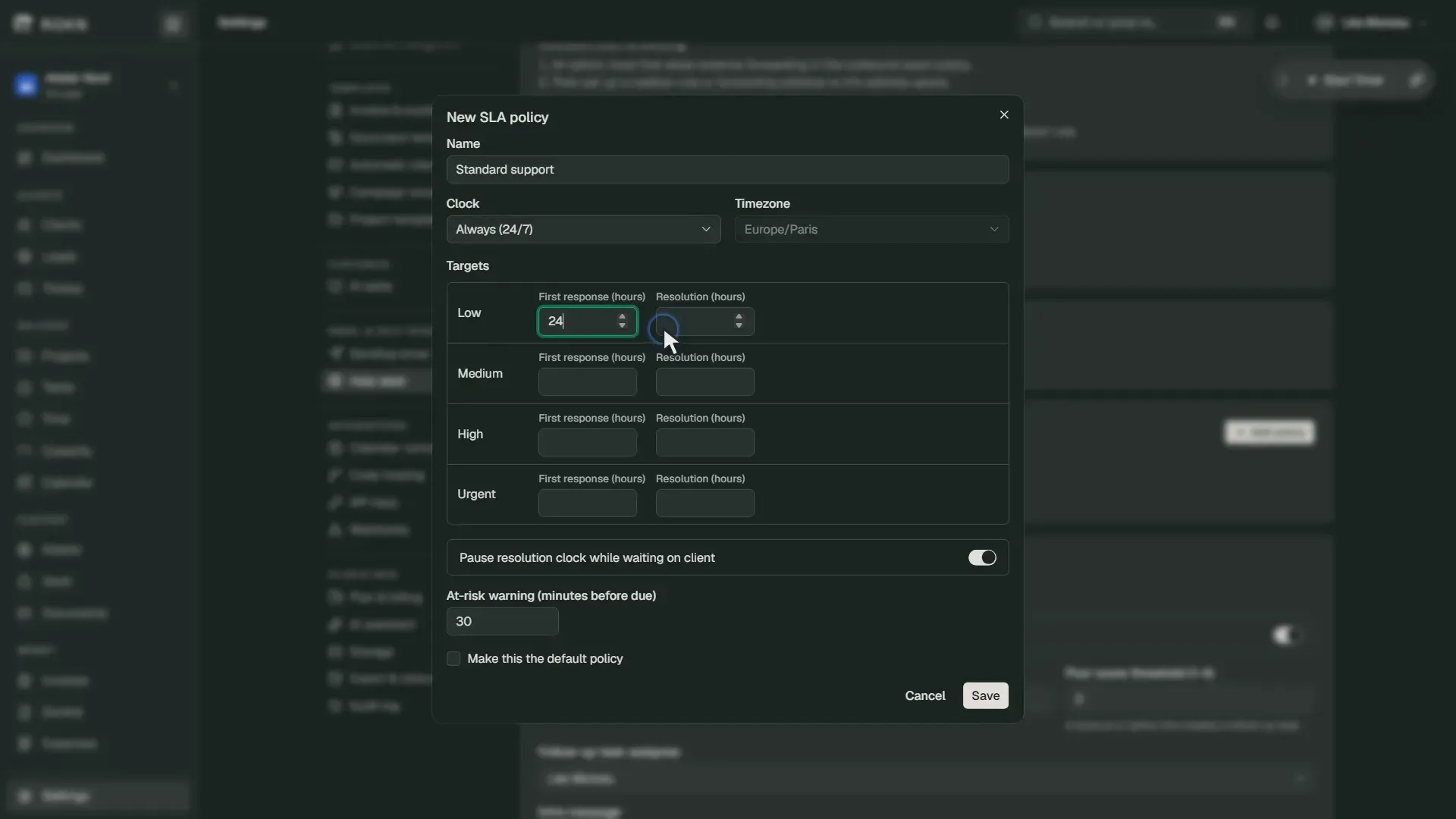
Give each priority a first-response time and a resolution time, in hours. You can also pause the resolution clock while a ticket waits on the client, and set how many minutes before a target you want an at-risk warning. Tick Make this the default policy if you want it applied to new tickets, then click Save.
Choose when to ask for feedback
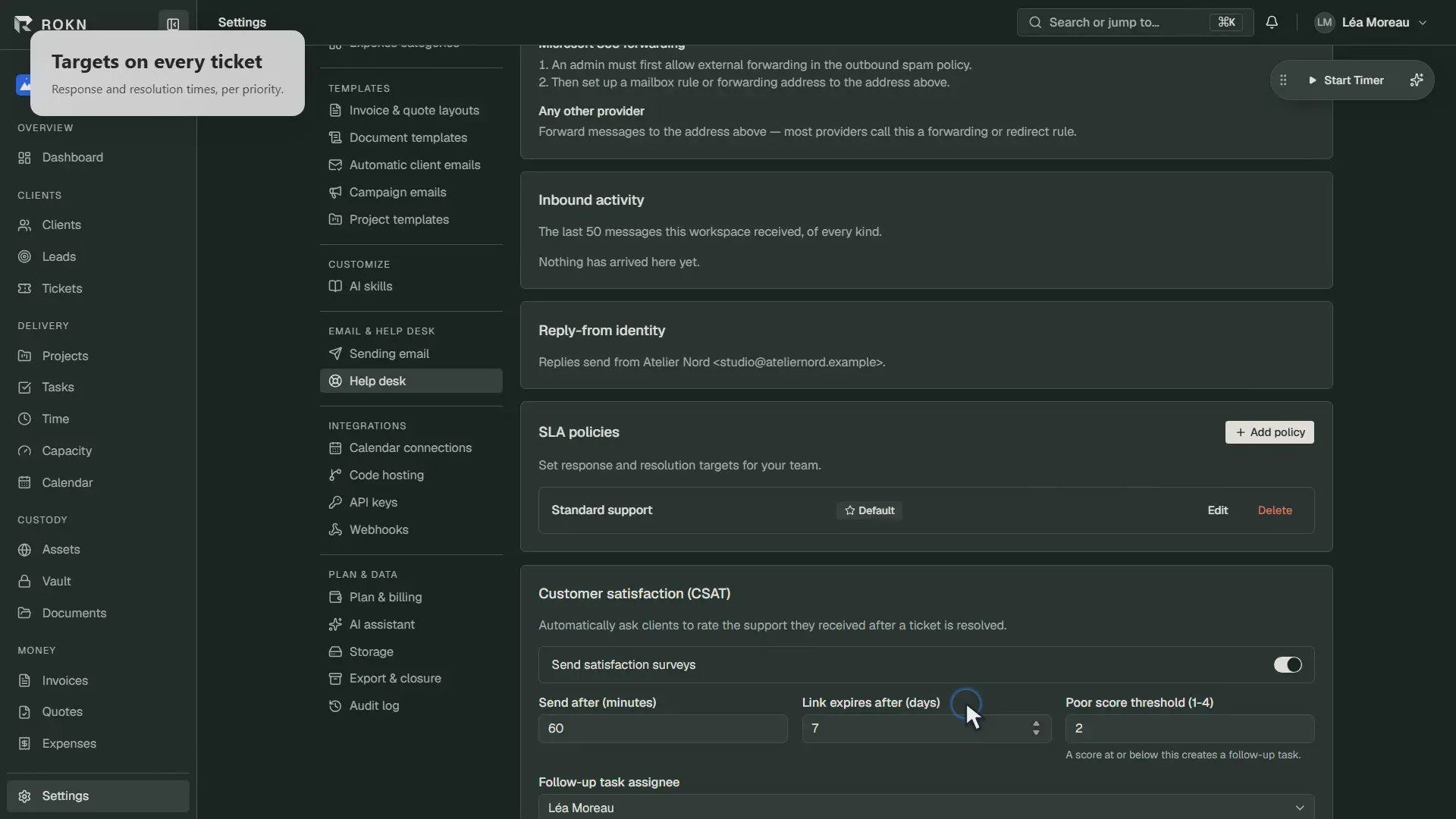
Below, the Customer satisfaction (CSAT) card controls the survey clients receive after a ticket is resolved: turn on Send satisfaction surveys, then set when it is sent and how long its link stays valid. Set a Poor score threshold, and choose who gets the follow-up task when a client rates you at or below it. The full walk-through is in Client satisfaction surveys.
Good to know
- Tickets show how much time is left, and warn your team before a target is missed.
- A score at or below the threshold creates a follow-up task.
Next step: work the tickets in the help desk.
November 10, 2026
Suggest an improvement