

AI assistant settings
Set up the AI assistant for your whole team: write notes it always knows, check your credits and see what each person spent.
Settings, AI assistant is where you set up the assistant for your whole team. Use it to give the assistant standing instructions and to keep an eye on what it costs.
Open the AI assistant settings
Open Settings, then AI assistant. The first card, Default model, shows the model new conversations start on. Anyone can pick another model when they start a conversation.
The card also explains that a conversation is sent to the provider it uses, and that Rokn keeps it until the person who had it deletes it.
Write notes for the assistant
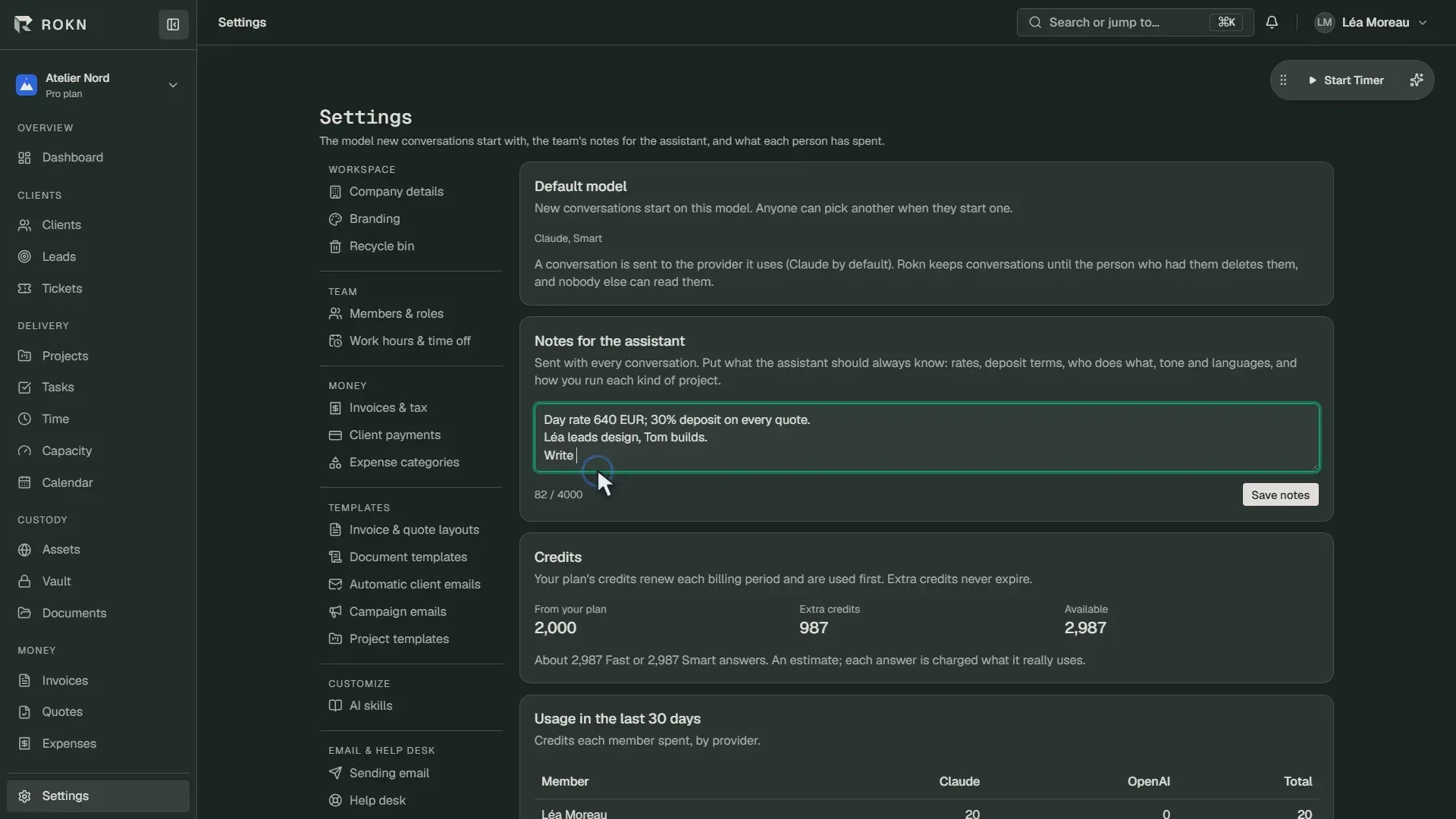
In Notes for the assistant, write what the assistant should always know: your rates, your deposit terms, who does what, and the language to write in. The video uses a day rate, a deposit on every quote, who leads design and who builds, and a note to write to French clients in French.
These notes are sent with every conversation. Click Save notes when you are done.
Check your credits
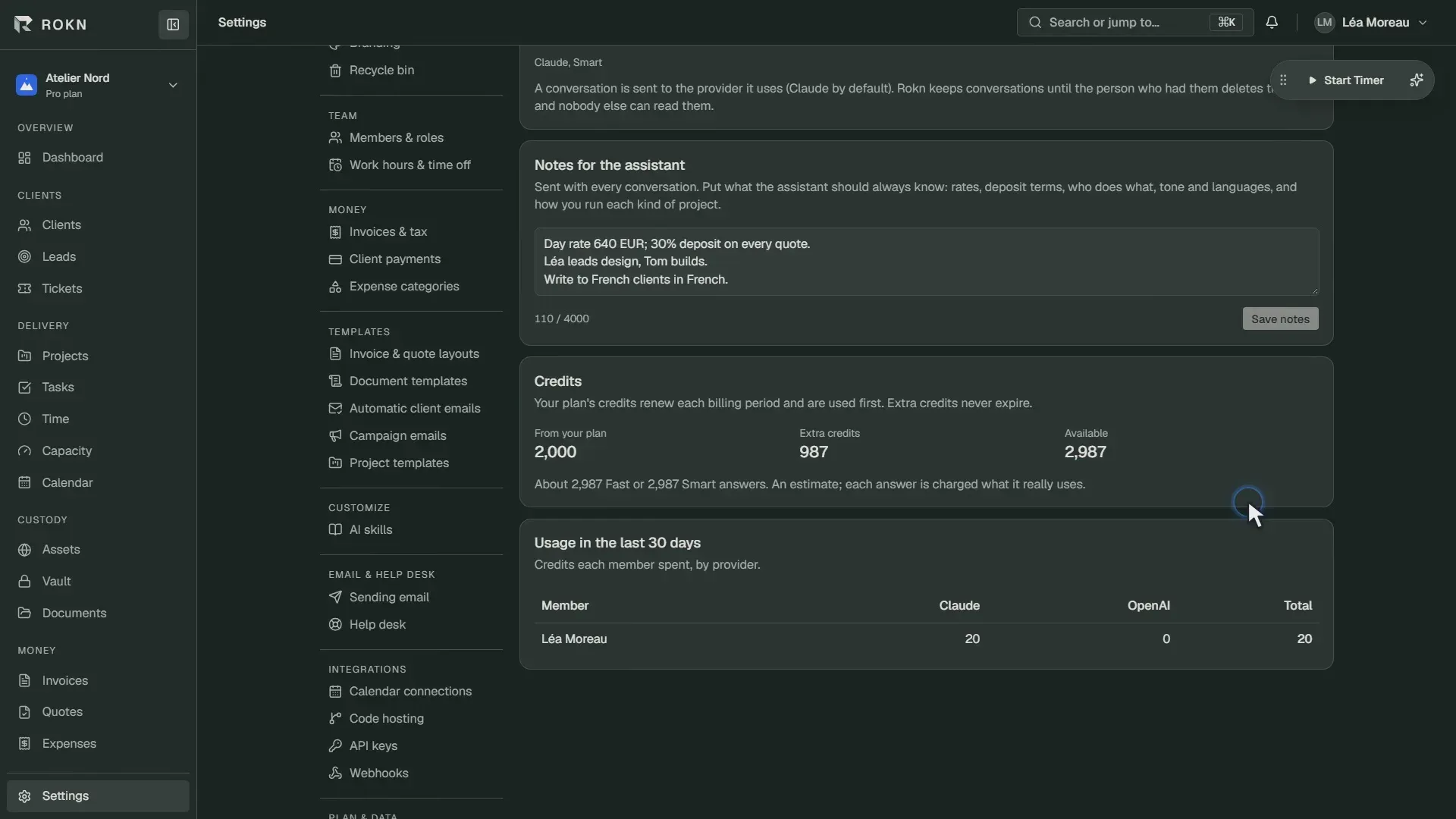
The Credits card shows what pays for the assistant's answers. Your plan's credits renew each billing period and are used first. Extra credits never expire.
It also shows roughly how many answers you have left. This is an estimate, because each answer is charged what it really uses.
See what each person spent
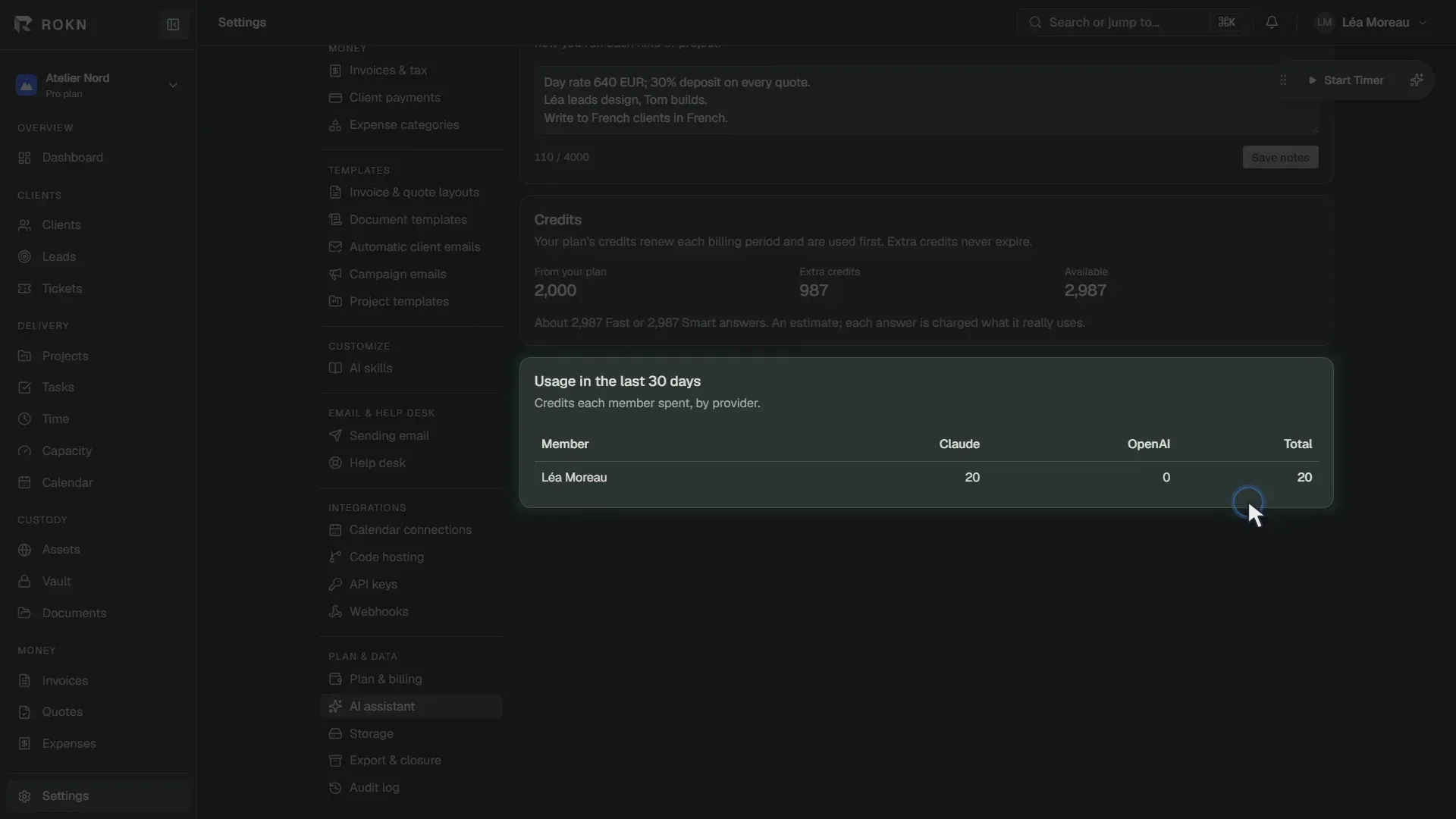
The last card, Usage in the last 30 days, lists the credits each member spent, split by provider, with a total for each person.
Keep in mind who can see conversations
Conversations stay private to the person who had them, until they delete them. The notes you saved apply to everyone's conversations, so keep them to things the whole team should share.
Good to know
- The notes box accepts up to 4000 characters.
- Notes go with every conversation, so update them when your rates or terms change.
November 10, 2026
Suggest an improvement