

Credit notes and refunds
Correct a sent invoice by issuing a credit note for all or part of it, send it to the client, and record the money you pay back.
Once an invoice is sent, it can't be edited. When you need to correct it, you issue a credit note. Here, Vale Marine's discovery phase came in five hundred euros under budget.
Issue the credit note
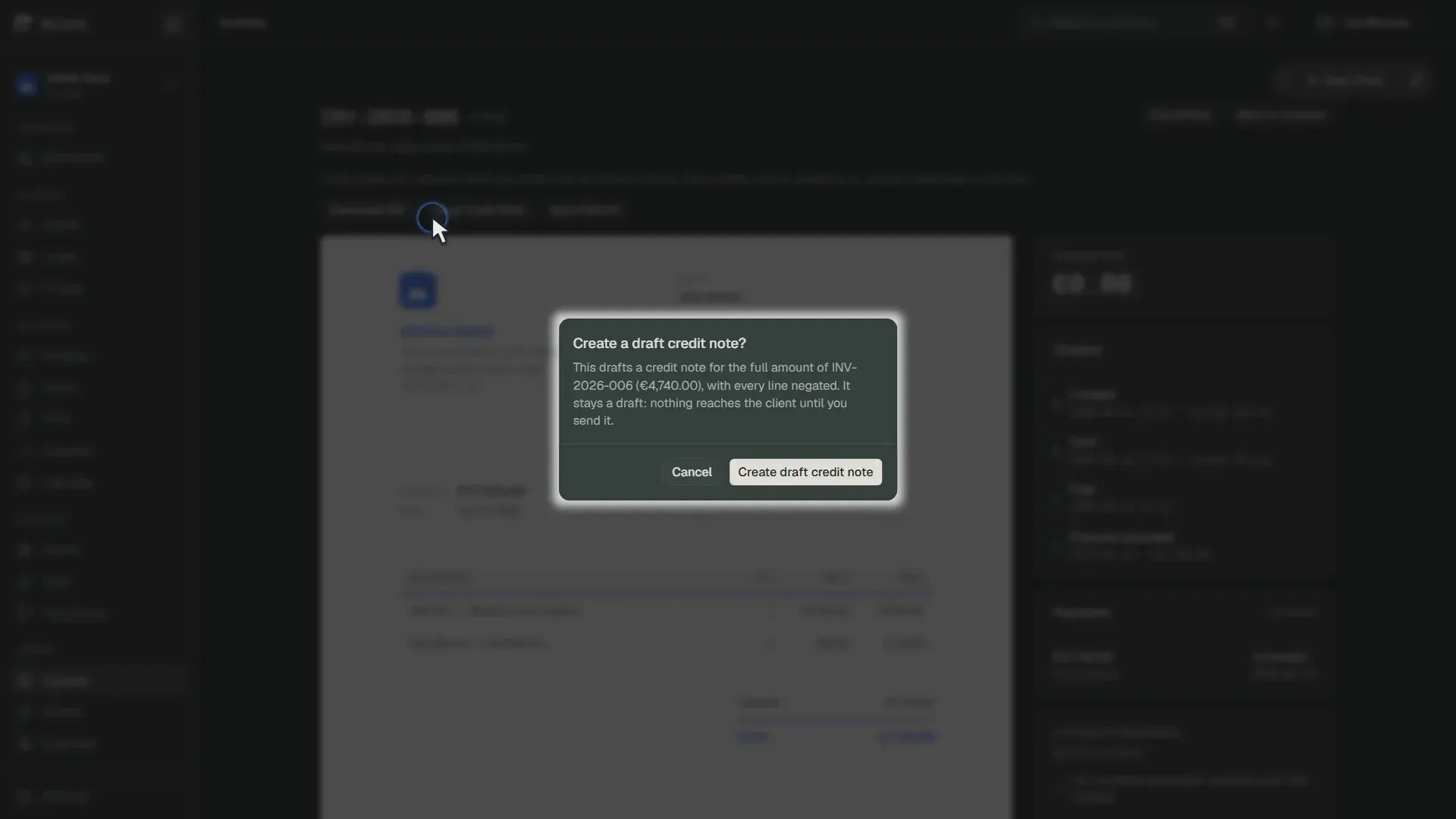
Open the sent invoice and click Issue Credit Note. Rokn offers to draft a credit note for the whole invoice.
Confirm with Create draft credit note. It stays a draft, so nothing reaches the client yet.
Credit only part of the invoice
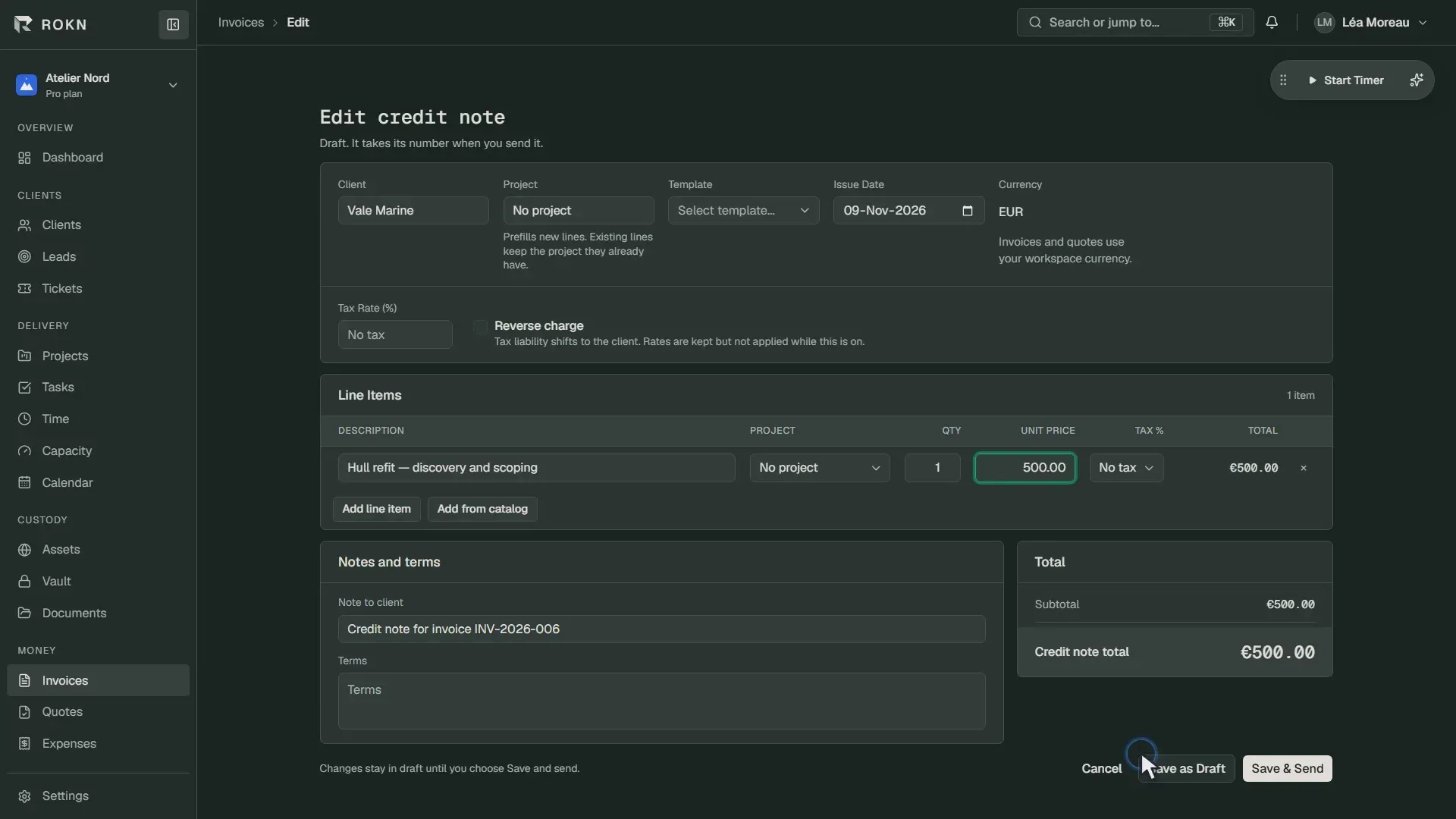
To credit only part of it, edit the draft. Remove the lines you are not crediting, and enter the amount you are.
The credit note total shows what you are giving back, here 500 euros. Click Save as Draft.
Send the credit note
Choose Save and Send. The credit note takes its number and goes to the client, just like an invoice.
Record the money you pay back
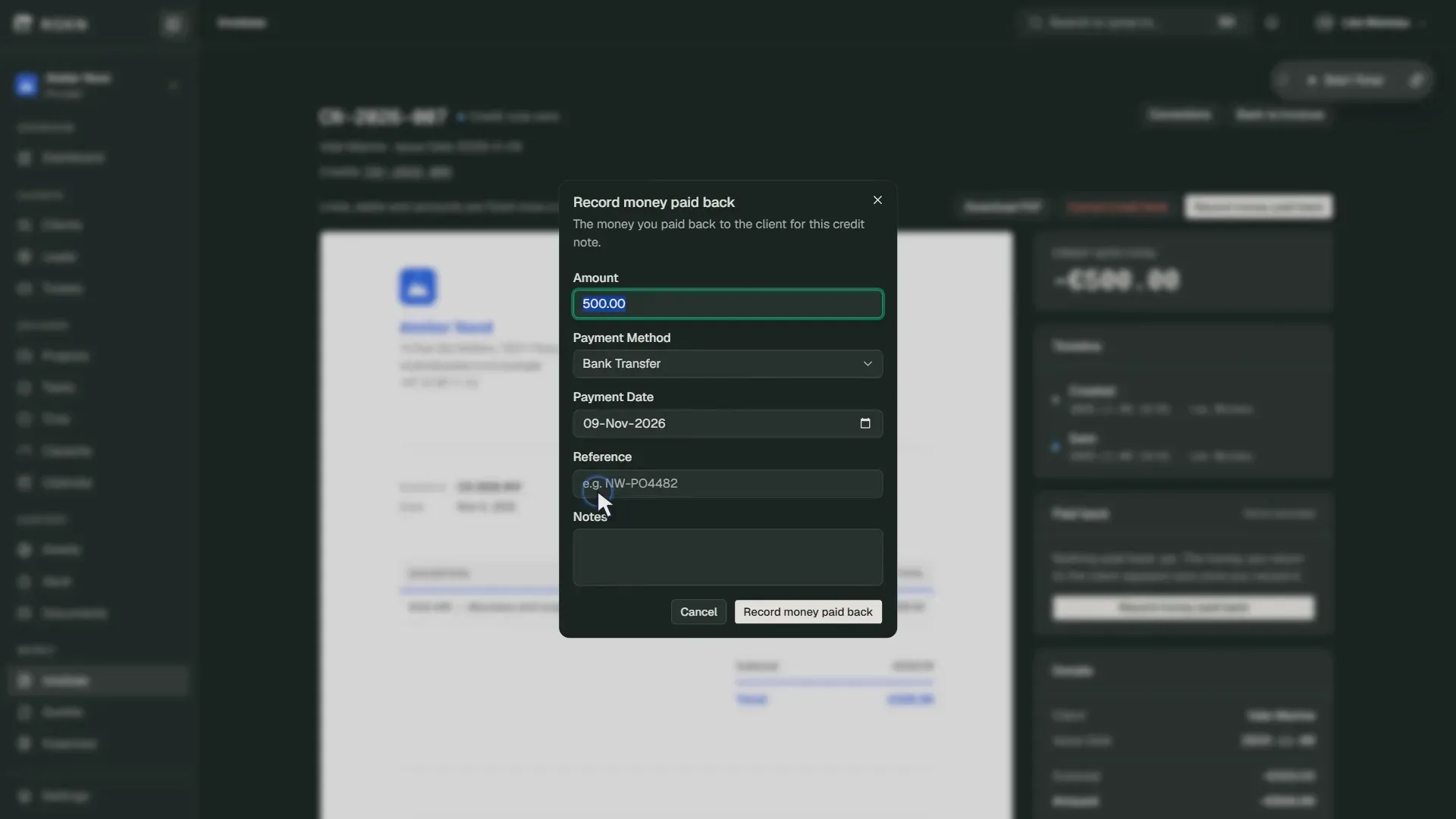
When you pay the money back, click Record money paid back on the credit note. Enter the amount, the payment method and the date, and add a reference.
The credit note is then settled.
See the credit on the original invoice
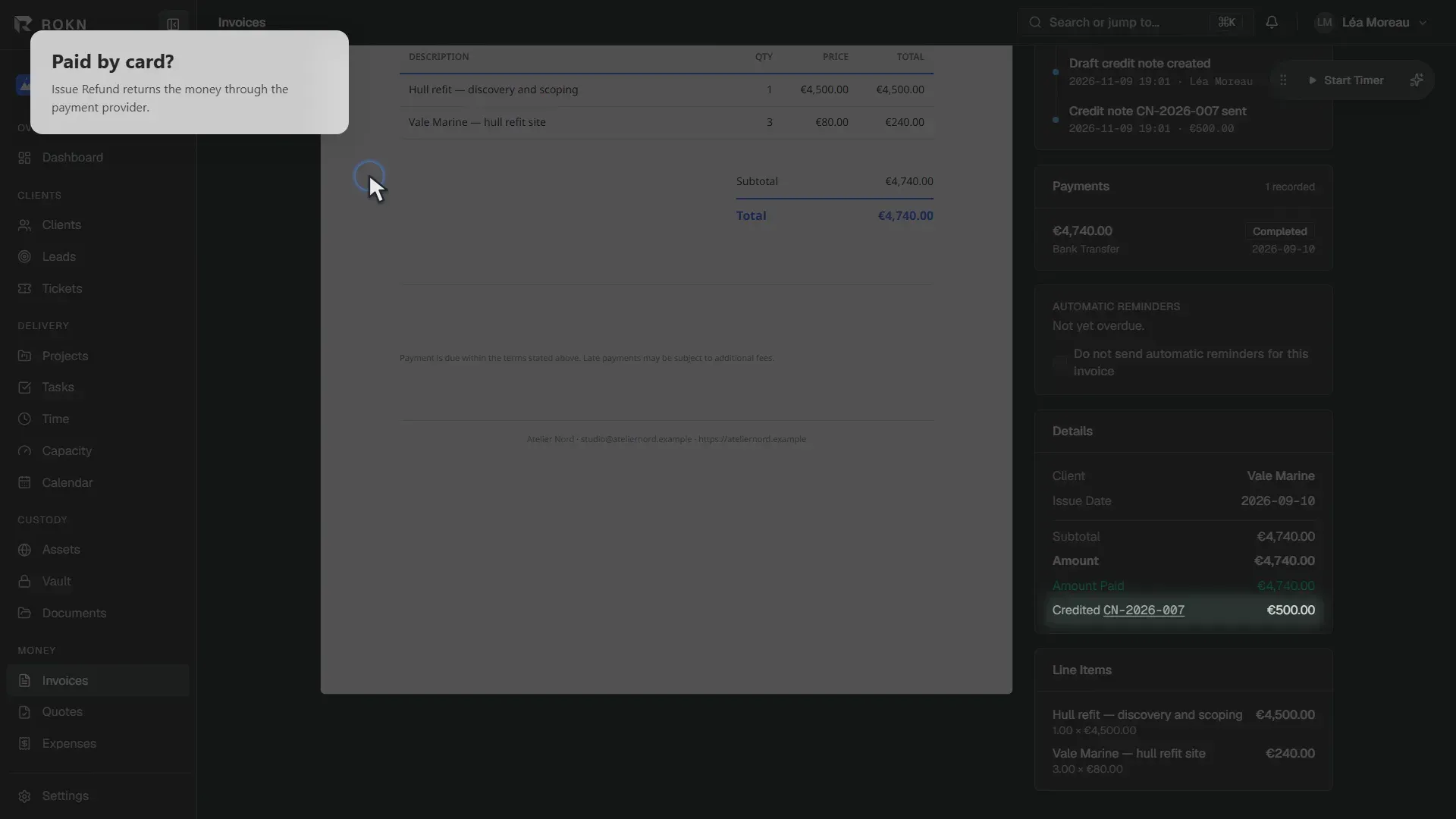
Go back to the original invoice. It now shows the credit, linked to its credit note.
Good to know
- If the invoice was paid by card, use Issue Refund instead. It returns the money through the payment provider.
November 10, 2026
Suggest an improvement