

Calendar and booking links
Add meetings to your calendar, link them to a client, and let clients book a time with you through a public booking link.
The calendar shows your meetings and everything else that is coming up. Booking links let clients choose a free time themselves, without emails back and forth. The calendar and booking links need a plan that includes the calendar.
Open the calendar
The calendar already shows what is coming up: invoices due, renewals, tasks and milestones, next to your meetings.
Add a meeting
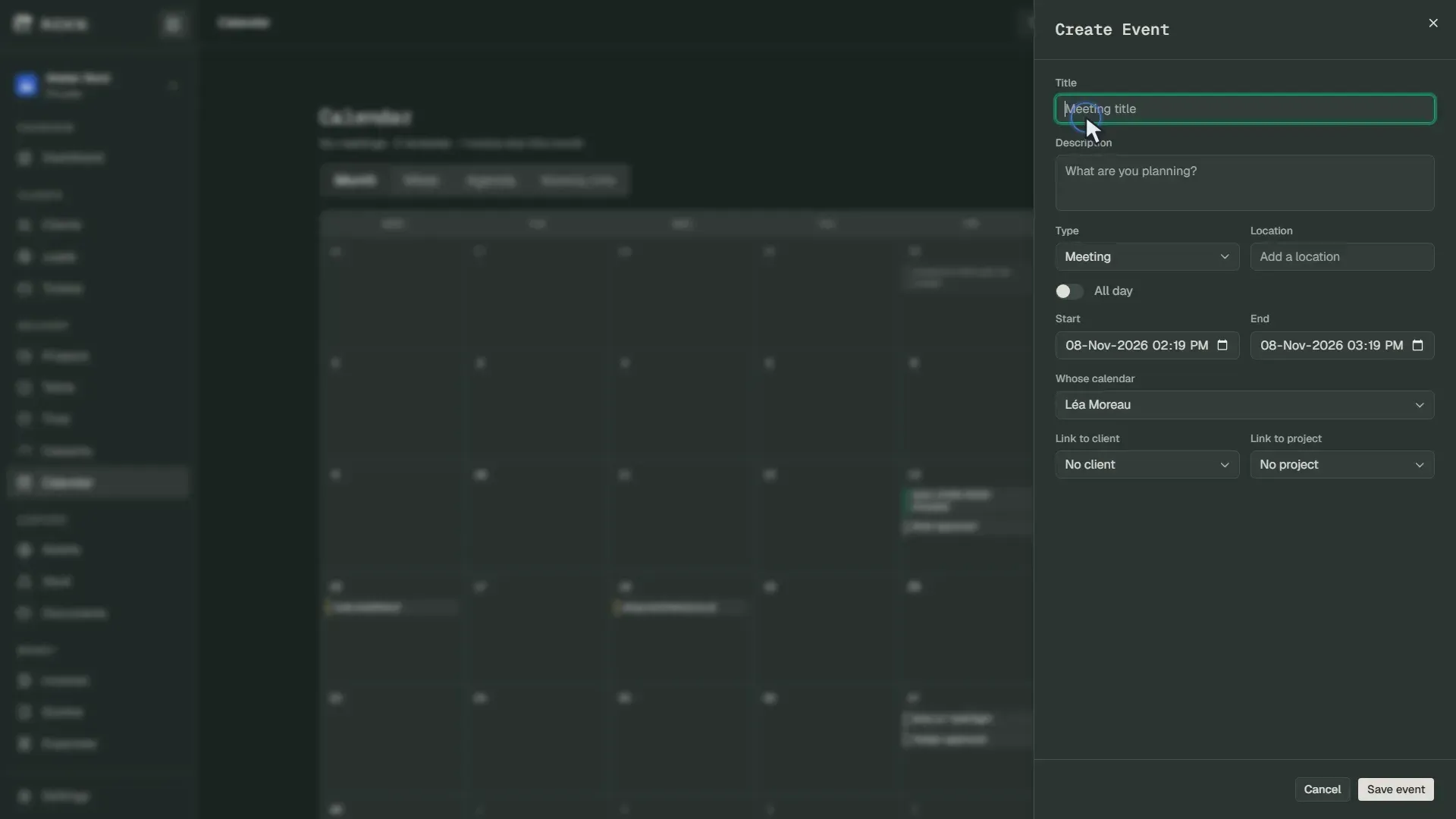
Click New Event. Give the meeting a title and set its start and end time. Use Link to client to attach it to the client it is about, for example Atelier Lumen.
Save the event
Click Save event. The meeting appears on its day in the calendar right away.
Share a booking link
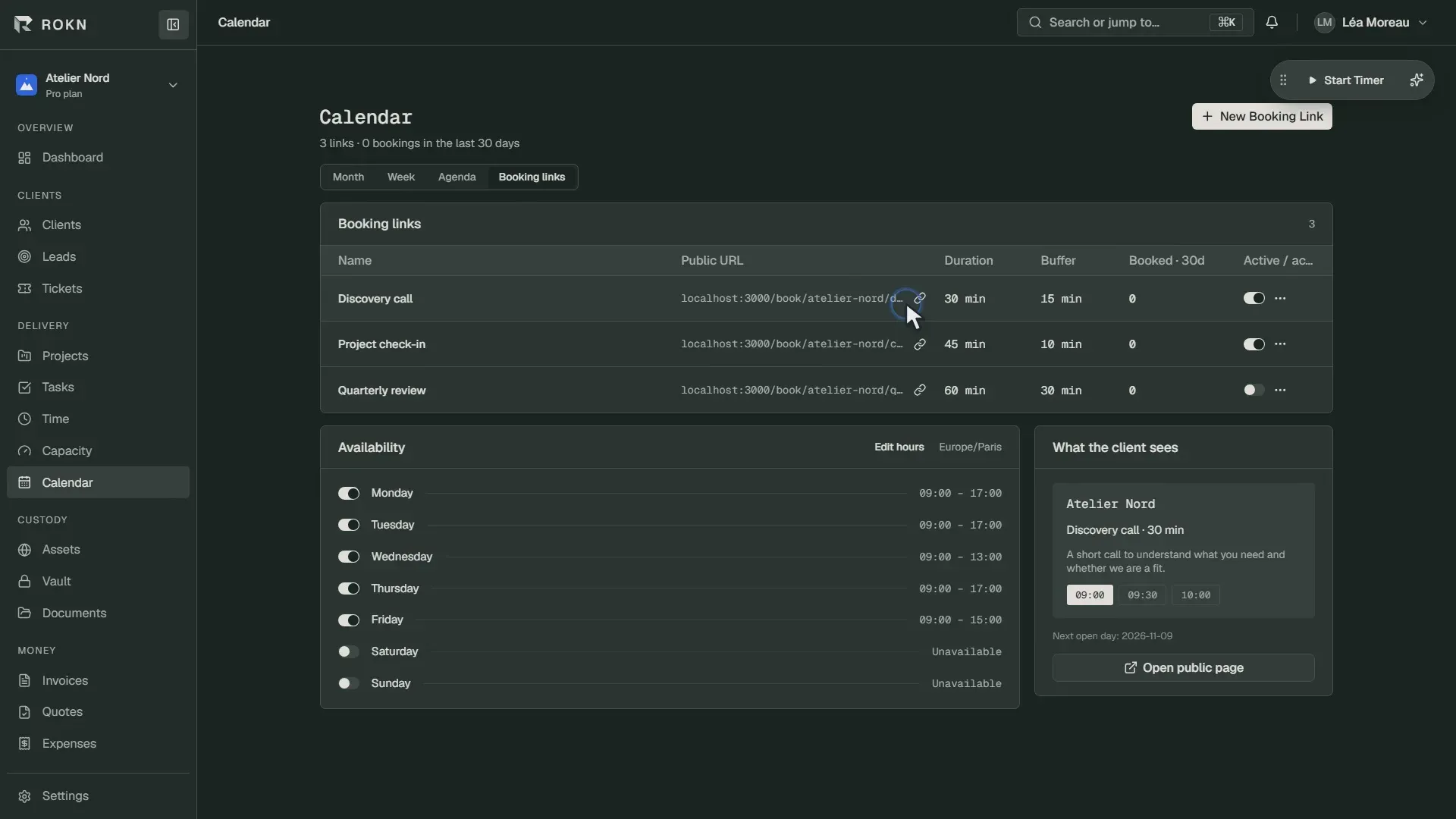
Open Booking Links. Each link has its own length, a buffer between meetings, and a public link you can copy and share. Under the list you can see your available hours and a preview of what the client will see.
See what your client sees
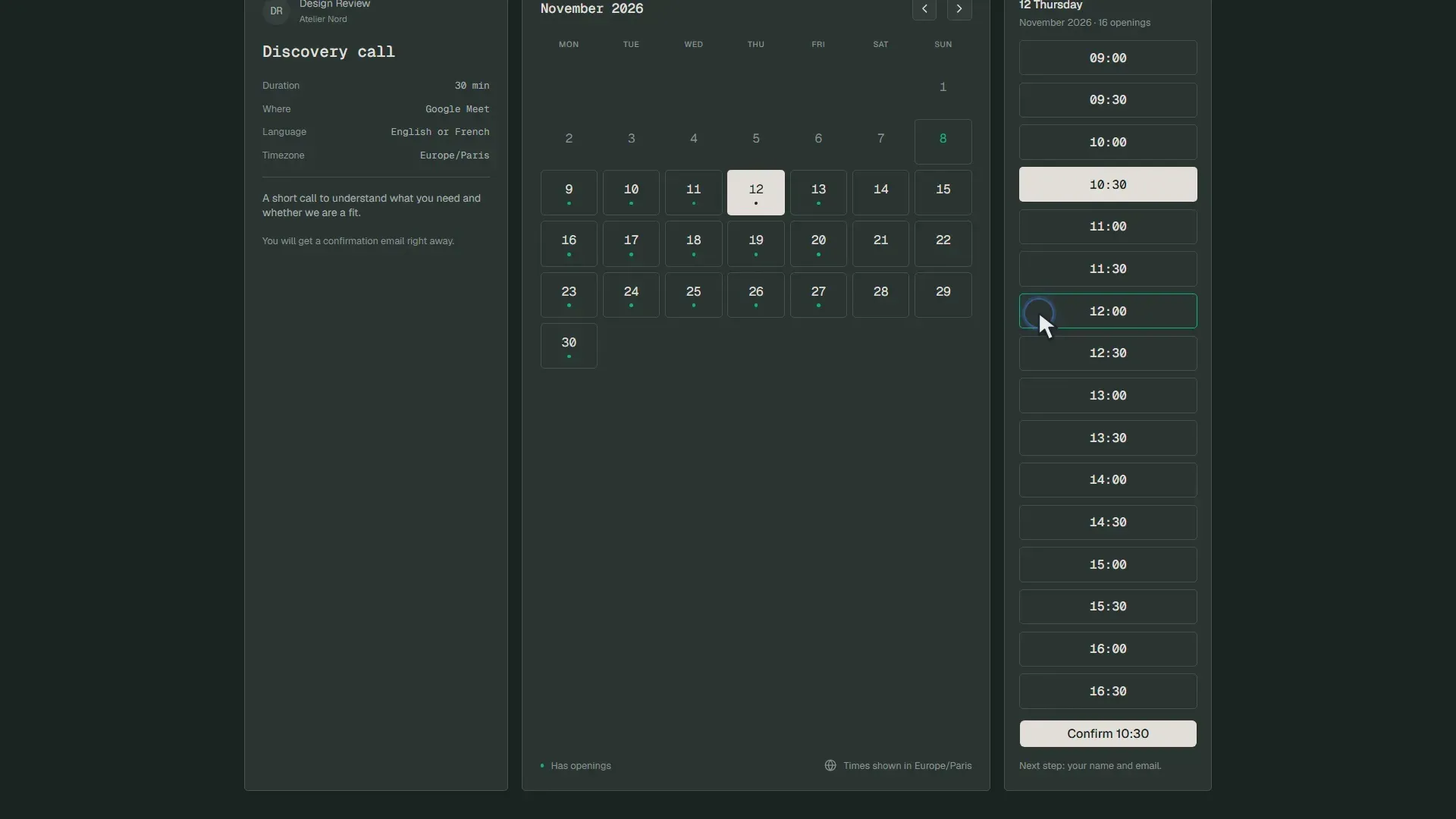
The client opens the public link and sees the days with openings, shown in your timezone. They pick a day and a time, then confirm.
The client books
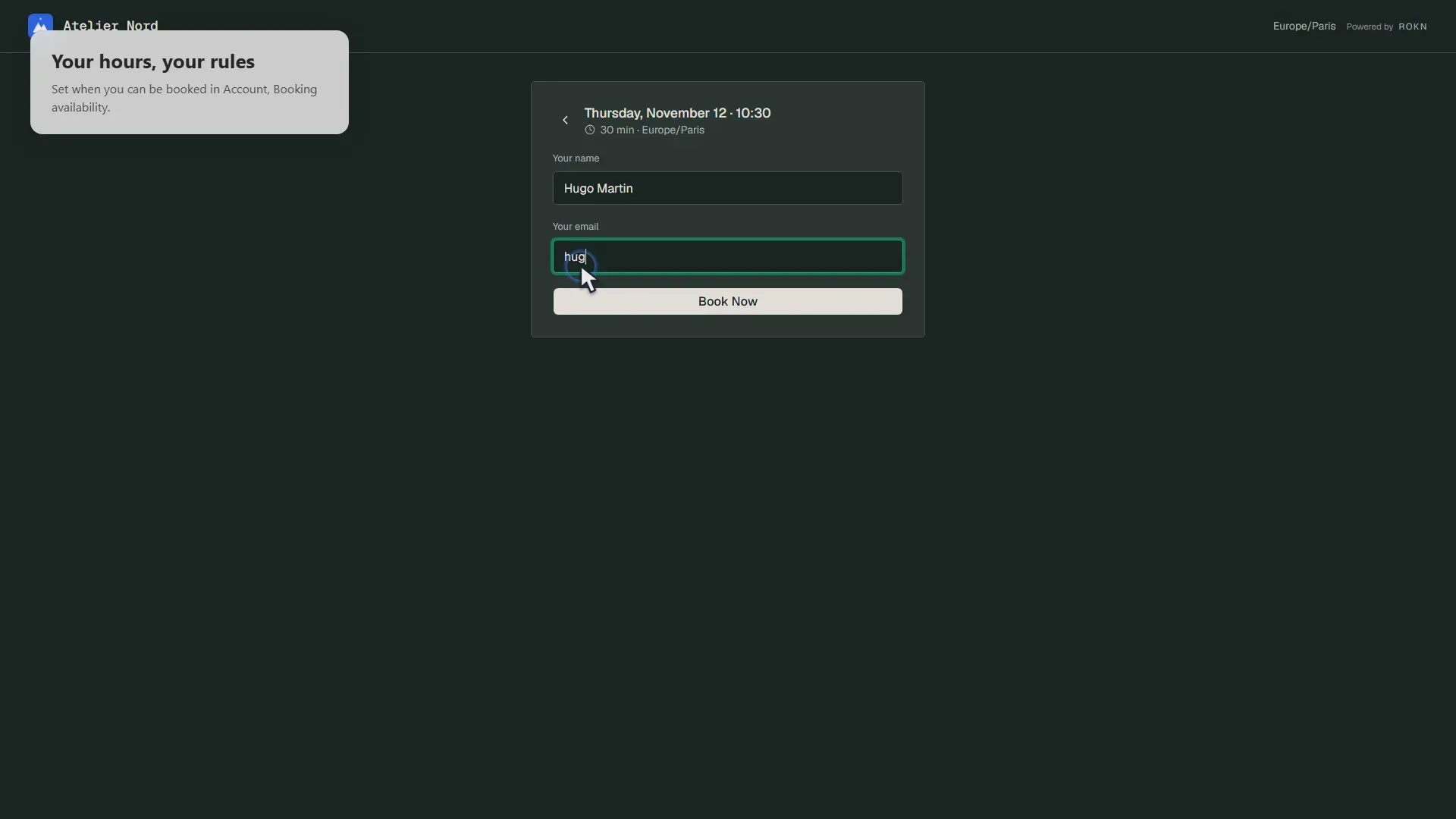
The client adds their name and email, then clicks Book Now. You both get a confirmation, and the meeting goes straight onto your calendar. Right after booking, the confirmation screen offers a Cancel button; if the client uses it, that time opens again.
Good to know
- Booking links follow your working hours, so clients only see times you are available.
Next step: when the meeting goes well, track the lead or send a quote.
November 10, 2026
Suggest an improvement