

Export and closing
As the workspace owner, transfer ownership, export all your data, or close the workspace, with your password confirming each action.
Export and closure is for the workspace owner only. Use it to hand the workspace over, to take a full copy of your data, or to close the workspace.
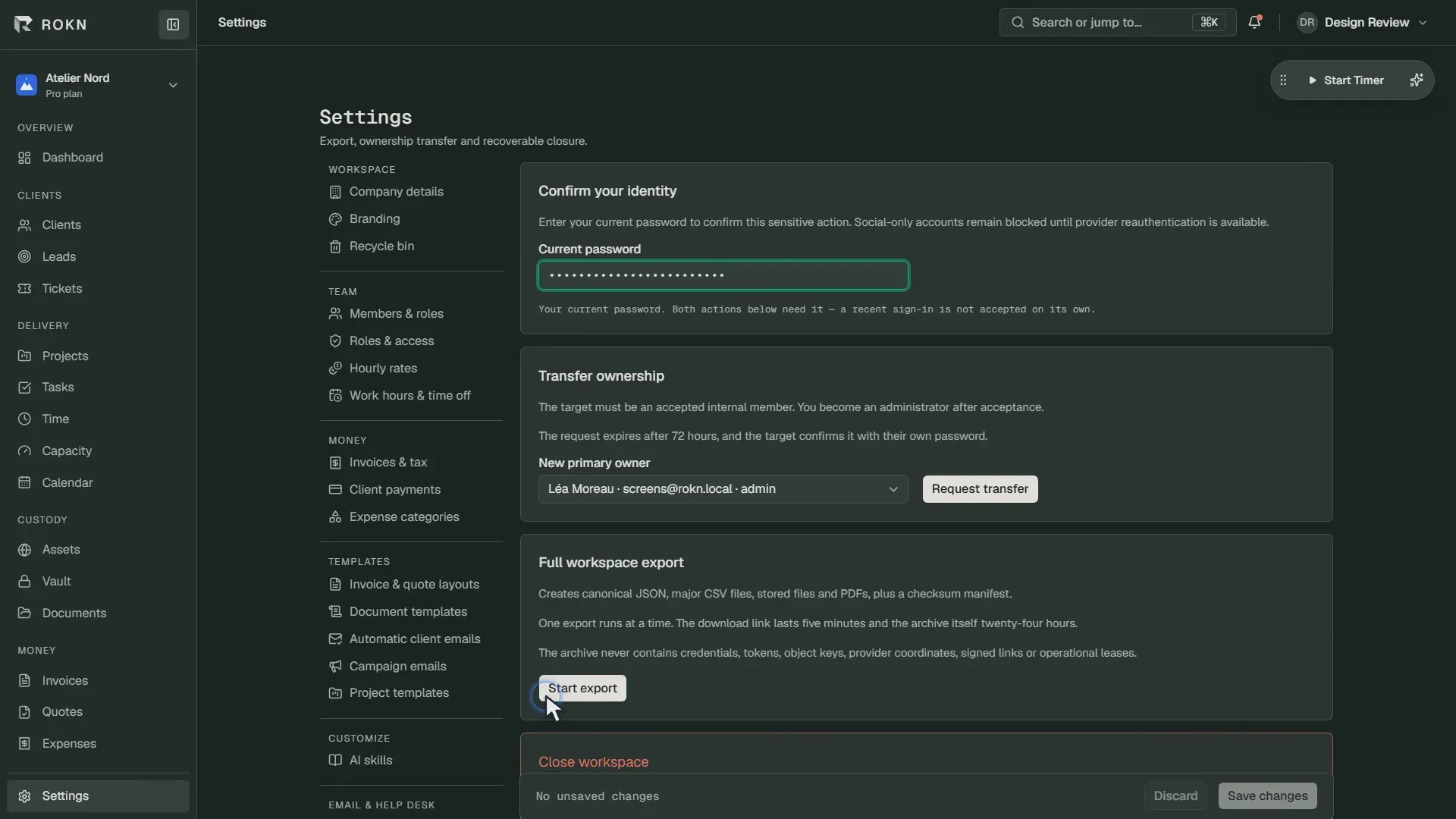
Confirm your identity
In Settings, open Export & closure. Each action here asks for your password first, so enter your current password at the top of the page.
Transfer ownership
Handing over the workspace? Choose a team member under Transfer ownership and request the transfer. They confirm it with their own password.
Export everything
You can export everything at any time: your records as spreadsheets and data, your files and your PDFs. Click Start export. Rokn prepares the archive and gives you a download link.
Close the workspace
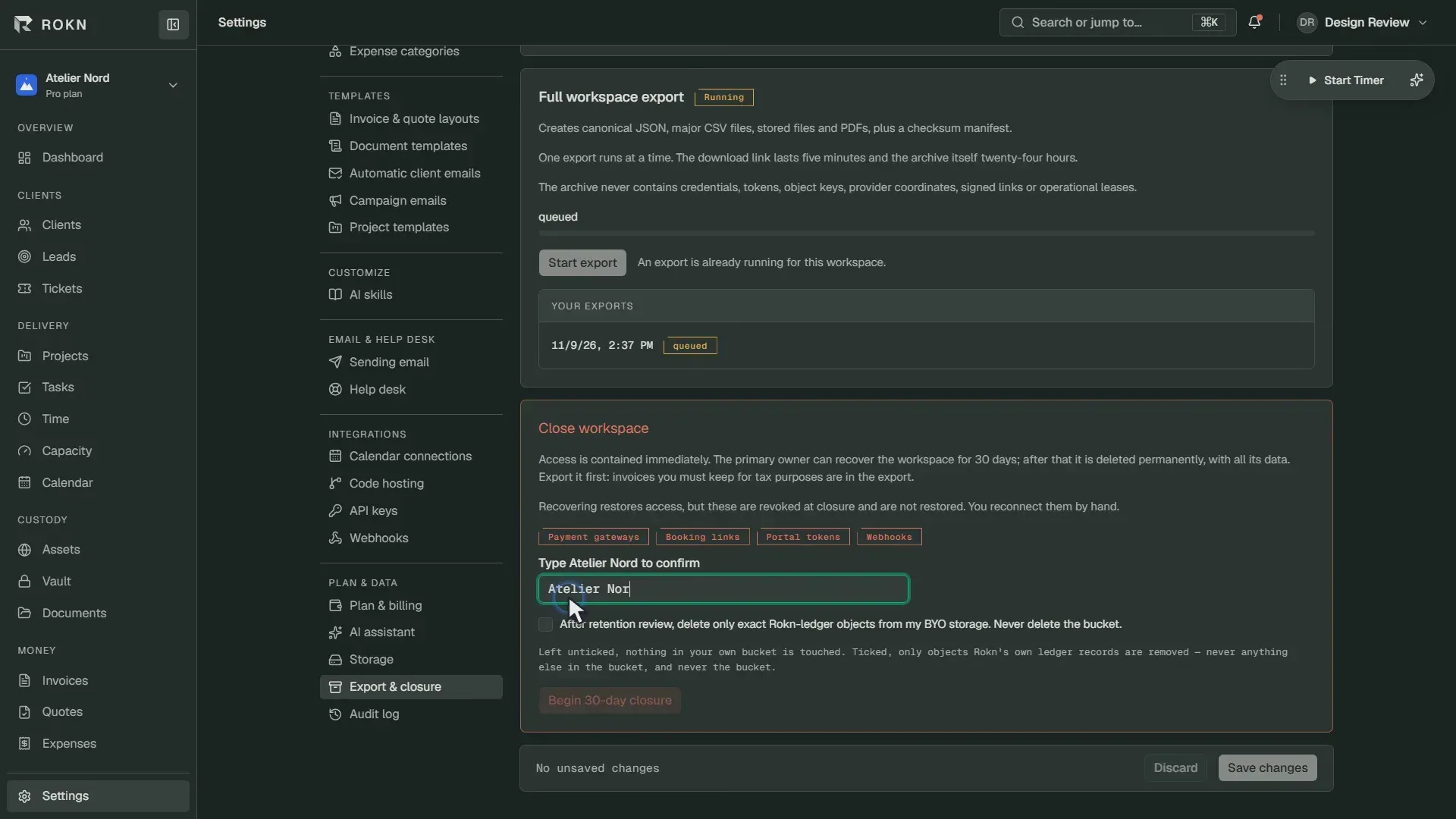
To close the workspace, type its name to confirm, then begin the closure.
Know what closing does
Closing locks access straight away. For thirty days you can still recover it. After that, everything is deleted for good, so export first.
Good to know
- Only the workspace owner sees this page.
- Keep your invoices: tax rules may require you to keep them, so include them in your export.
November 10, 2026
Suggest an improvement