

Expense categories
Add your own expense categories with a colour, merge two that mean the same thing, and keep the list tidy.
Expense categories decide how your expenses and supplier bills are grouped in reports. Keep them few and clear so your reports are easy to read.
See your categories
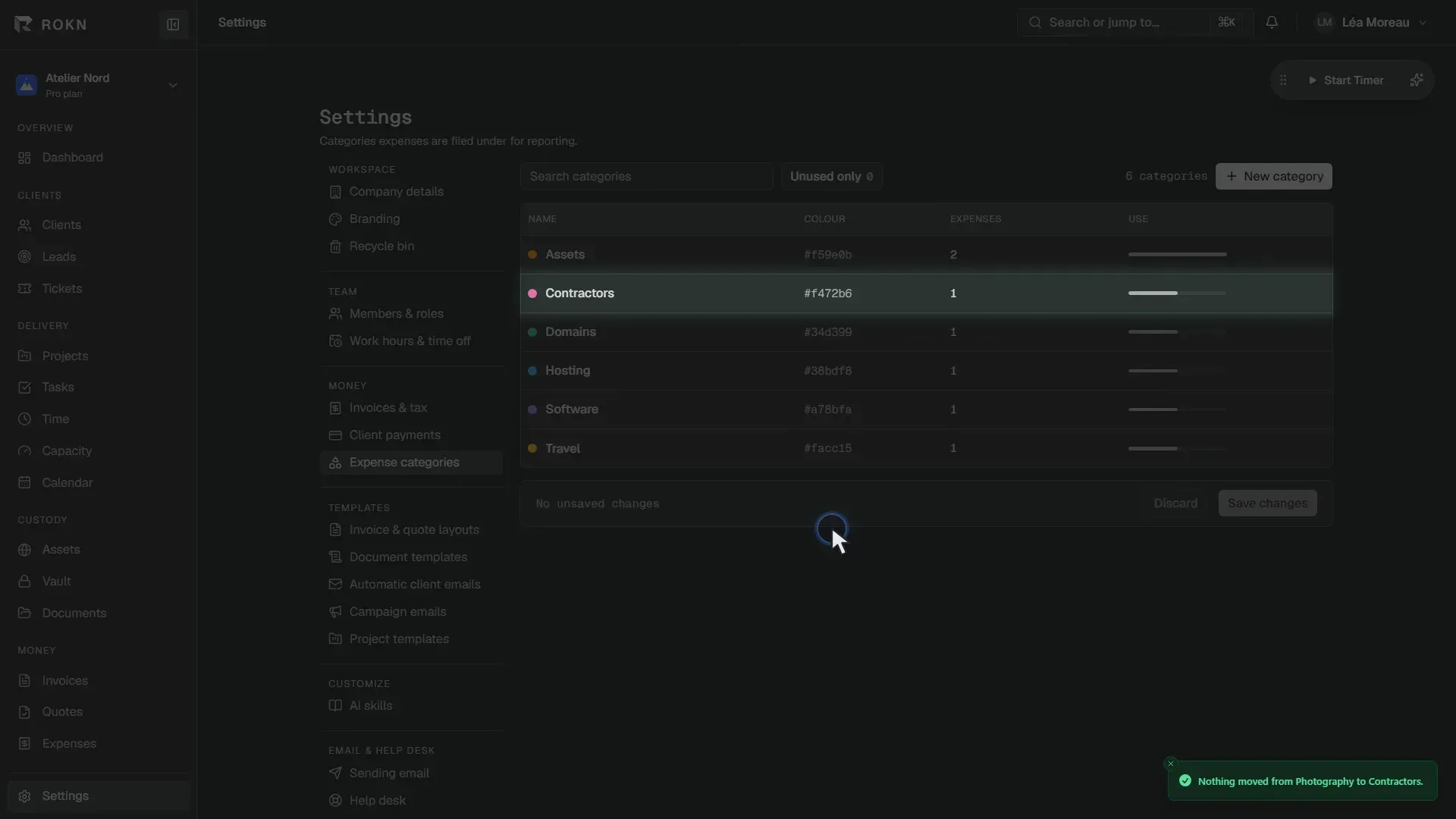
In Settings, open Expense categories. Each category shows how many expenses use it.
Add a category
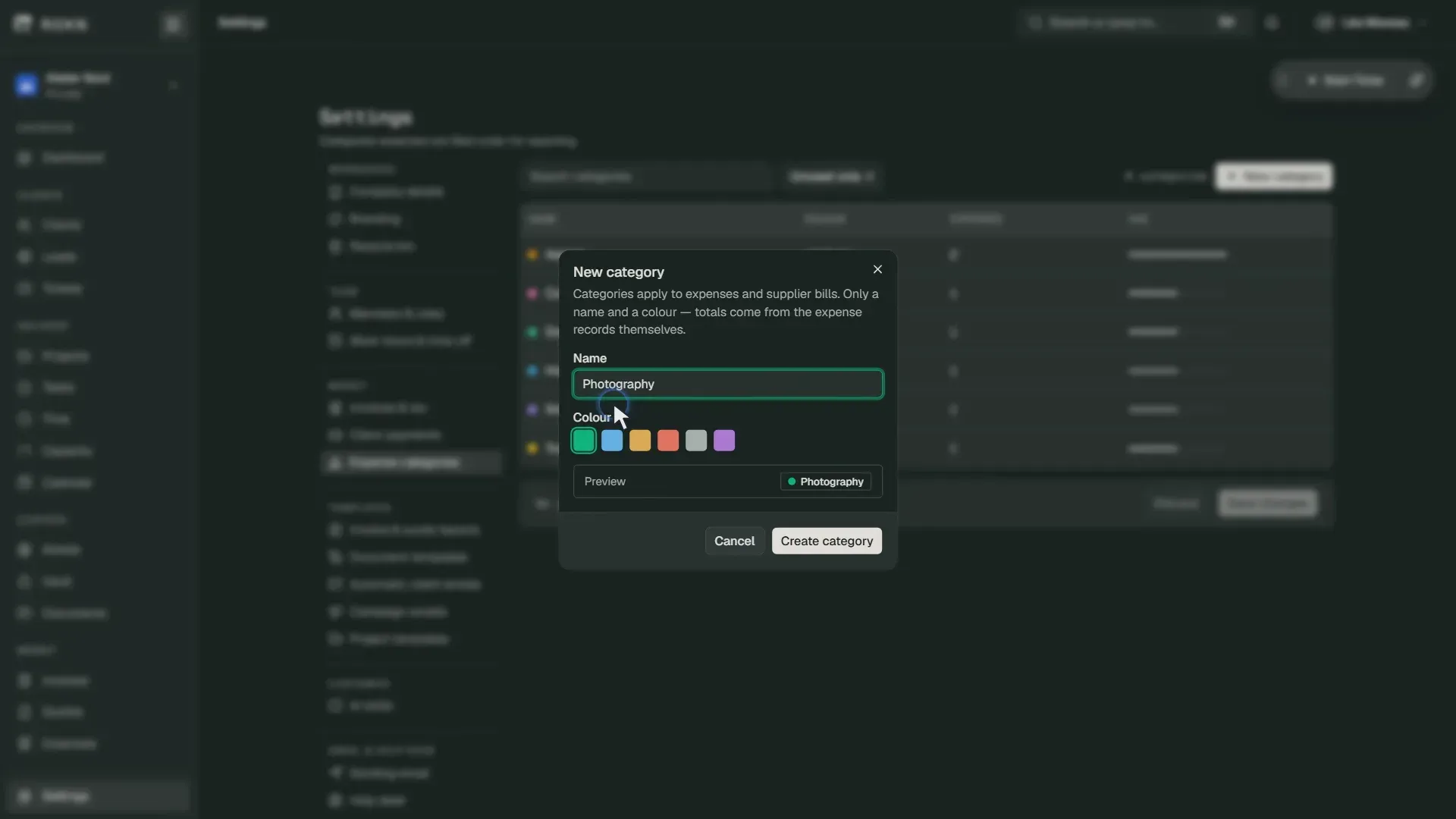
Click New category. Type a name, for example Photography, and pick a colour so it stands out in lists and charts.
Click Create category.
Merge two categories
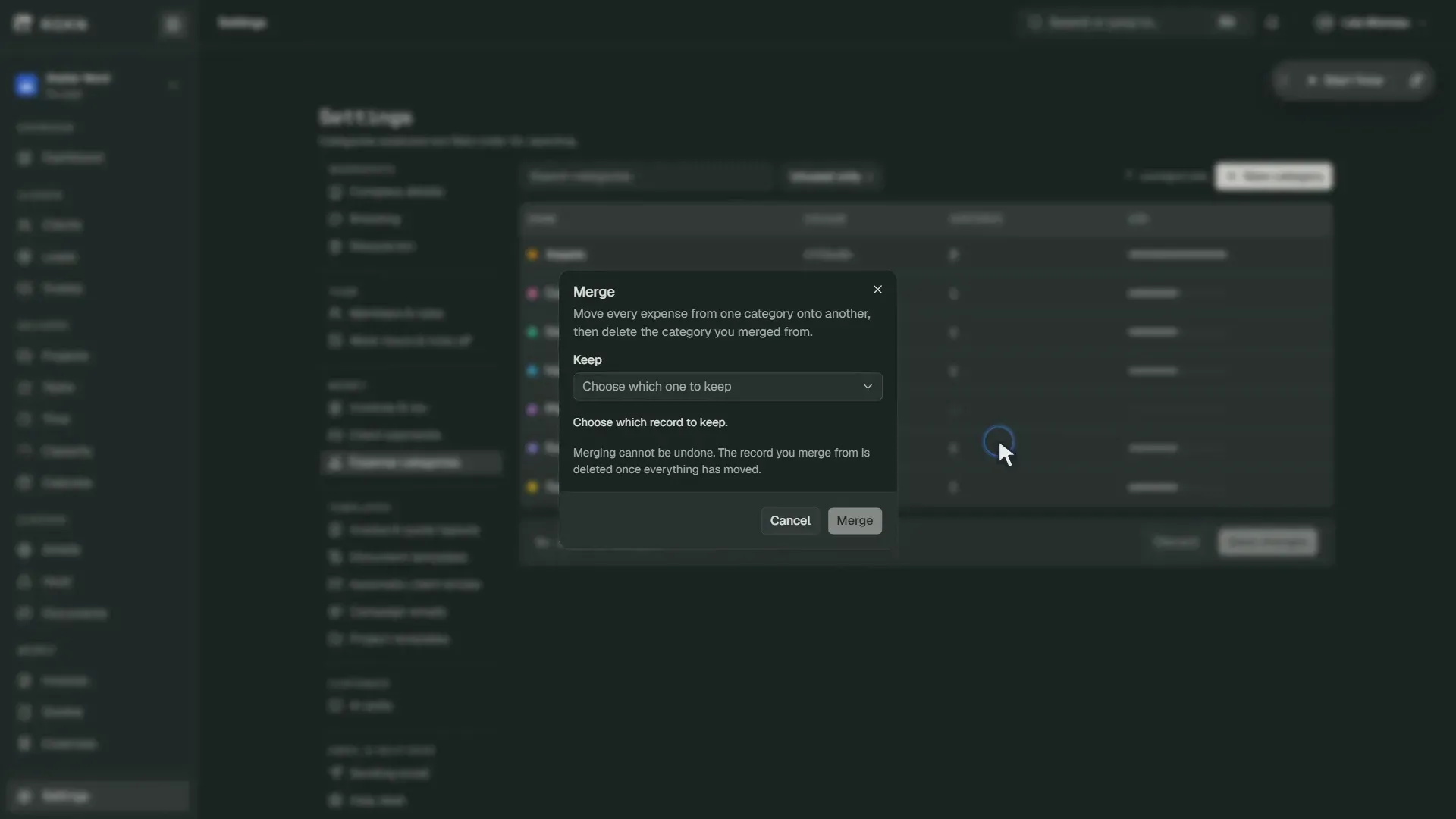
Two categories that mean the same thing? Open Merge on the one to remove, and choose the one to keep.
Merging cannot be undone, so check which category you keep before you confirm.
Check the result
Every expense moves to the category you kept, and the other category is removed.
Hide the ones in use
Turn on Unused only to show the categories no expense uses yet, so the list stays tidy.
Good to know
- Categories apply to expenses and supplier bills.
- Merging cannot be undone.
November 10, 2026
Suggest an improvement