

Automatic payment reminders
Turn on automatic payment reminders, choose the days before and after the due date, rewrite the emails, and control reminders per invoice.
Rokn can email your client for you when an invoice is not paid on time. You choose the days, and you can rewrite the emails.
Open the reminder settings
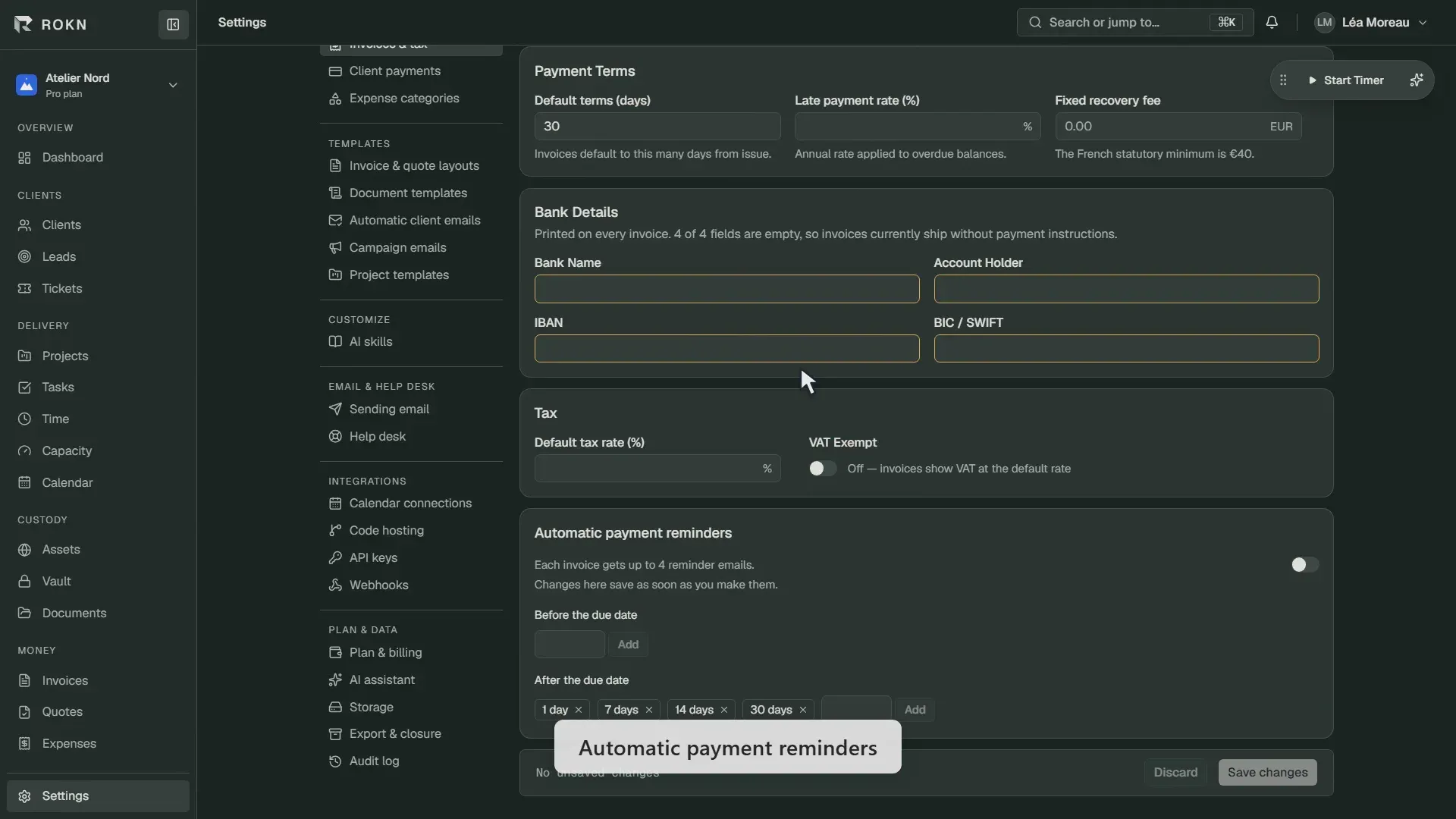
Go to Settings, then Invoices & tax. The Automatic payment reminders card is lower on the page, below Payment Terms, Bank Details and Tax.
Turn reminders on
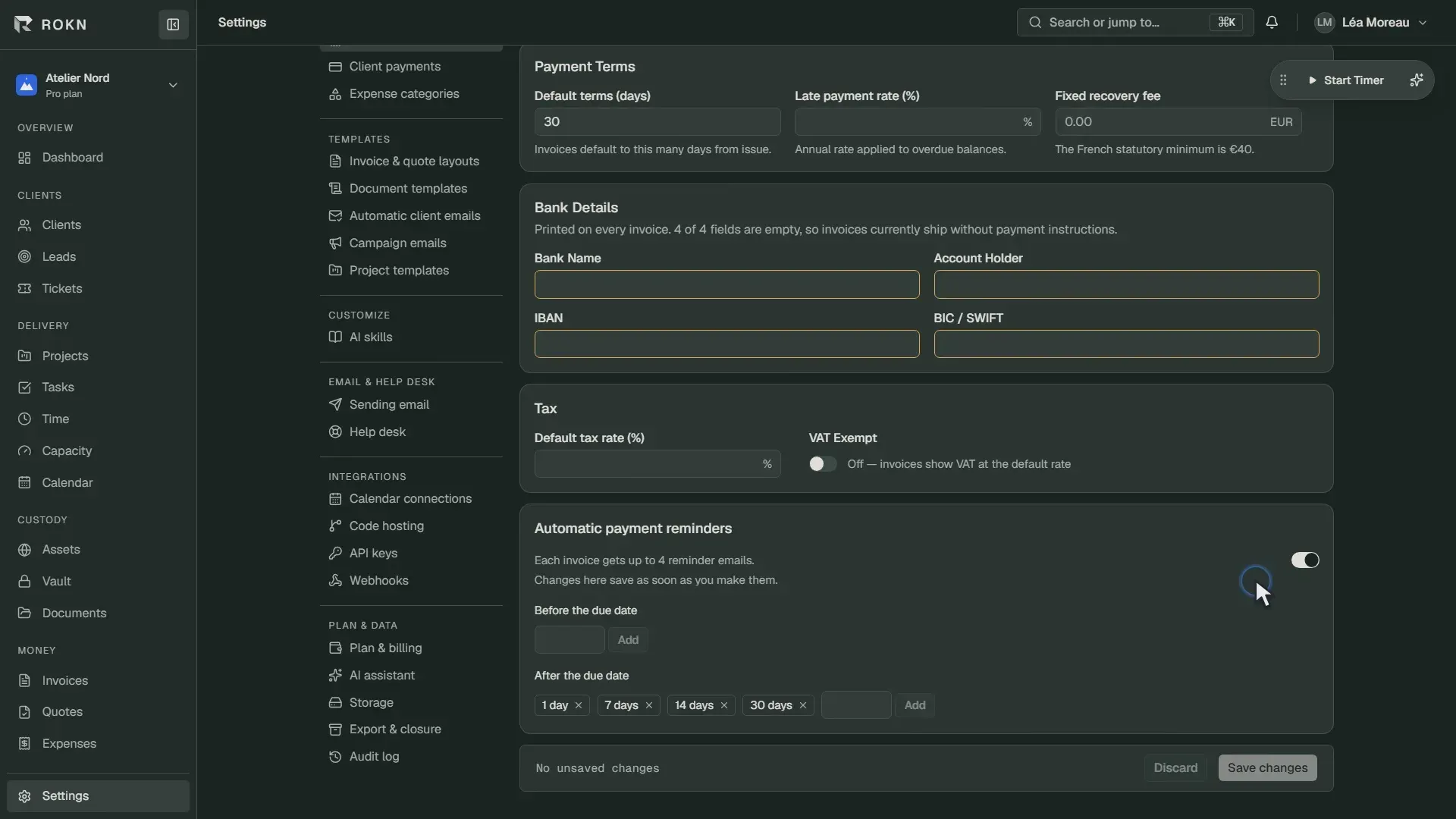
Switch the card on. Rokn then emails your client for you on the days you choose.
This card saves each change as you make it.
Choose the days after the due date
After the due date, a reminder goes out 1, 7, 14 and 30 days late. Remove a day, or type your own number and click Add.
Add a nudge before the due date
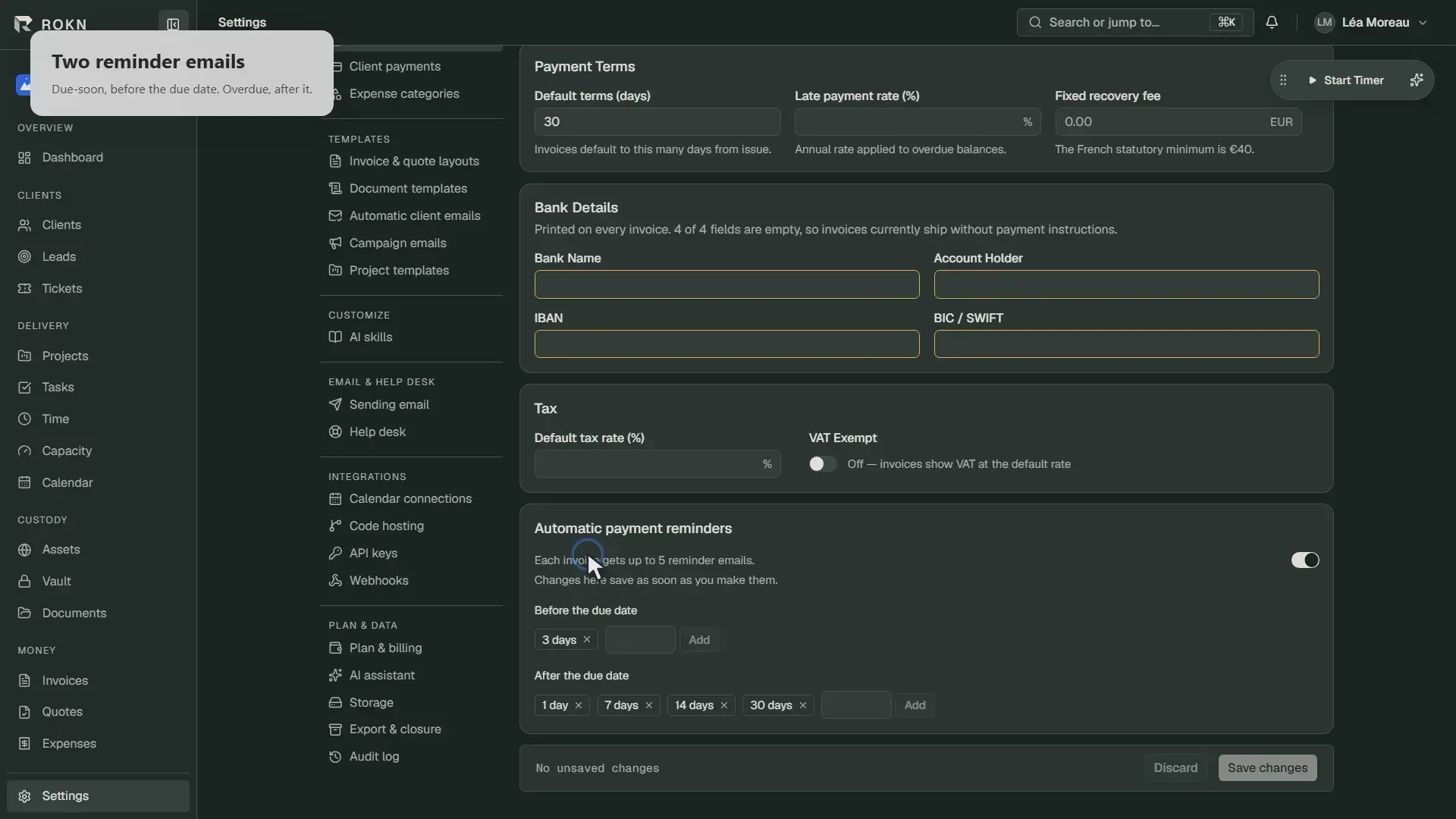
You can also send a friendly nudge before the due date. Here, it goes out 3 days before.
The schedule applies to every invoice you have sent.
Write your own wording
The wording is yours too. In Automatic client emails, each reminder is an email you can rewrite, in each of your clients' languages.
Check a sent invoice
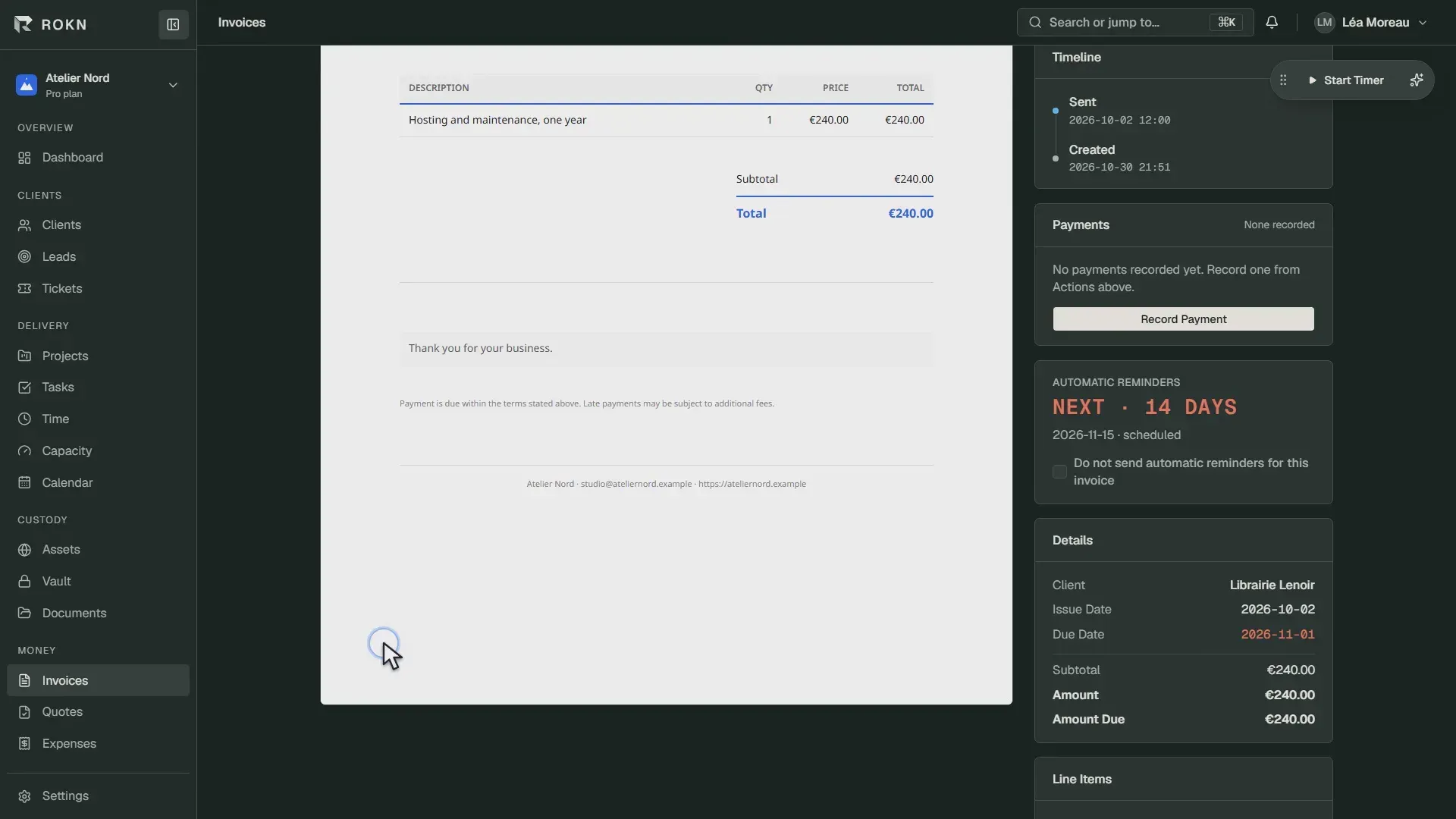
On every sent invoice you can see when its next reminder goes out. You can also switch reminders off for that one invoice.
Good to know
- There are two reminder emails to edit: one for before the due date, and one for after it.
November 10, 2026
Suggest an improvement