

Storage
See how much managed storage you use, choose which drive new files go to, and connect your own S3-compatible storage.
Settings, Storage, shows where your files live. You can keep them in Rokn's managed storage or add a drive of your own.
See your managed storage
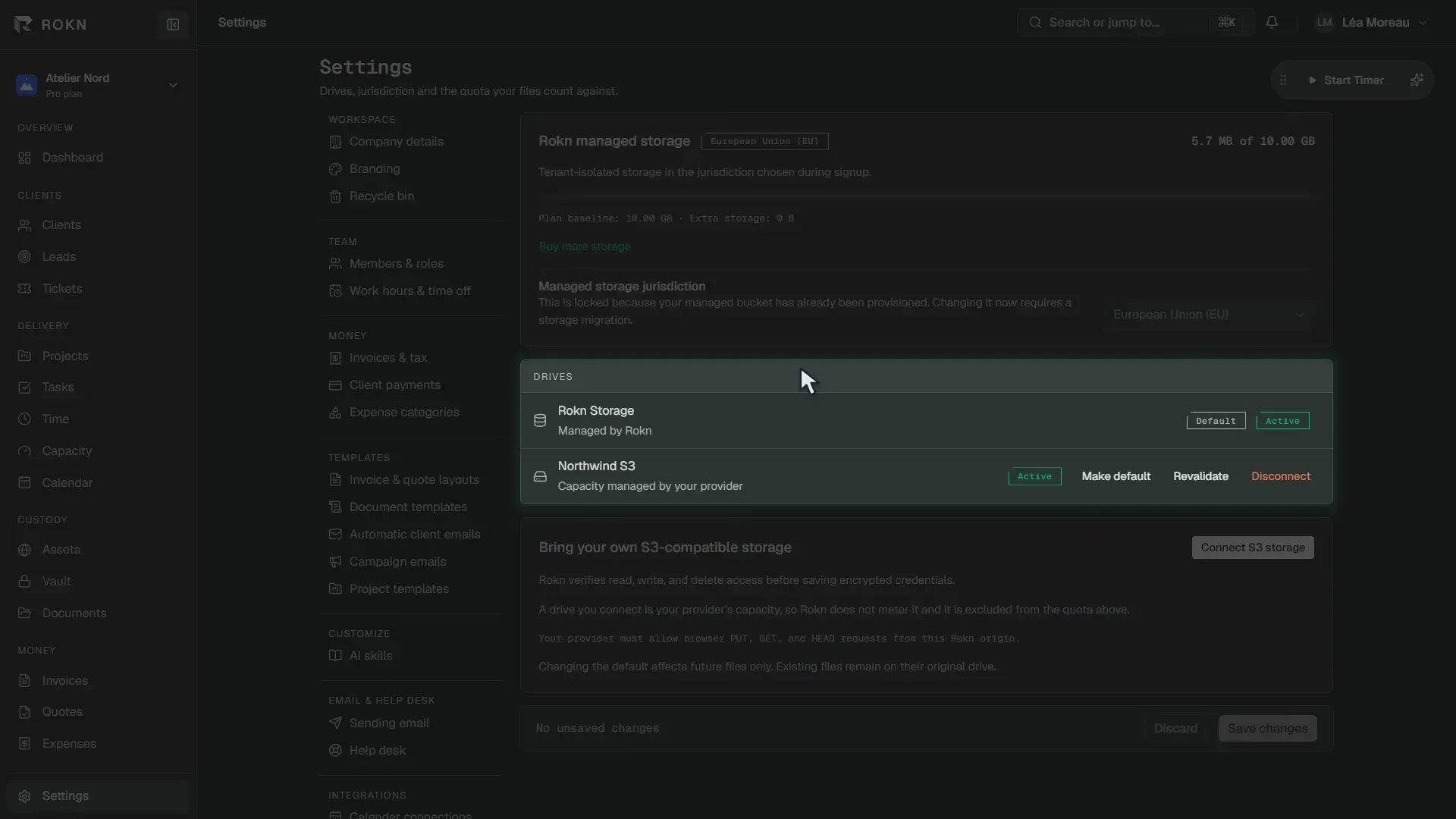
Open Settings, then Storage. Rokn's managed storage comes with your plan. The top card shows how much of it you use and the region it is kept in, which was chosen when you signed up.
Manage your drives
Your drives are listed below. New files go to the default drive.
On any other drive you can click Make default, Revalidate to check its access again, or Disconnect.
Connect your own S3-compatible storage
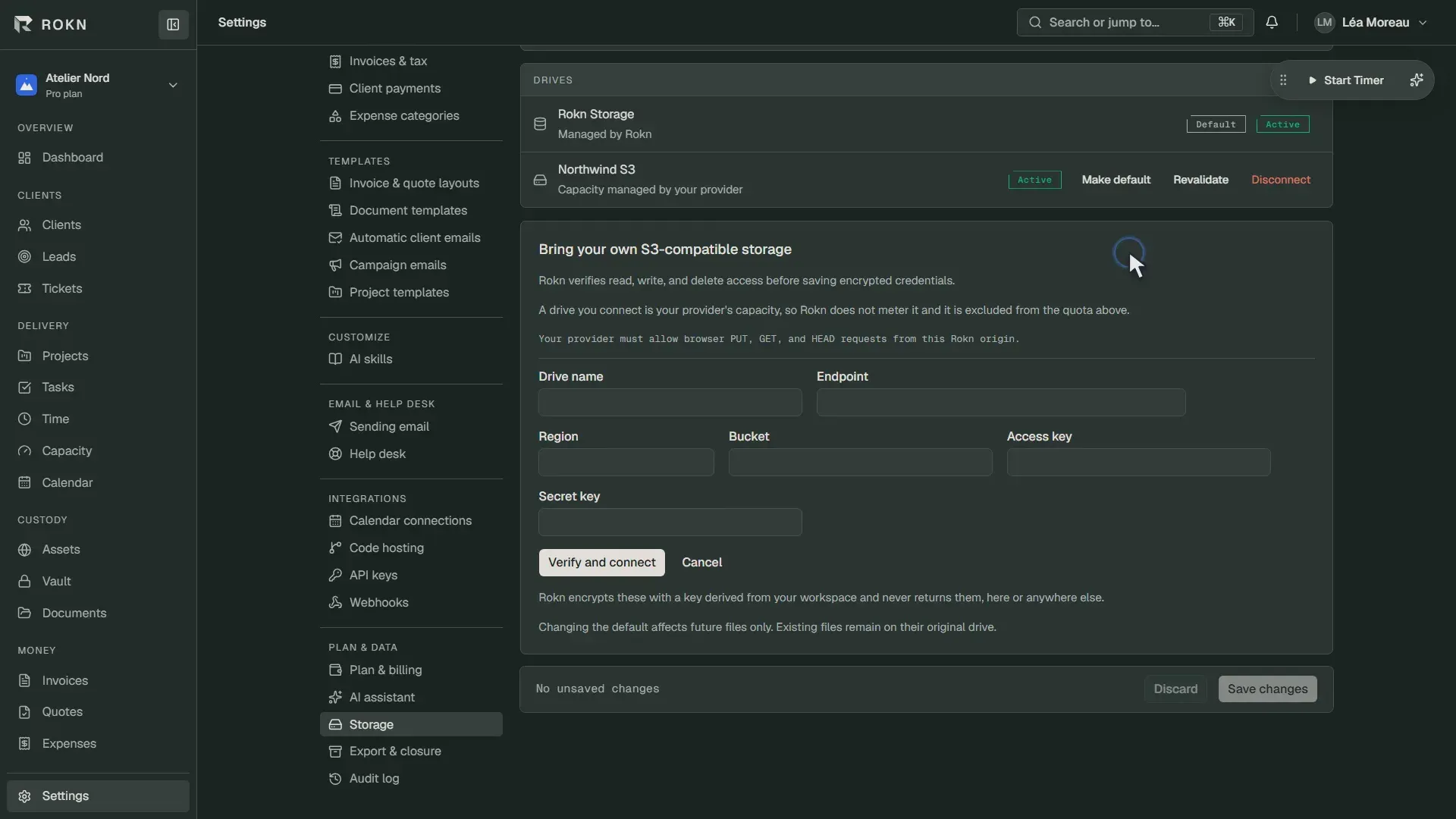
To use your own storage, click Connect S3 storage. Give the drive a name, then enter your provider's endpoint, region, bucket, access key and secret key.
Click Verify and connect. Rokn checks that it can read, write and delete before it saves anything.
Good to know
- Files on your own drive don't count against your Rokn storage.
- Changing the default drive only affects new files. Existing files stay on their original drive.
- Your provider must allow browser PUT, GET and HEAD requests from Rokn.
November 10, 2026
Suggest an improvement