

Work hours and time off
Set your team's default week, add holidays when everyone is off, and give someone a custom schedule that feeds the capacity planner and booking links.
Work hours and time off holds your team's default week, the holidays everyone shares, and any custom schedules. Capacity and booking links use these hours.
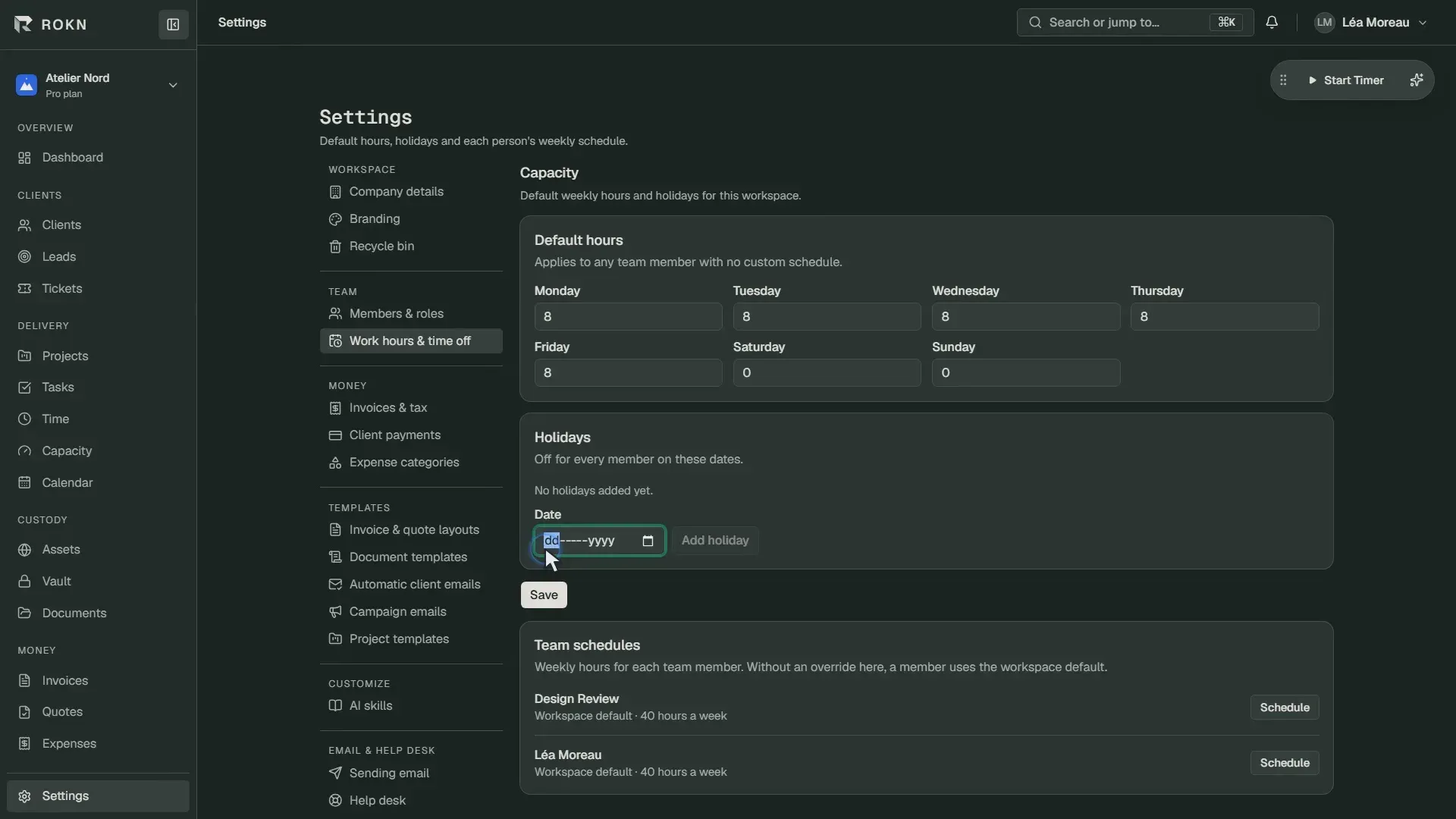
Set the default week
In Settings, open Work hours & time off. Default hours holds your team's default week: here, eight hours a day, Monday to Friday.
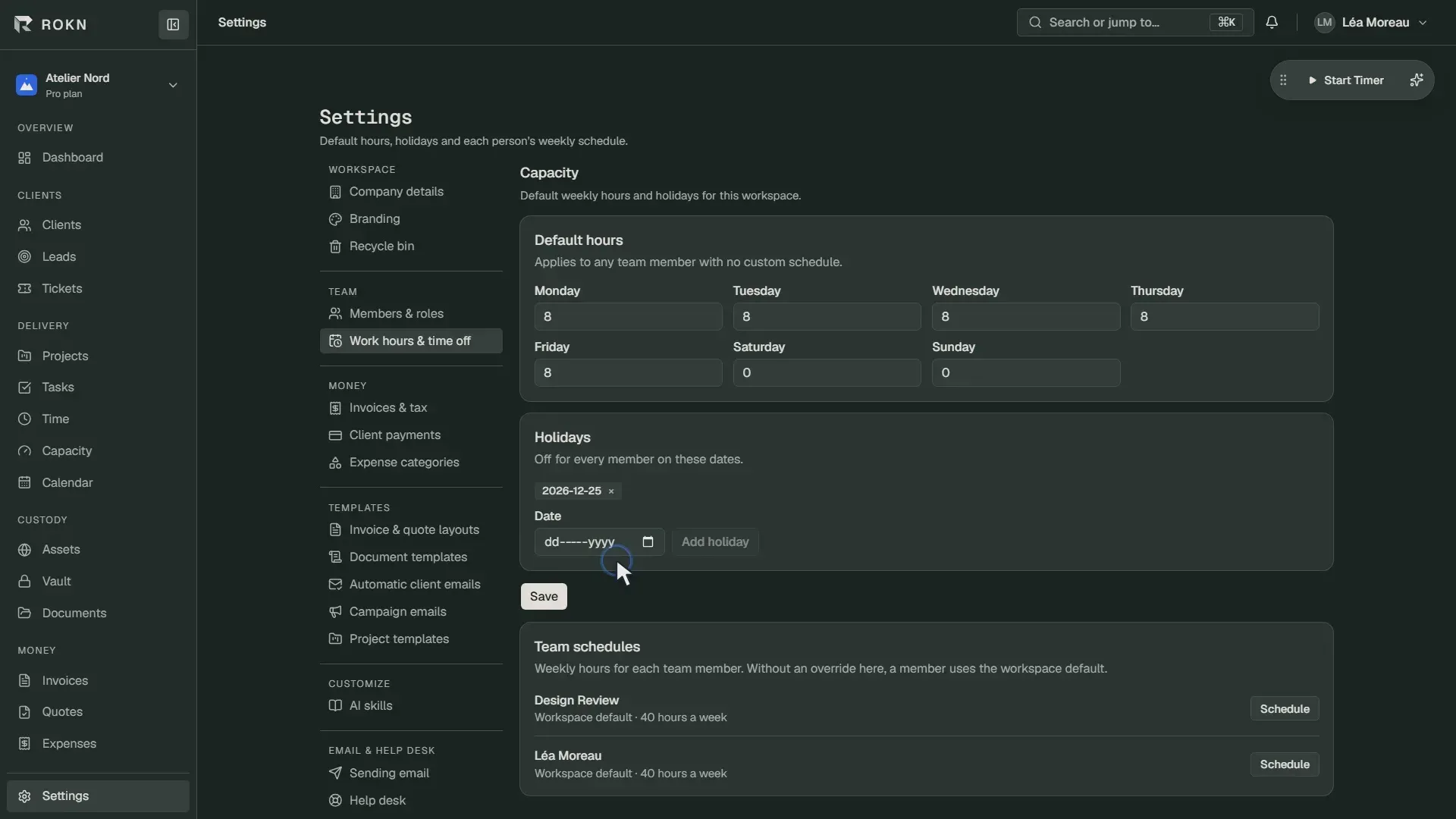
Add team holidays
Under Holidays, add the days when the whole team is off, like Christmas Day. Pick the date, click Add holiday, then click Save.
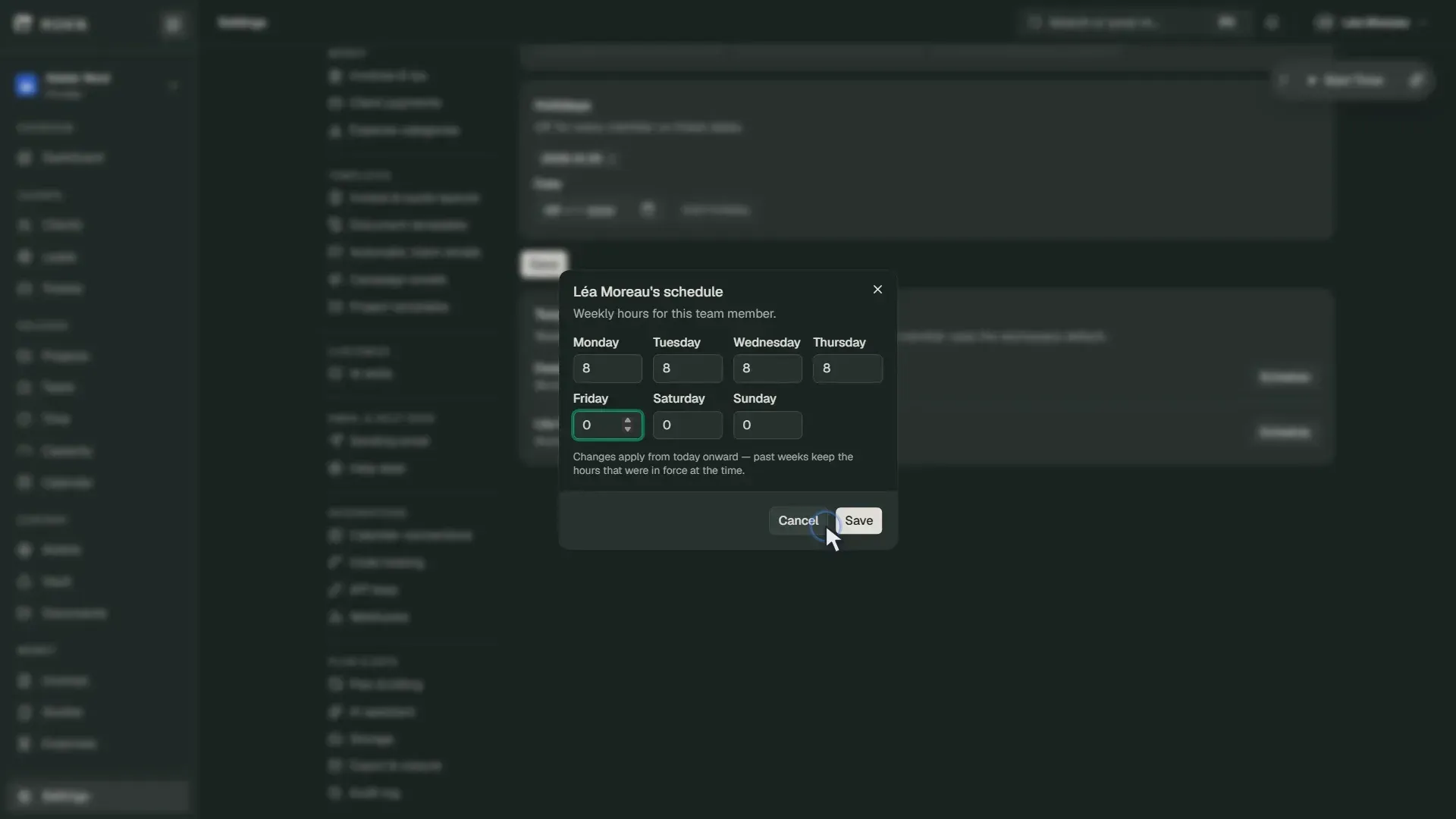
Customise one person's week
Someone works a different week? Under Team schedules, click Schedule on their row and choose Customise. Here, it is a four-day week, with Friday set to 0.
Know when it applies
It applies from today. Past weeks keep the hours that were true at the time.
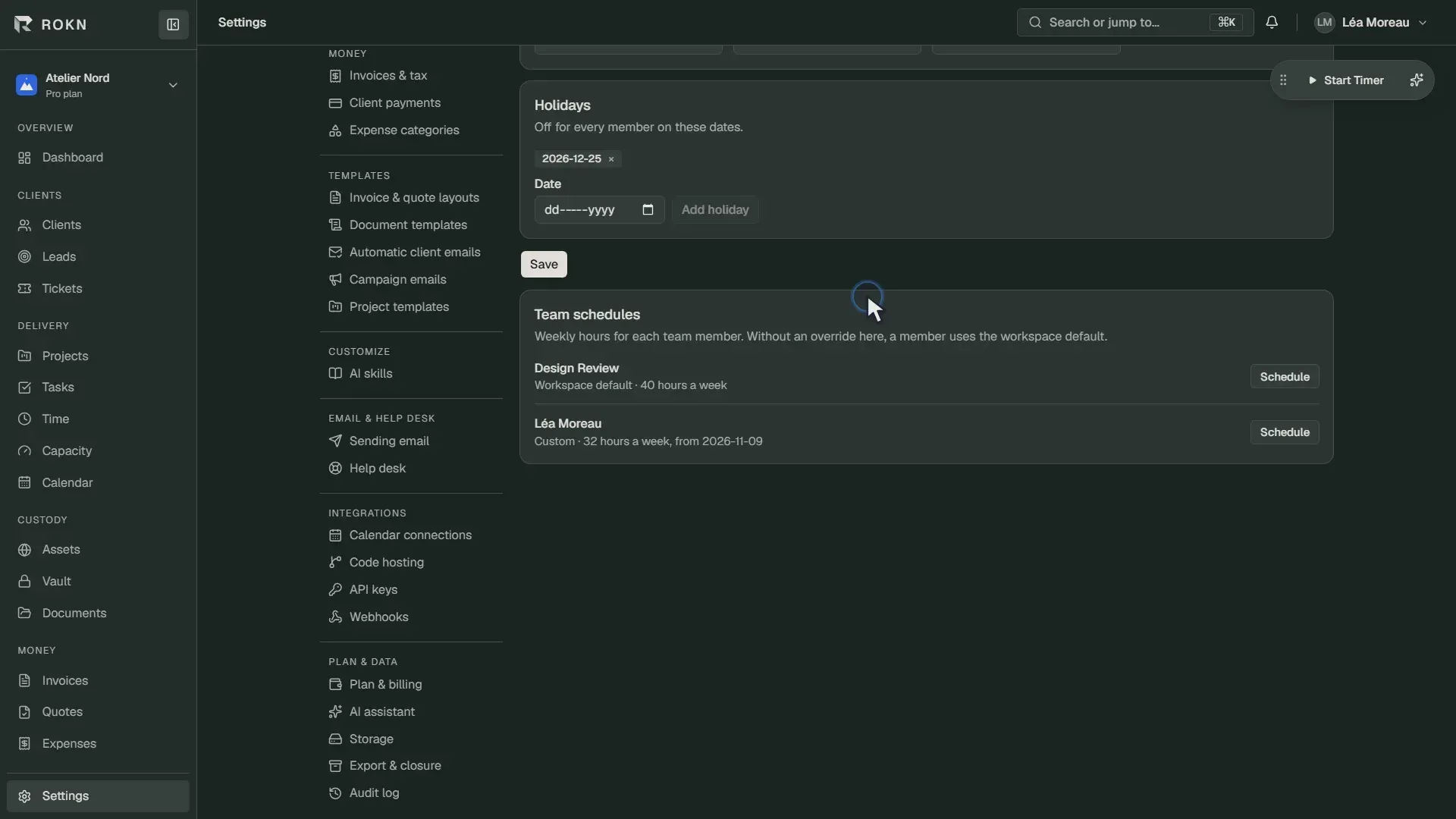
Check the team list
The team list now shows Léa's own week: 32 hours.
These hours feed the capacity planner and your booking links, so nobody is booked when they are off.
Good to know
- A team member without a custom schedule uses the workspace default.
November 10, 2026
Suggest an improvement