

Invite a client to the portal
Invite a client to their portal, choose which sections they see, and know what they can do there: follow projects, read invoices, sign documents, open tickets.
The client portal is a private page where one of your clients follows their projects, reads invoices, signs documents and asks for support. They need no Rokn account of their own: you invite them by email.
Invite your client
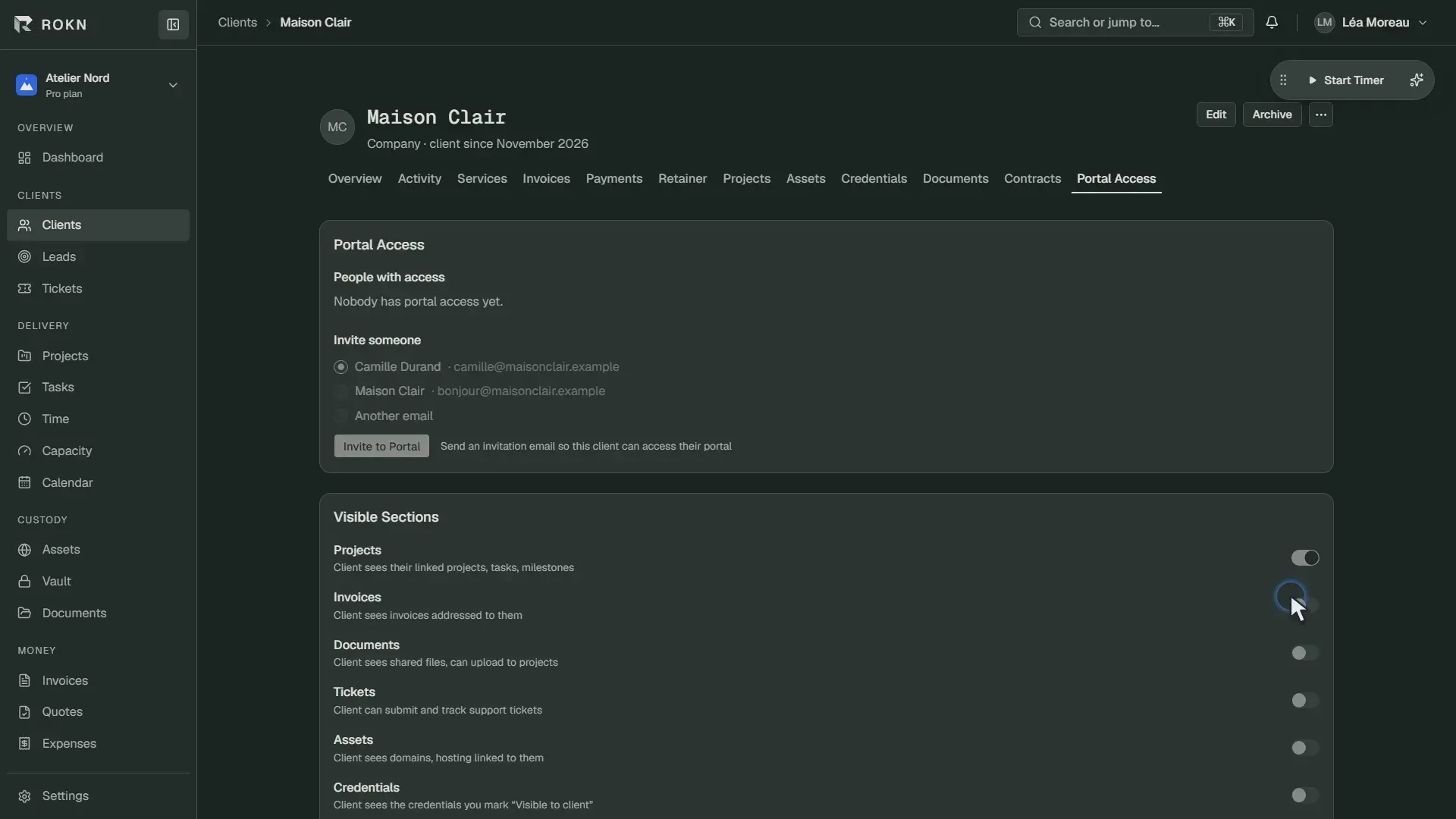
- Open Clients, choose the client, then the Portal Access tab.
- Under Invite someone, pick one of the client's contacts in Who to invite, or choose Another email and type an address. Then choose Invite to Portal. Rokn emails the invitation.
- Under Visible Sections, switch on what this client may see: Projects, Invoices, Tickets, Documents, Assets and Credentials. Each switch applies straight away, so you can change it after the invitation too.
- Until the client accepts, the invitation is listed under Pending invitations with its expiry date. Use Resend invitation or Cancel invitation there. Once accepted, the person appears under People with access.
What your client sees
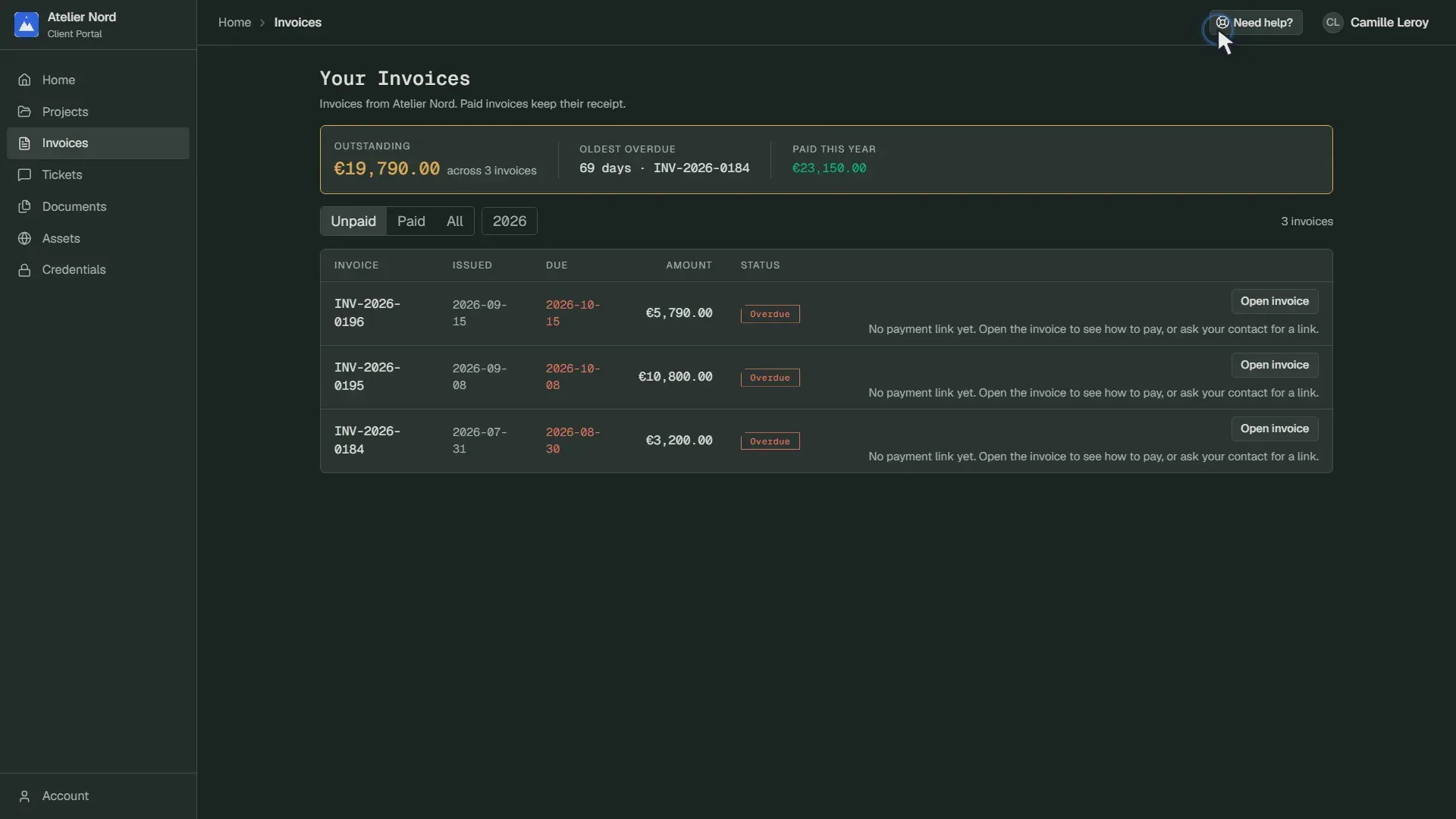
After signing in, the client lands on Home: their active projects, tasks due this week, unpaid invoices and open tickets. The menu shows only the sections you switched on.
- Projects: status, dates, tasks and milestones of their linked projects.
- Invoices: every invoice addressed to them, with its status (Sent, Viewed, Paid, Overdue).
- Documents: the files you share, which they can download, and upload to projects. A document that needs their signature shows This document requires your signature, and they sign it right there.
- Tickets: they open support requests and follow the conversation (see the Help desk guide).
- Assets: the domains, certificates and hosting you hold for them. Approve renewals records their agreement and tells your team; nothing is renewed and no payment is taken.
- Credentials: only the ones you mark Visible to client. The client unlocks them with their own password and every reveal is logged.
Take access away
On the same Portal Access tab, choose Revoke Access next to a person under People with access and confirm. They can no longer sign in to this client's portal; the records stay where they are.
Good to know
- Switch on only what the client needs. A section that is off simply does not appear for them.
- An archived client can still read their portal but cannot add or change anything.
Next step: when the client opens their first ticket, handle it in the help desk. To see the portal as a product feature, read Client portal and help desk.