

Log time, then bill it
Log your hours against a project and service, then turn the unbilled time for a client into invoice lines in a few clicks.
Log your hours as you work, then bill them when it is time. The Time page shows your week: what you have tracked, what is billable, and what you have not invoiced yet.
Start a new time entry
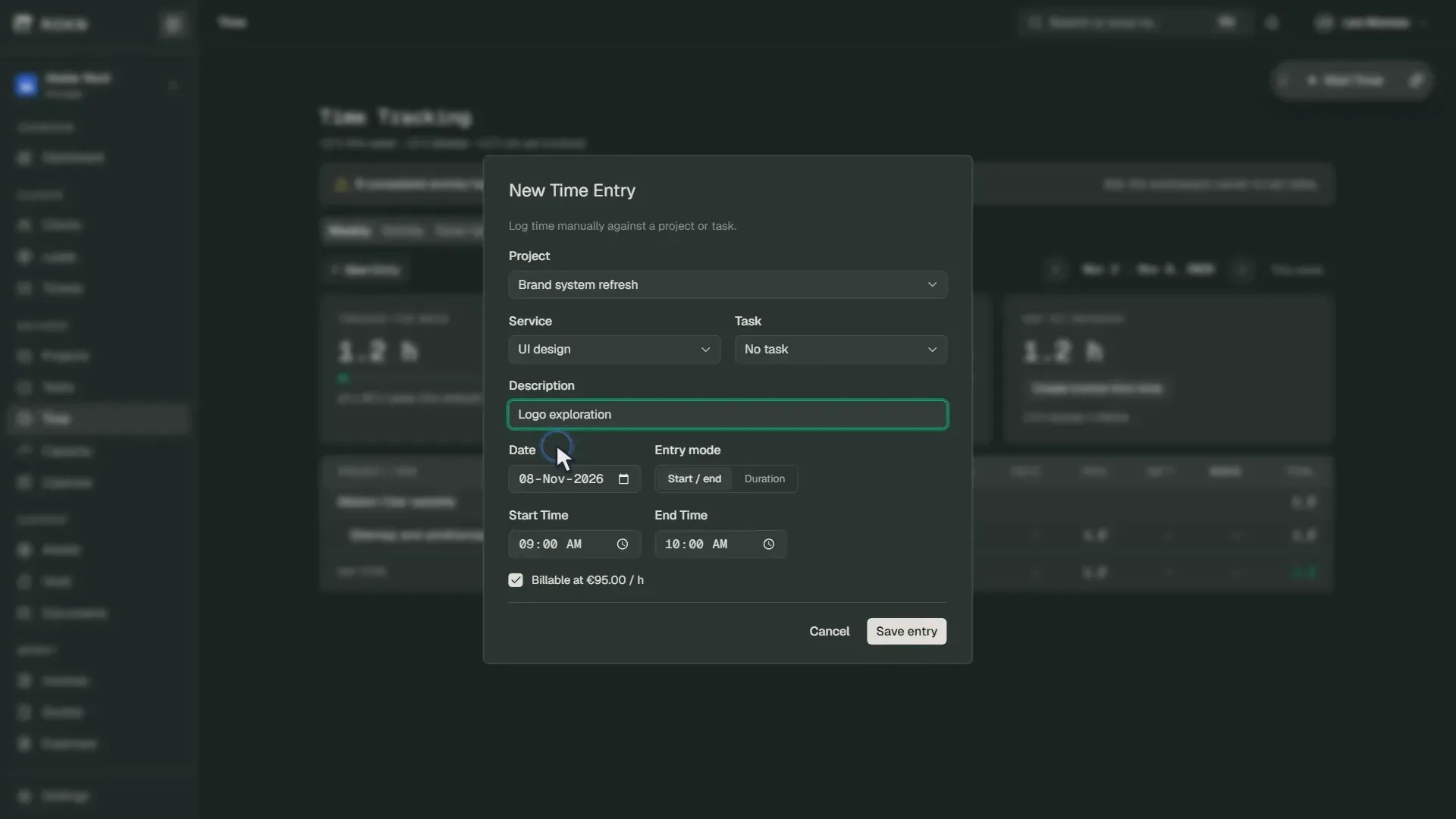
On the Time page, click New Entry to log time by hand.
Pick the project and service
Pick the project, and the service you worked on. Rokn shows the rate this time will be billed at, before you save.
Add a description and the hours
Add a short description, and the hours. Here, two and a half hours of logo work.
Save the entry
Click Save entry. The entry lands on your week, and counts toward the project's budget.
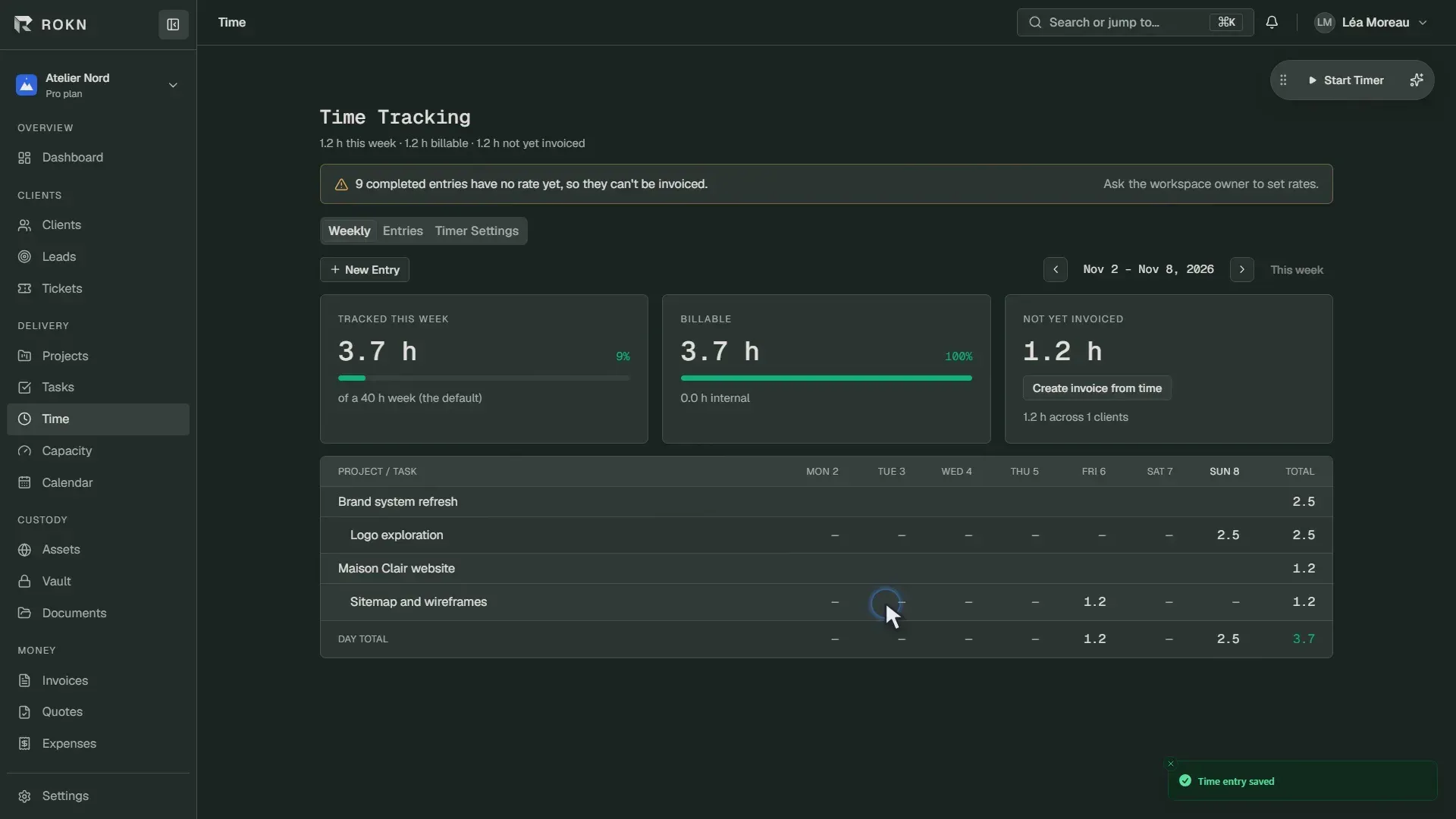
Create an invoice from time
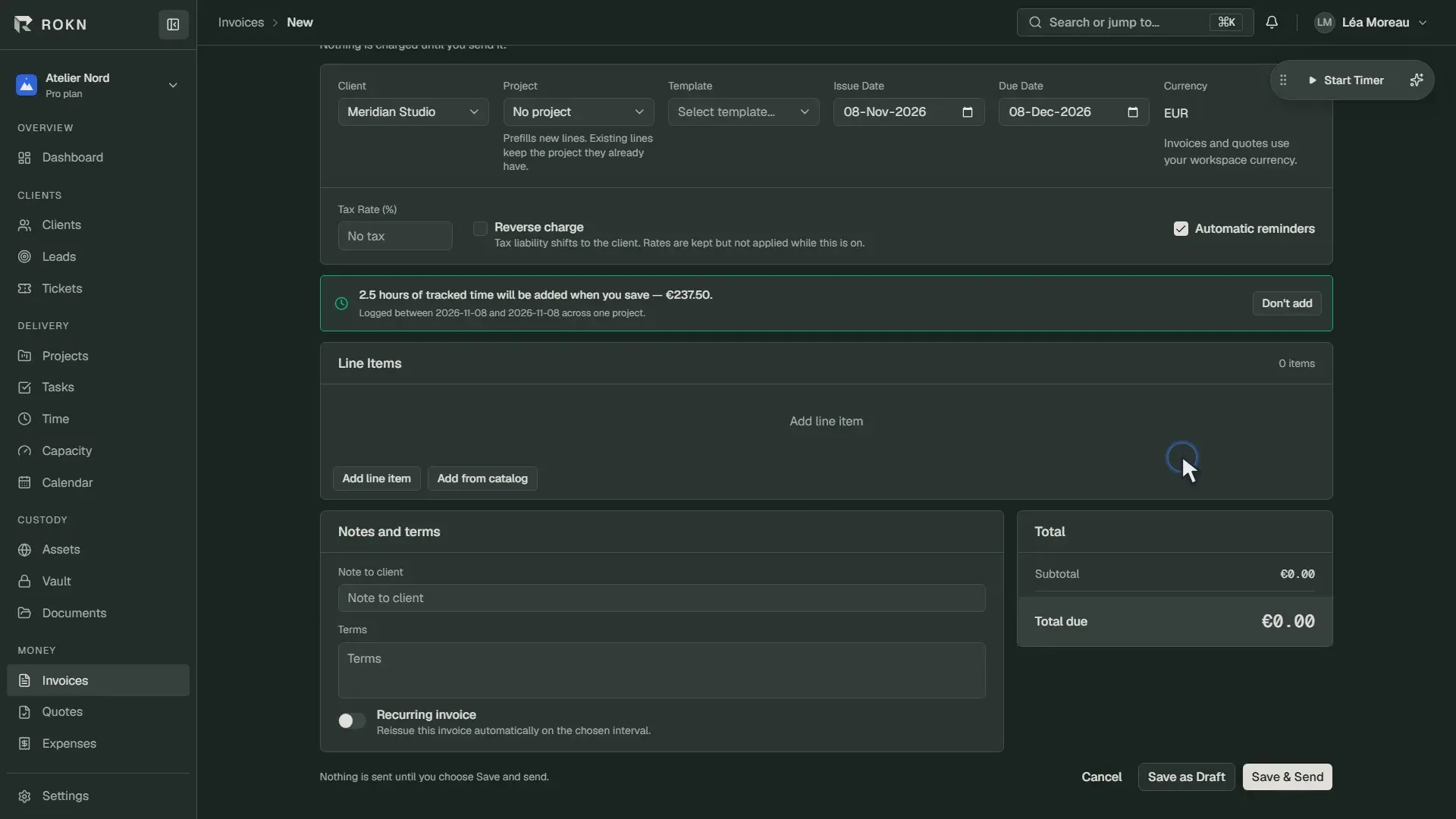
When it is time to bill, choose Create invoice from time. Pick the client.
Rokn finds their unbilled hours, and adds them when you import.
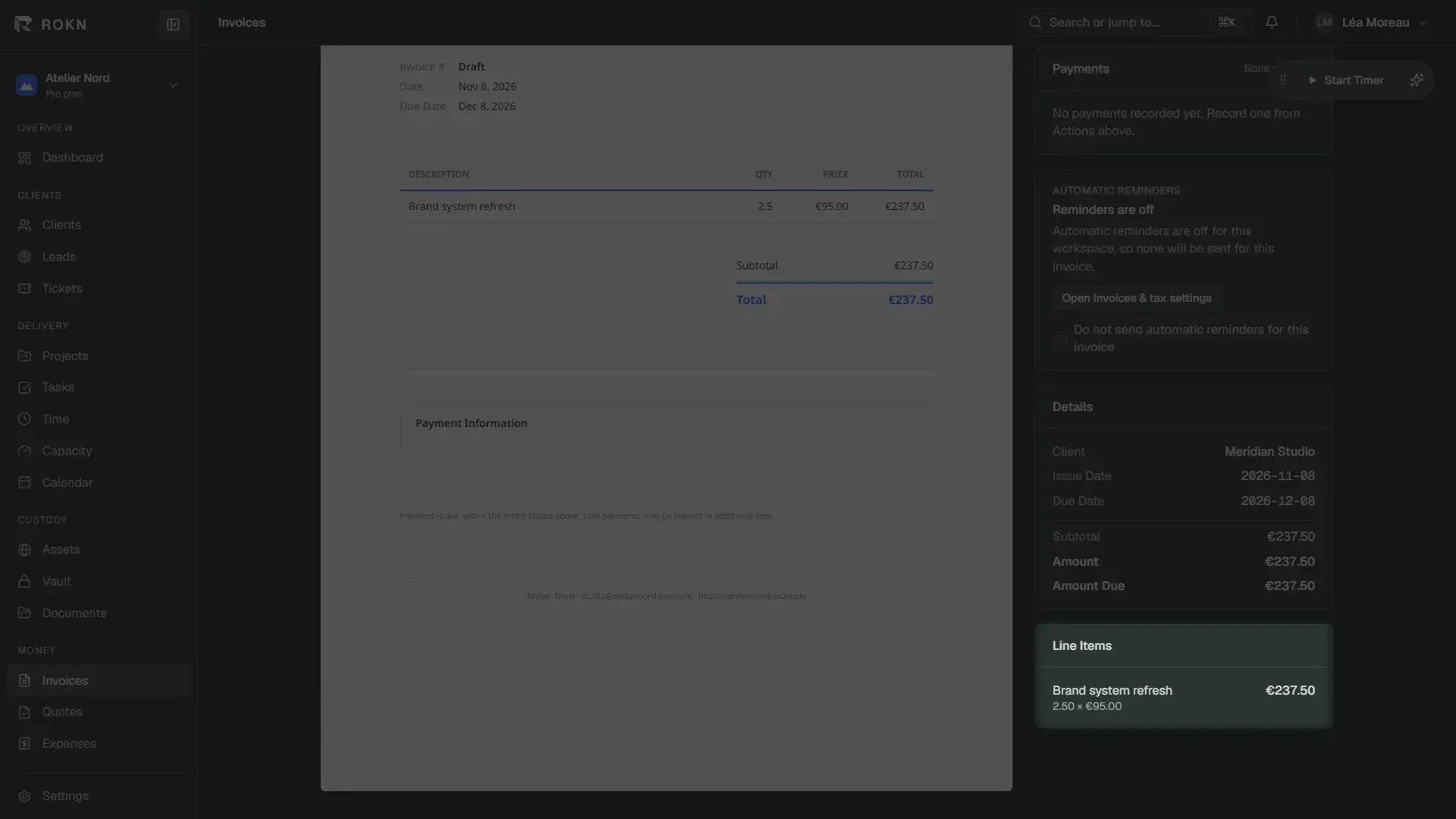
Save, check and send
Save it as a draft. Your hours are now invoice lines, each at the rate it was logged at. Check it over, then send it like any other invoice.
Back on the Time page, those hours now count as invoiced, so nothing gets billed twice.
Good to know
- An entry with no rate cannot be invoiced. The Time page tells you when this happens.
November 10, 2026
Suggest an improvement