

Calendar connections
Connect Google Calendar or Outlook to Rokn, or create a private calendar link to follow your Rokn events in any calendar app.
Settings, Calendar connections, links Rokn to the calendar you already use, so your meetings, tasks and due dates sit next to the rest of your week.
Connect Google Calendar
Open Settings, then Calendar connections. On the Google Calendar card, click Connect Google Calendar and follow Google's sign-in.
Once connected, the events of the calendar you choose show in Rokn, and the Rokn events you choose appear in Google Calendar.
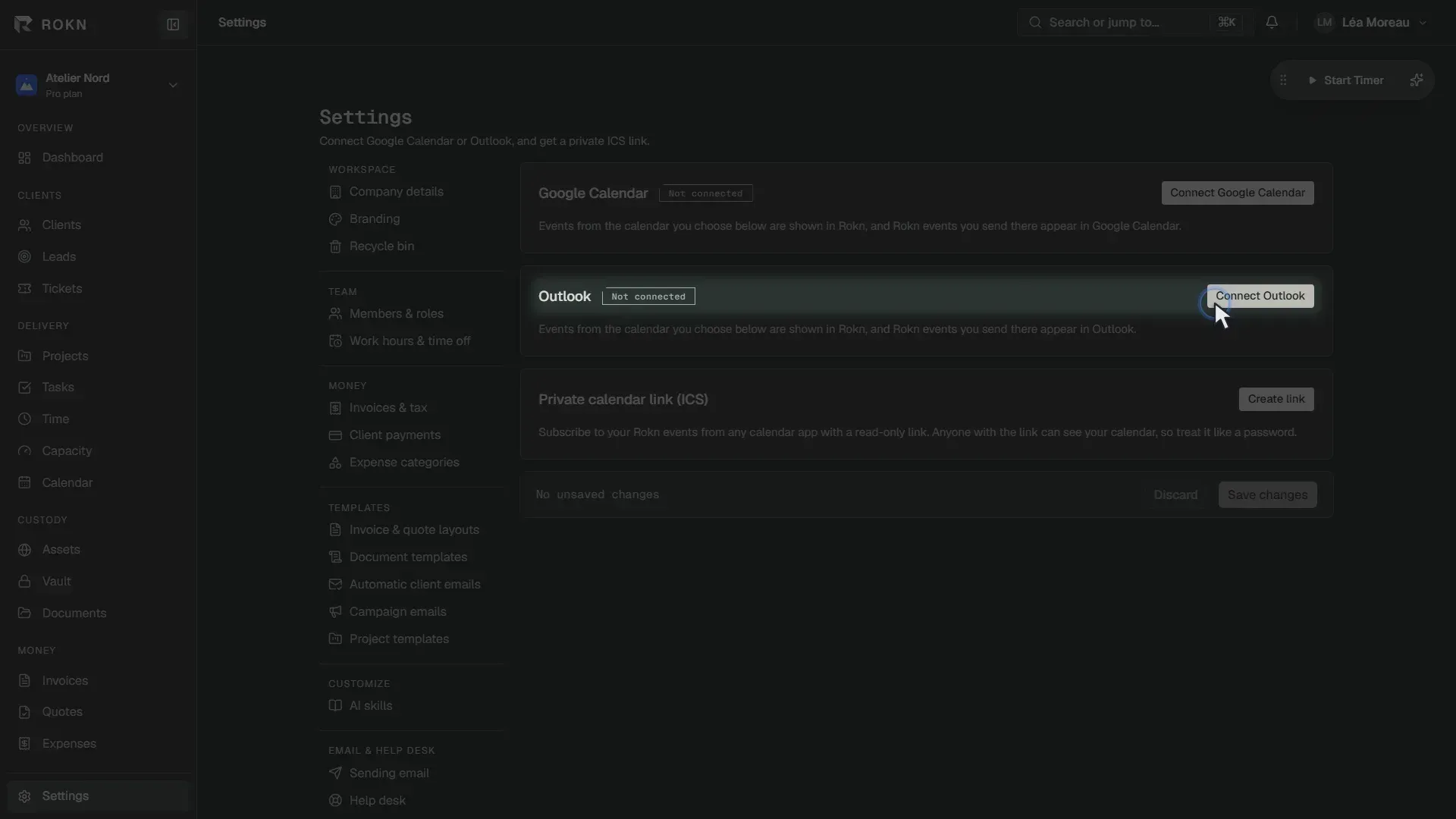
Connect Outlook
Outlook works the same way. Click Connect Outlook on its card.
Each person connects their own calendar.
Create a private calendar link
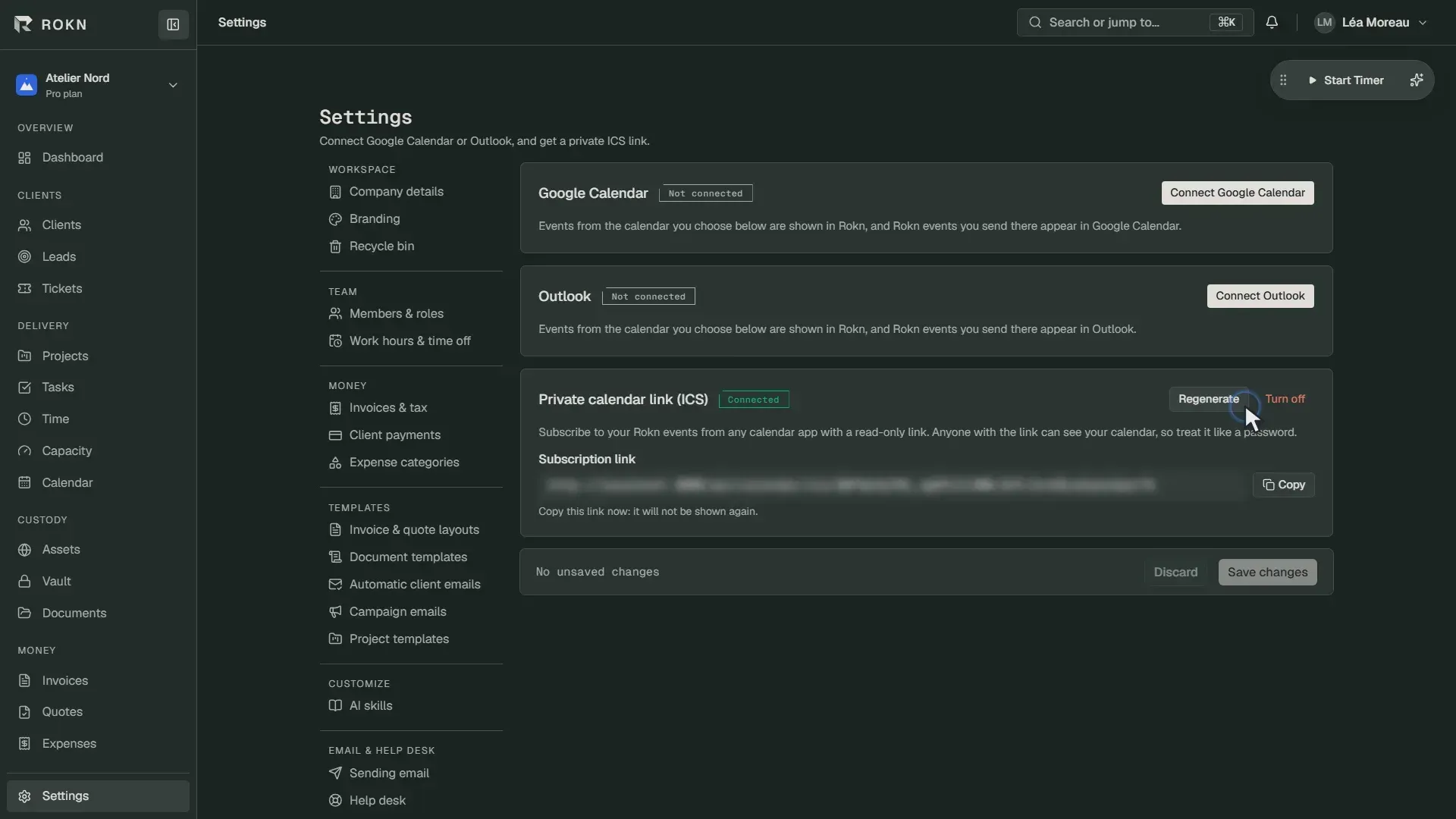
If you use another calendar app, click Create link on the Private calendar link (ICS) card. You can then subscribe to your Rokn events from any calendar app.
Once the link exists, the card offers Regenerate and Turn off. Copy the link when it appears: Rokn doesn't show it again.
Good to know
- Anyone with the link can see your calendar, so keep it to yourself.
- Each person connects their own calendar.
November 10, 2026
Suggest an improvement