

Set up your workspace
Add your company details, address, timezone, signature, logo and colour, and choose the layout your invoices and quotes use.
Set up your workspace once, and every invoice and quote you send carries your details, your logo and your colour. It all lives in Settings.
Fill in your company details
Open Settings and go to Company details. They hold your legal identity and how clients reach you. Rokn prints them on every invoice, quote and contract you send.
Add your address and regional defaults
Add your business address. Then check your regional defaults: the currency new invoices use, and your Timezone, so dates follow your working day.
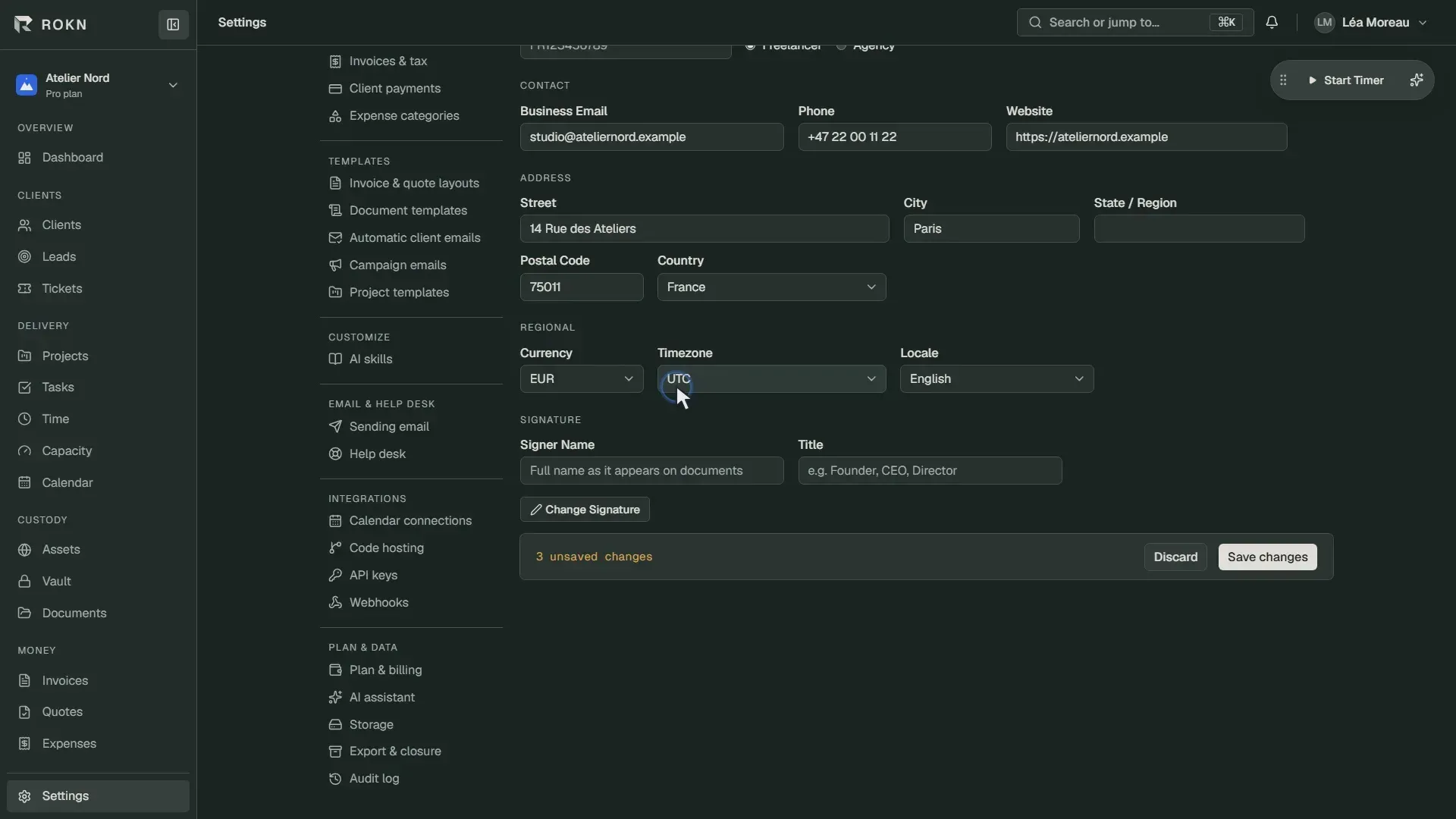
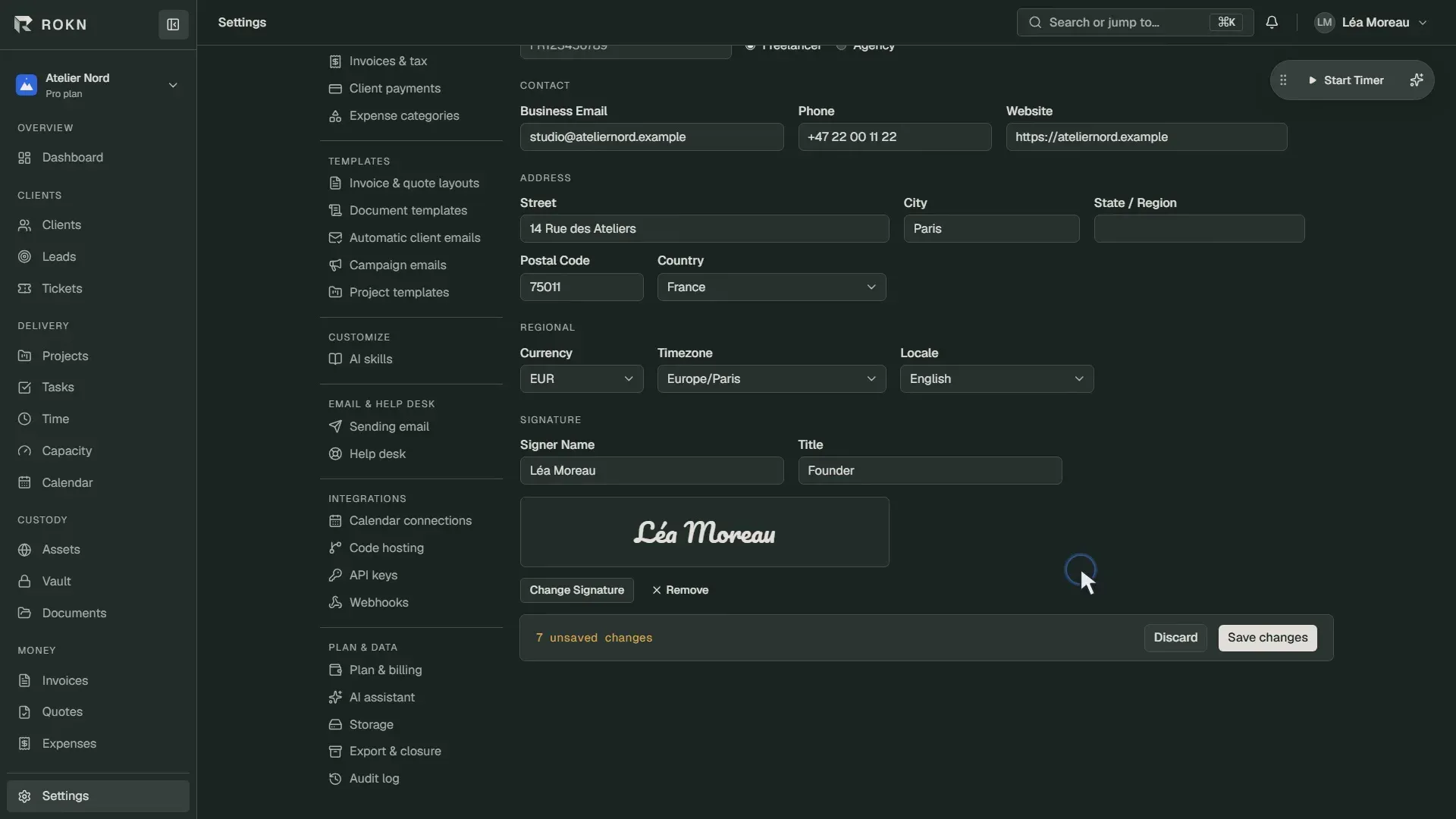
Add your signature and save
Your signer details and signature go on the documents and contracts you sign. Type your name, pick a style, and capture it.
Then click Save changes.
Set your branding
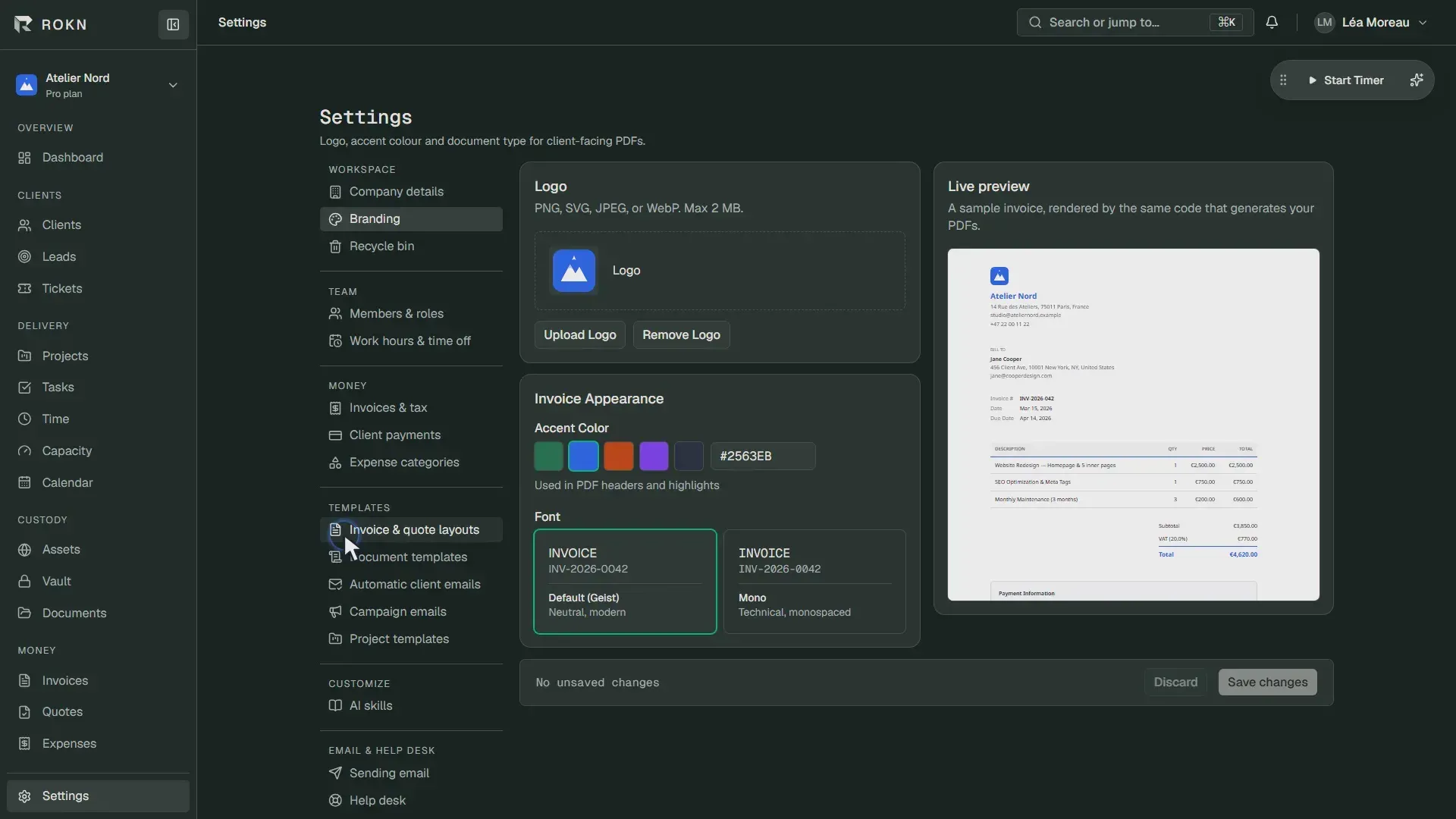
Next, open Branding and use Upload Logo to add your logo.
Pick an accent colour, and watch the live preview. It's rendered by the same code that makes your PDFs. Then save.
Choose your layouts
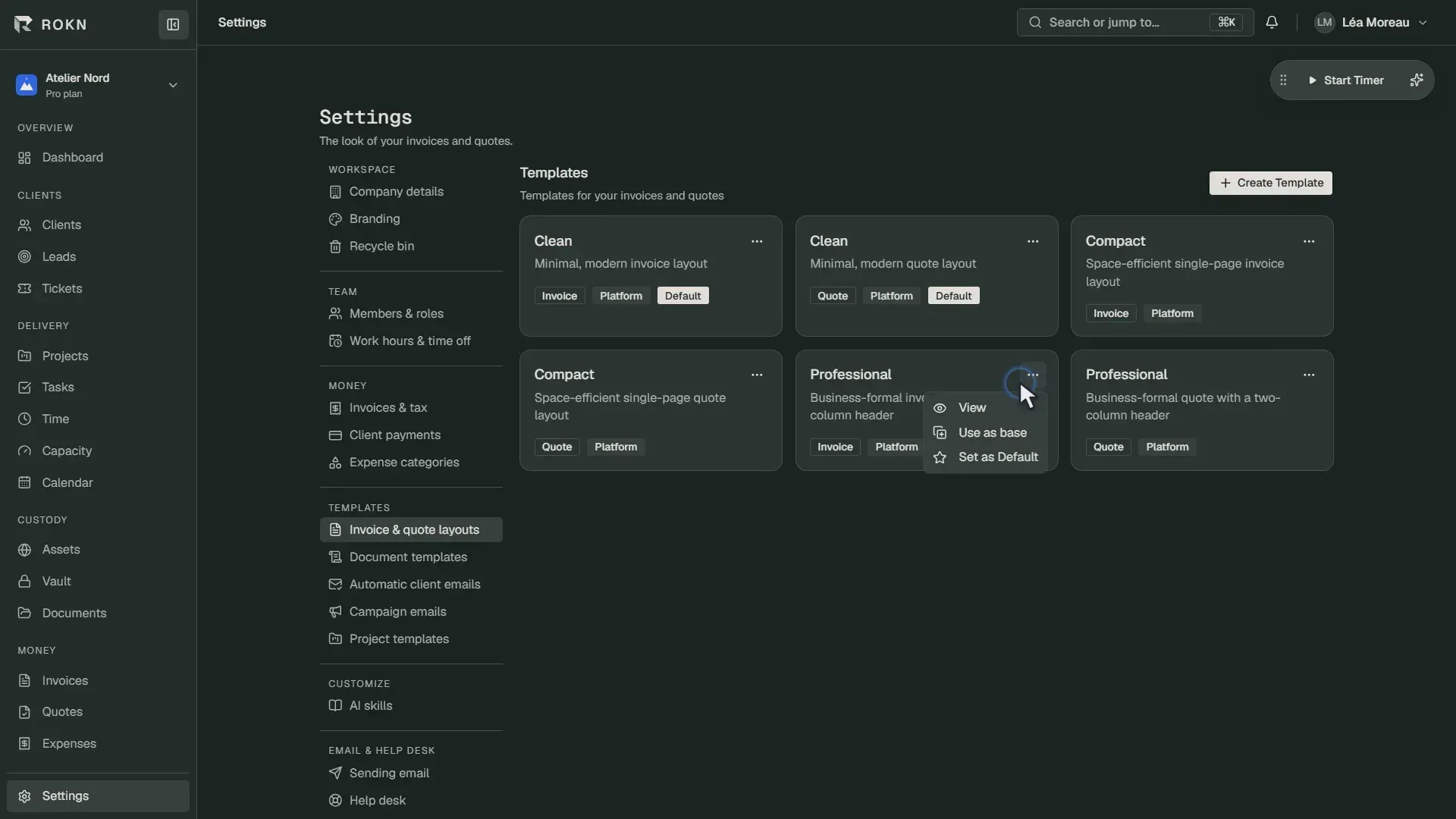
Last, open Invoice & quote layouts. Rokn comes with three for invoices and three for quotes.
Open a layout's menu to view it, or choose Set as Default to use it for every new invoice. Every invoice and quote you send now carries your details, your logo and your colour.
Good to know
- Your company details are printed on every invoice, quote and contract you send.
November 10, 2026
Suggest an improvement