

Track time with the timer
Start the timer from any page, pick the project and task, let it run while you work, and stop it to save the time as an entry ready to invoice.
The timer sits in the corner of every page, so you can start it wherever you are in Rokn. It keeps running while you work, and saves the time when you stop it.
The timer needs a plan that includes it. If you do not see Start Timer, you can still log hours by hand on the Time page; see Plan and billing for your plan's features.
Start the timer
Click Start Timer in the corner of any page, or press Ctrl+Shift+S.
Say what you are working on
Choose the project and the task, and say what you are working on in the description. The timer shows the rate this time will be billed at. Here, it is the project's own rate of 95 euros an hour.
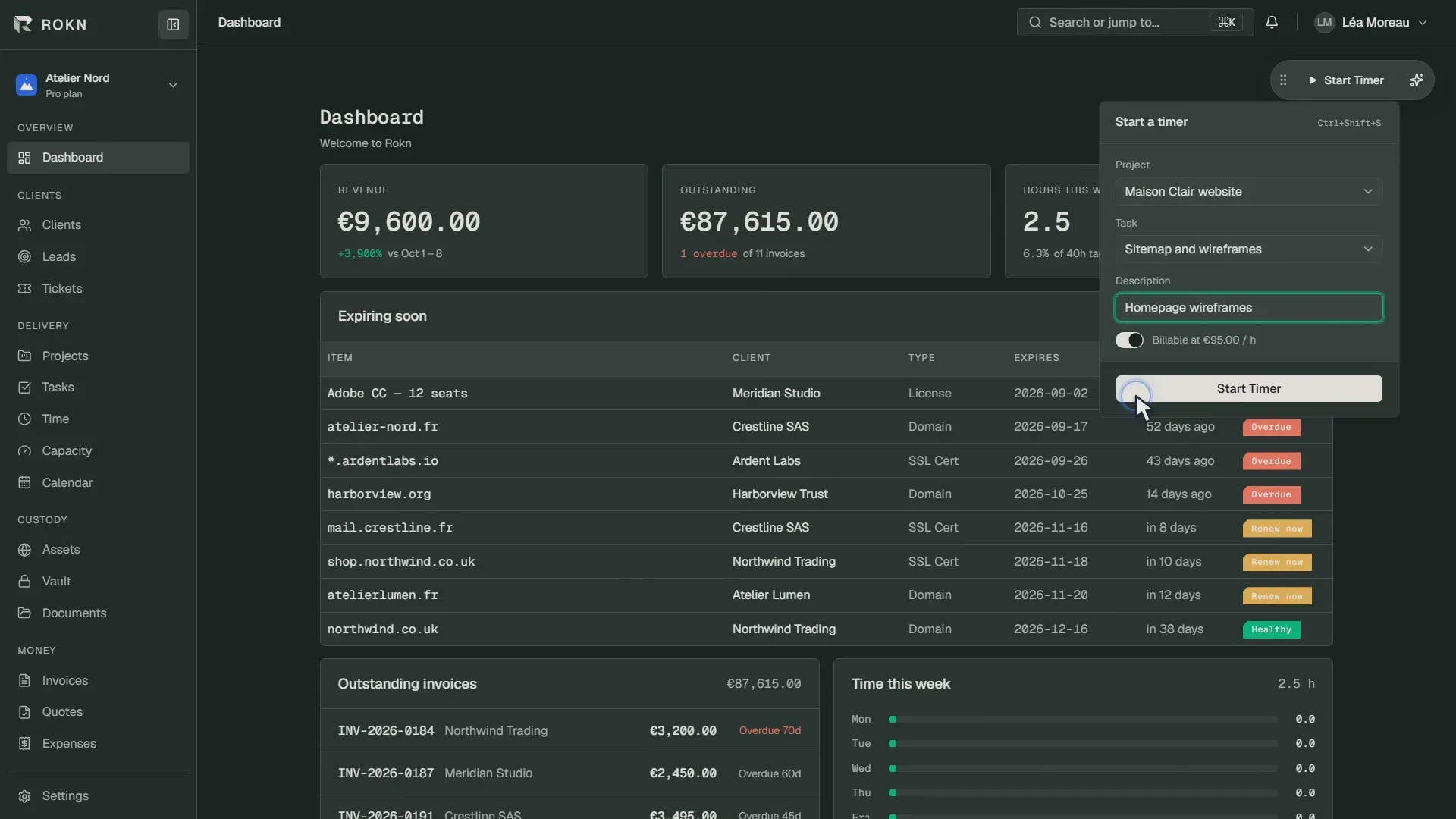
Start it
Click Start Timer. The corner becomes a running clock, with the task beside it.
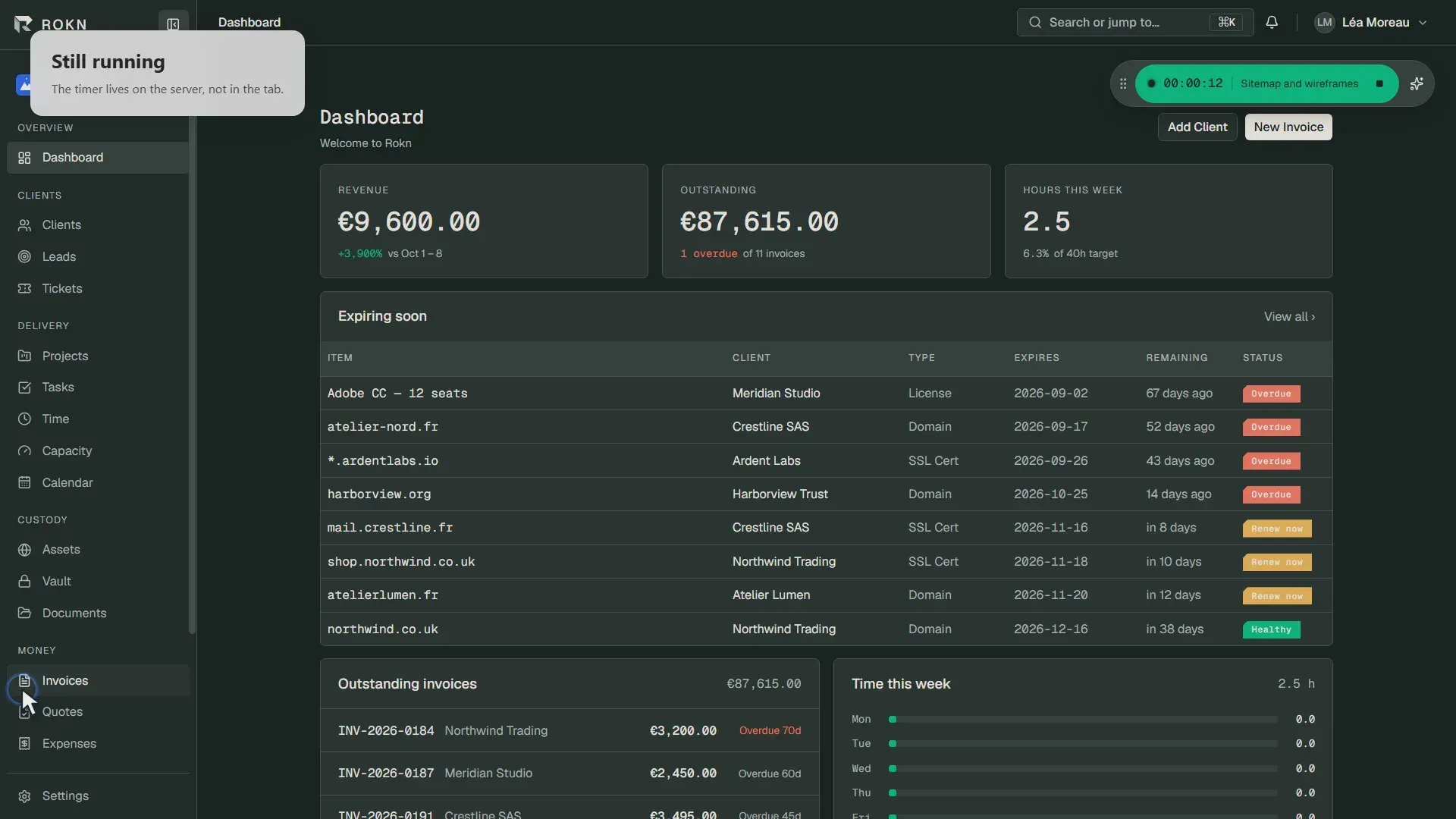
Keep working
The timer keeps running while you work anywhere else in Rokn, and even if you close the browser. Here, an hour has gone by.
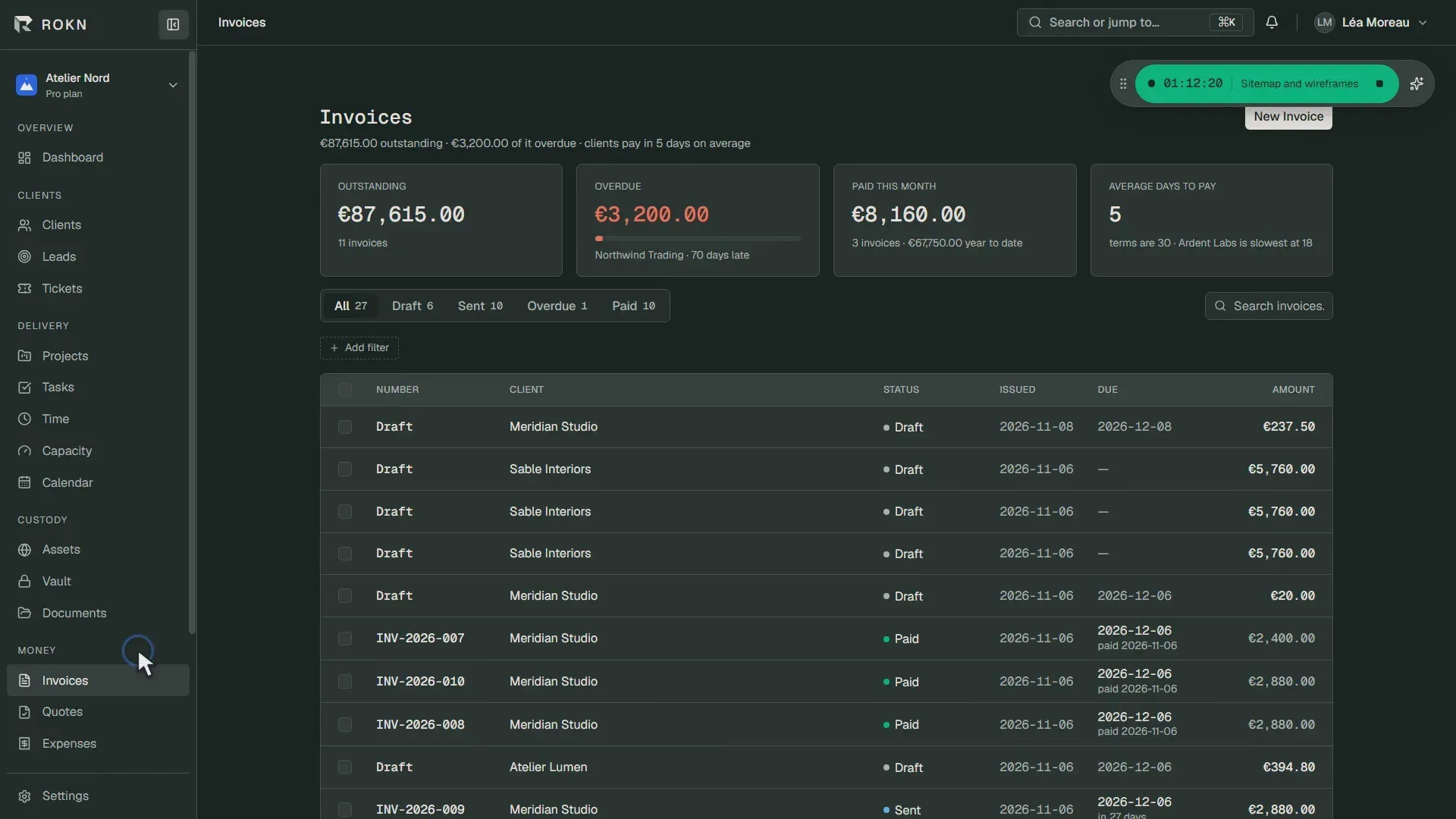
Stop it
When you are done, stop the timer. The time is saved as an entry.
Find the entry on the Time page
Open the Time page. The entry is in your week, under its project and task, ready to invoice.
Idle detection and rounding
The timer settings on the Time page add two options. Idle detection asks what to do with the time when your machine has been idle for longer than the minutes you choose while a timer runs: Keep the time, or End it where I stopped. Round entries rounds a stopped timer up to the step you choose. Manual entries are never rounded, and Rokn keeps both the tracked and the billed duration, so the difference is never lost.
Good to know
- The timer lives on the server, not in the browser tab.
Next step: bill the tracked hours on an invoice.
November 10, 2026
Suggest an improvement