

Take payments with PayPal
Let clients pay your invoices with PayPal: connect your own PayPal app, send the invoice as usual and Rokn records the payment for you.
Let your clients pay invoices with PayPal. You connect your own PayPal business app, beside Stripe or on its own, and Rokn records each payment for you.
Connect your PayPal app
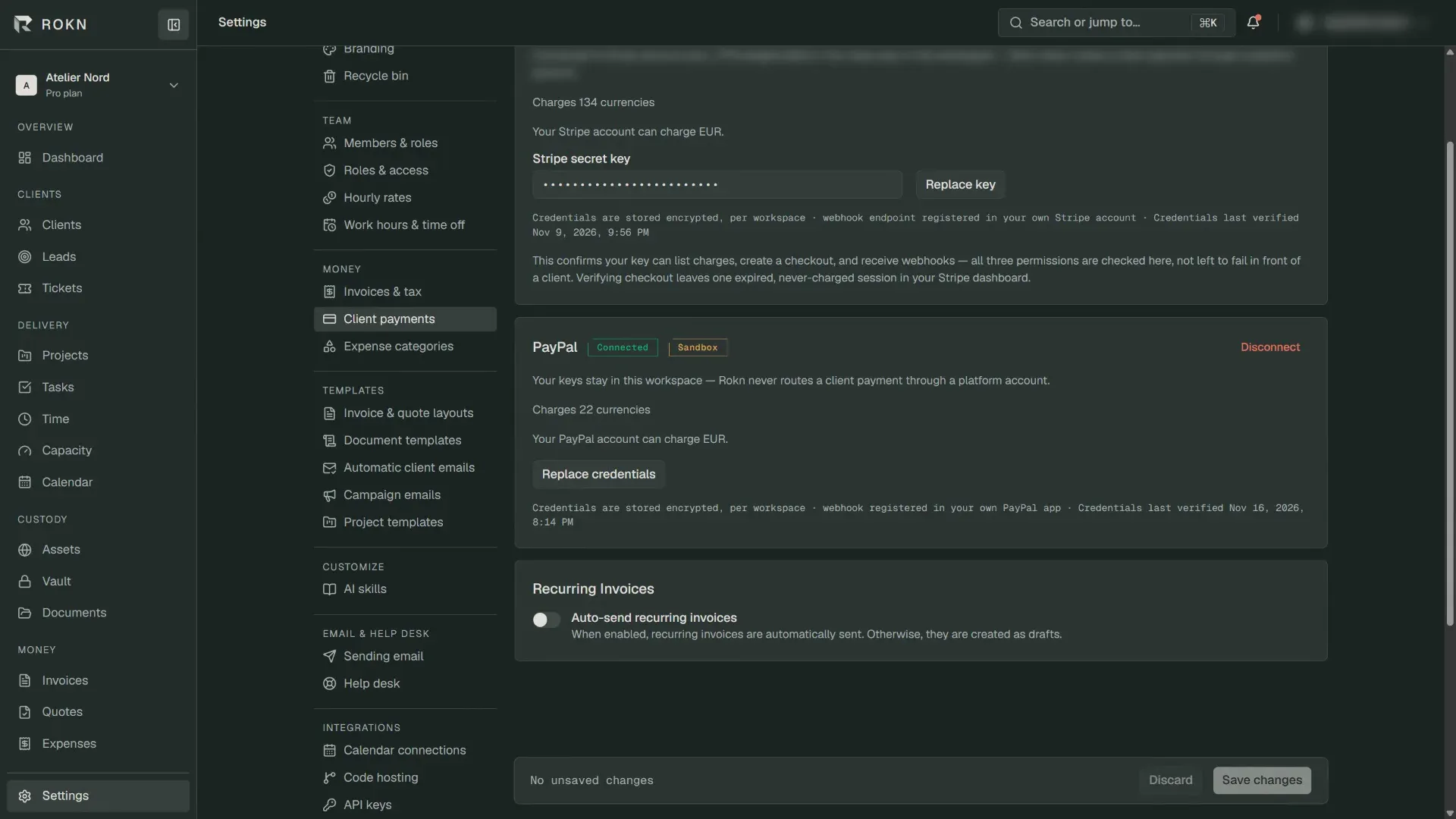
Open Settings → Client payments and find the PayPal card. Paste your PayPal business app's Client ID and Client secret.
Rokn checks them with PayPal and registers its webhook in your app for you. The card then shows Connected, and says the credentials are stored encrypted.
Send the invoice as usual
Create and send your invoices the way you always do, for example INV-2026-002 for Meridian Studio. Each one carries a pay link, in the email and on the PDF.
The client chooses how to pay
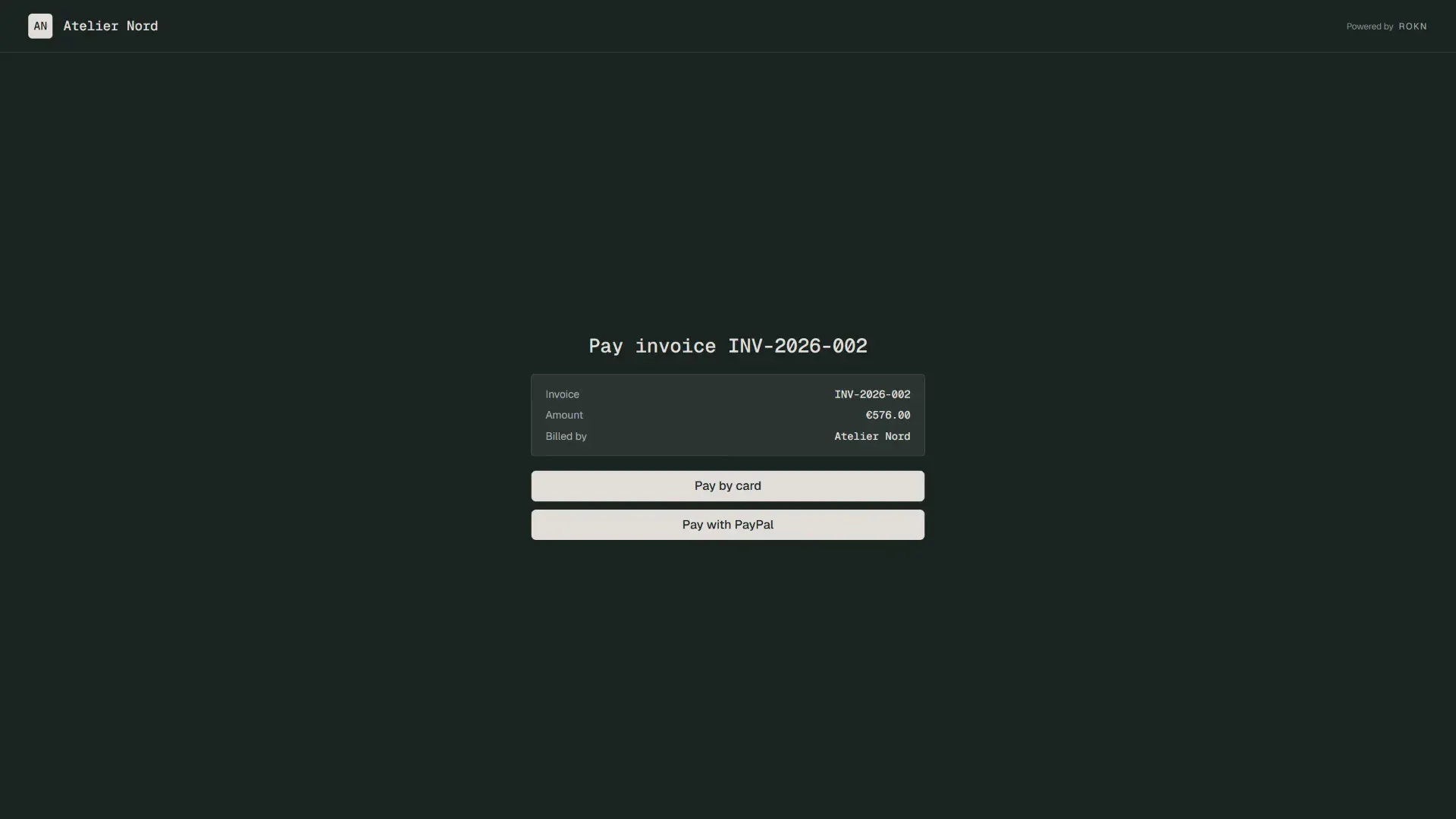
The client opens the pay link. With Stripe and PayPal both connected, the pay page offers Pay by card and Pay with PayPal, and the client picks one.
The client approves in PayPal
PayPal opens. The client signs in with their PayPal account and approves the payment.
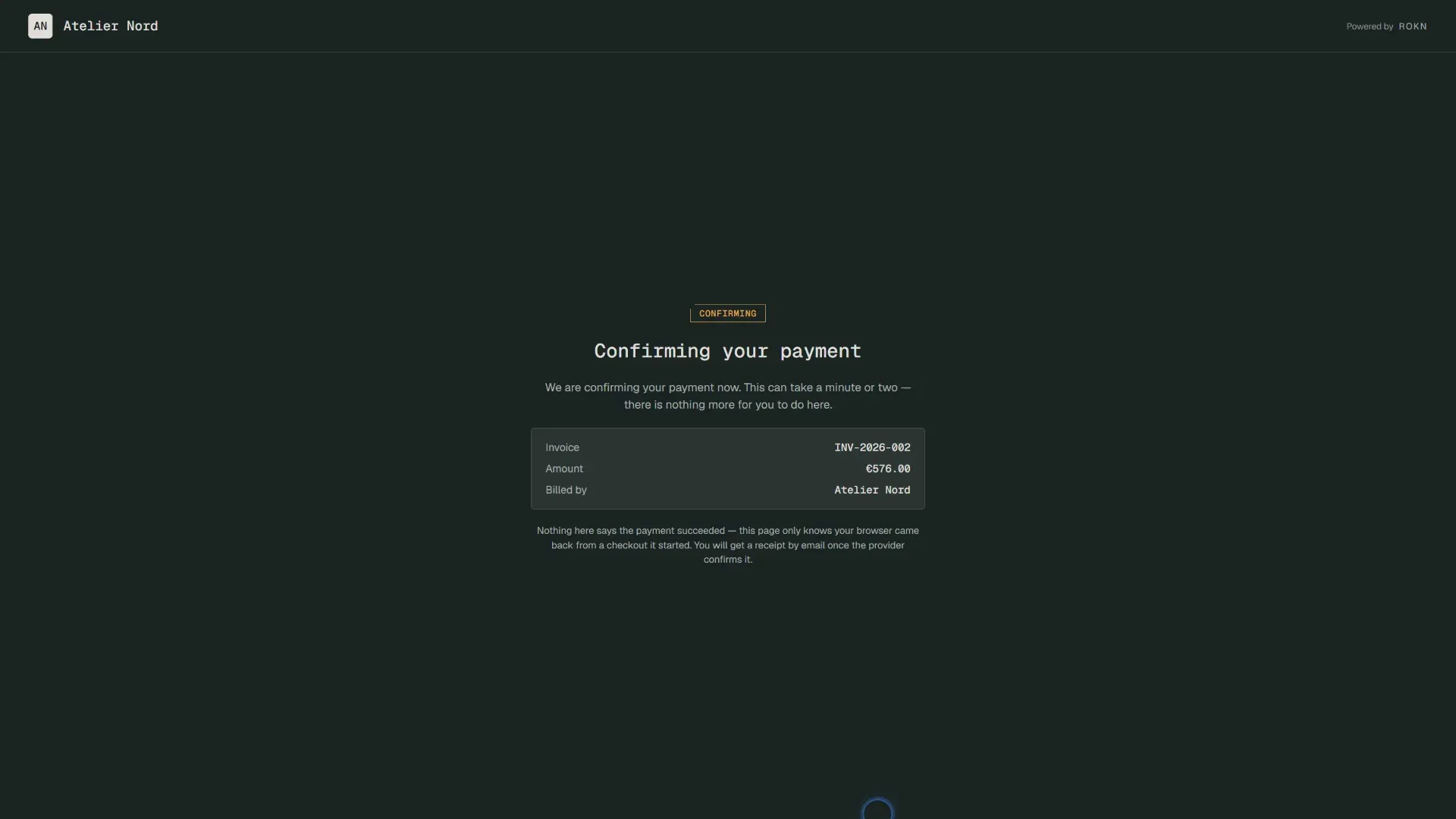
They then come back to Rokn, to a Confirming your payment page, while PayPal confirms the payment. There is nothing more for them to do.
See the invoice paid, and refund if needed
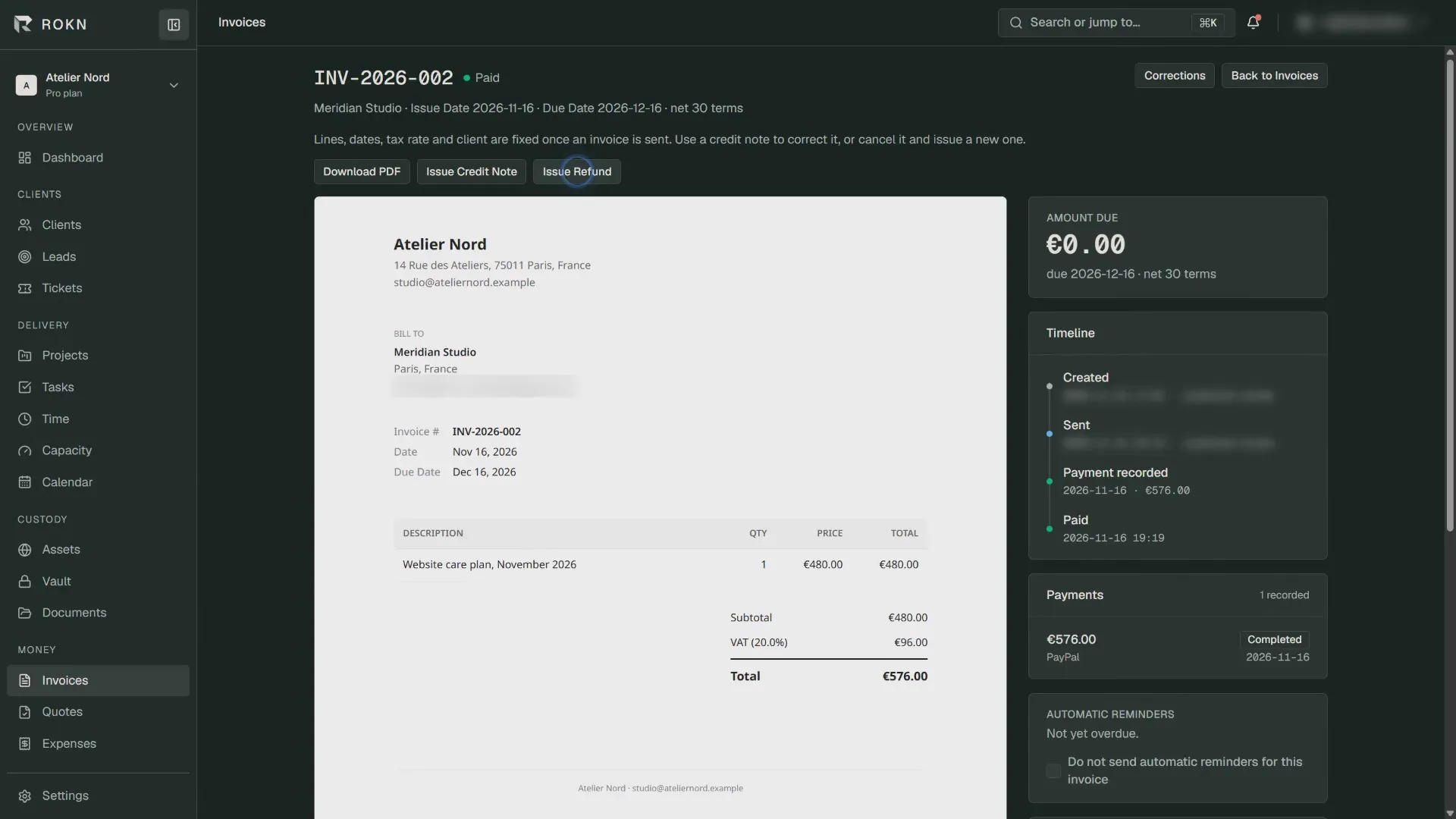
When PayPal confirms, Rokn marks the invoice Paid and records the PayPal payment in the Payments card. There is nothing to enter by hand.
To refund, click Issue Refund on the invoice. Rokn sends the refund to PayPal and records it when PayPal confirms.
Good to know
- PayPal works beside Stripe or on its own. With only PayPal connected, the client pays with PayPal.
- The payment is recorded when PayPal confirms it, not when the client comes back to Rokn, so the Confirming page can take a minute or two.
- Refunds also go through PayPal: Rokn records them only once PayPal confirms.
- The money goes to your own PayPal account, never through Rokn.
November 16, 2026
Suggest an improvement