Client folders & documents
Folders for every client and project. Upload a whole folder at once, preview files without downloading them, and download a set as a ZIP.


The latest version, in the right place. Keep each client's files in their folders, share them through the portal or a protected link, and store them in the EU, the US or your own S3 storage.
Start free
Get out of the cycle of email attachments and folders named “final-final”.
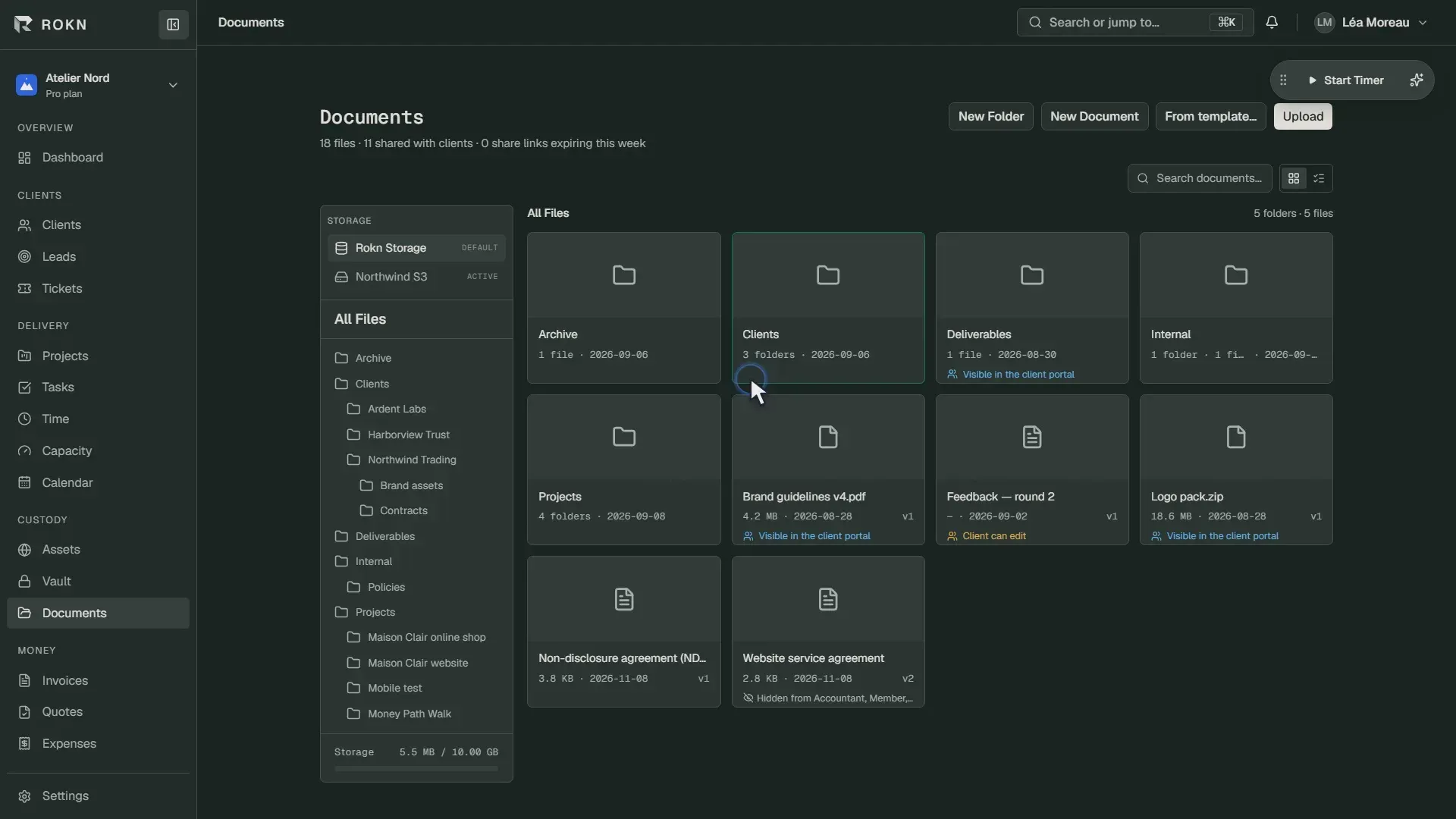
Folders for every client and project. Upload a whole folder at once, preview files without downloading them, and download a set as a ZIP.
Upload a new version and keep the history. Restore an earlier version when the client changes their mind.
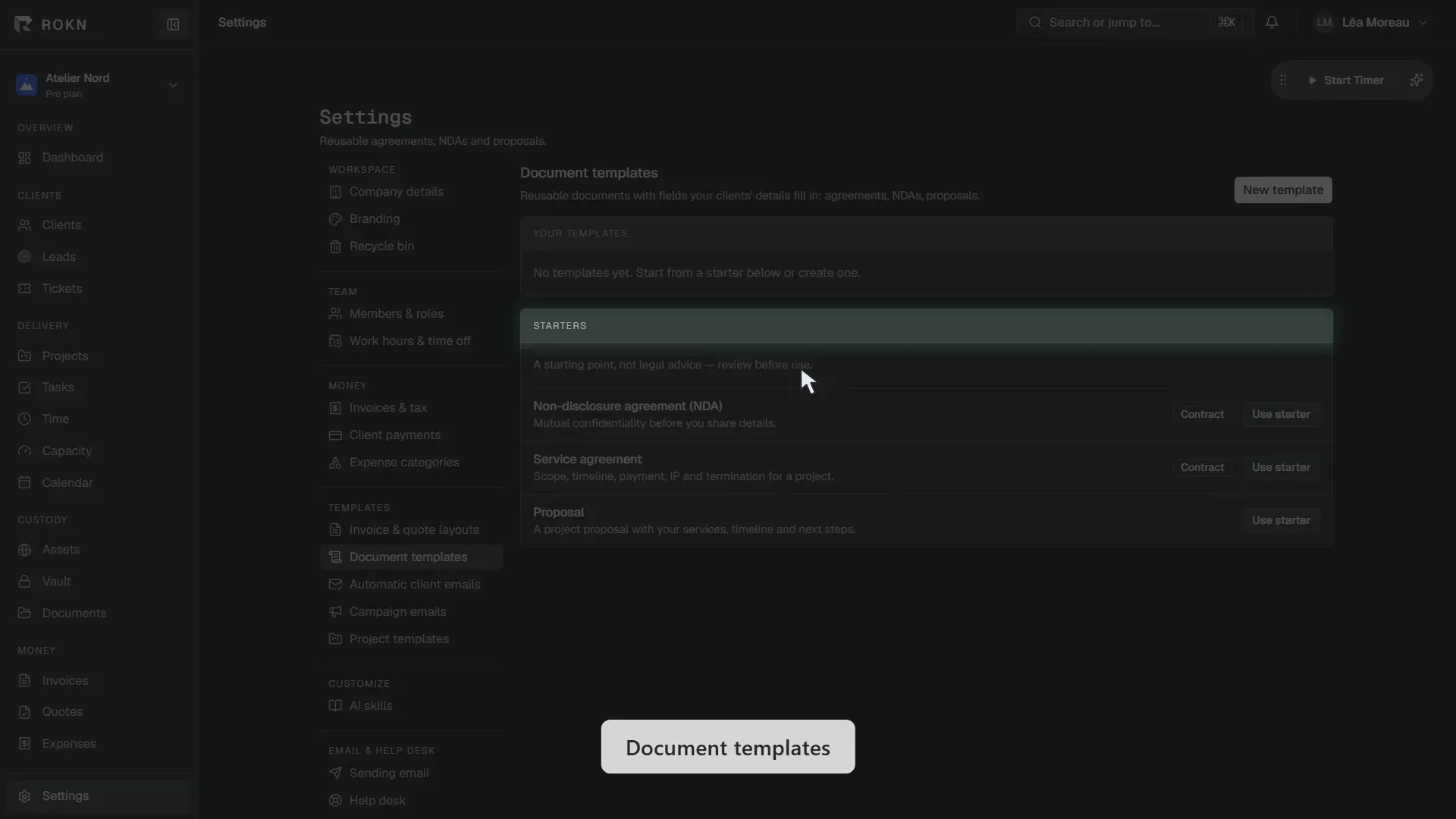
Write proposals, briefs and agreements in Rokn, starting from templates such as an NDA or a service agreement, turn them into PDFs, and send them for approval or signature.
Give clients a place to send their content and find the deliverables you share.
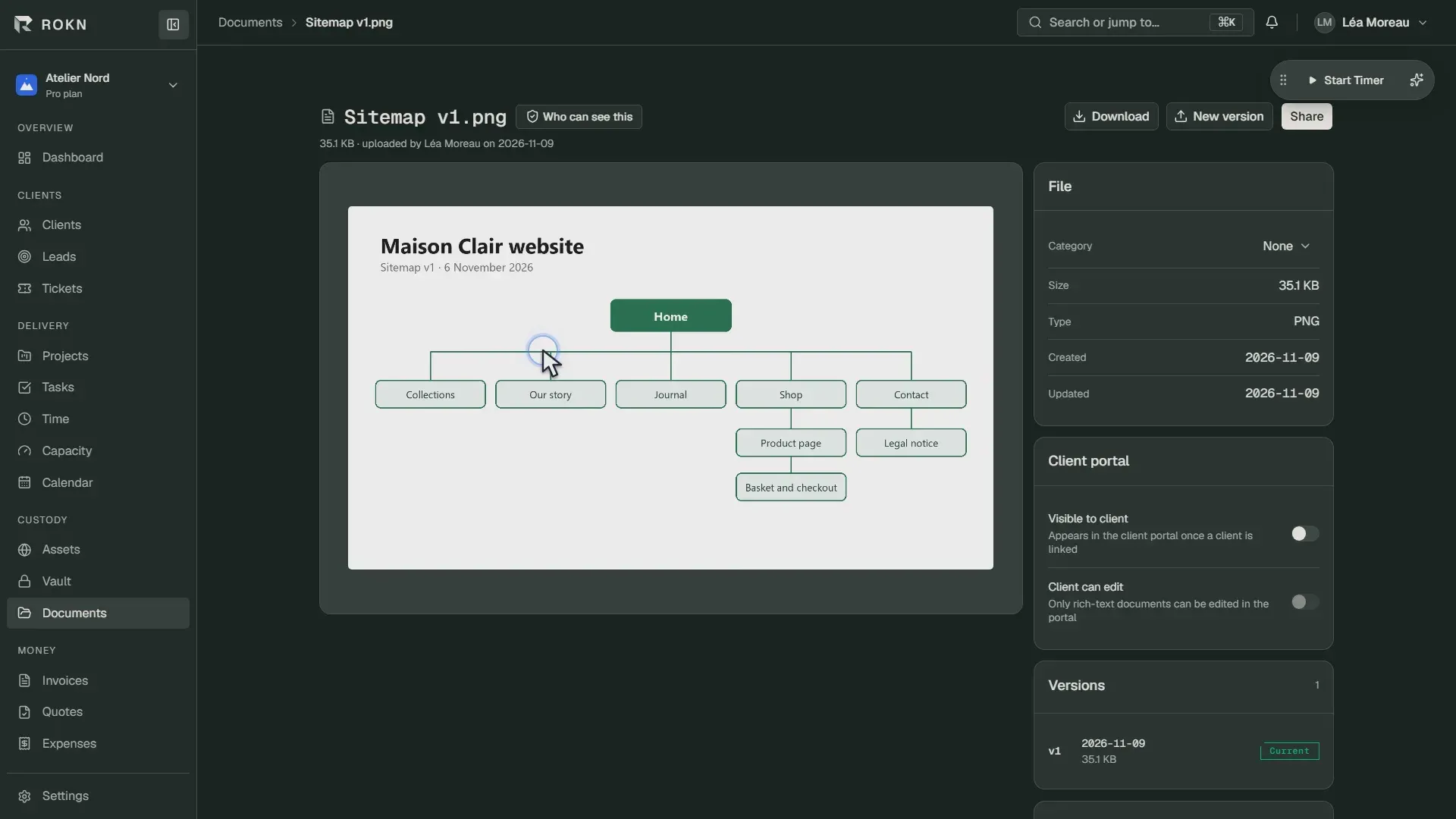
Make selected documents available in the client's portal, and let the client upload their content or edit the documents you allow.
Share a file through a link with a password, an expiry date and a download limit.
Choose which roles can find and open a document or a whole folder. A hidden file answers like one that does not exist.
Files uploaded to a workspace are checked for viruses before anyone else can open them. A file with malware is removed and its uploader and the admins are told.
Start with managed storage, or connect storage you already control.
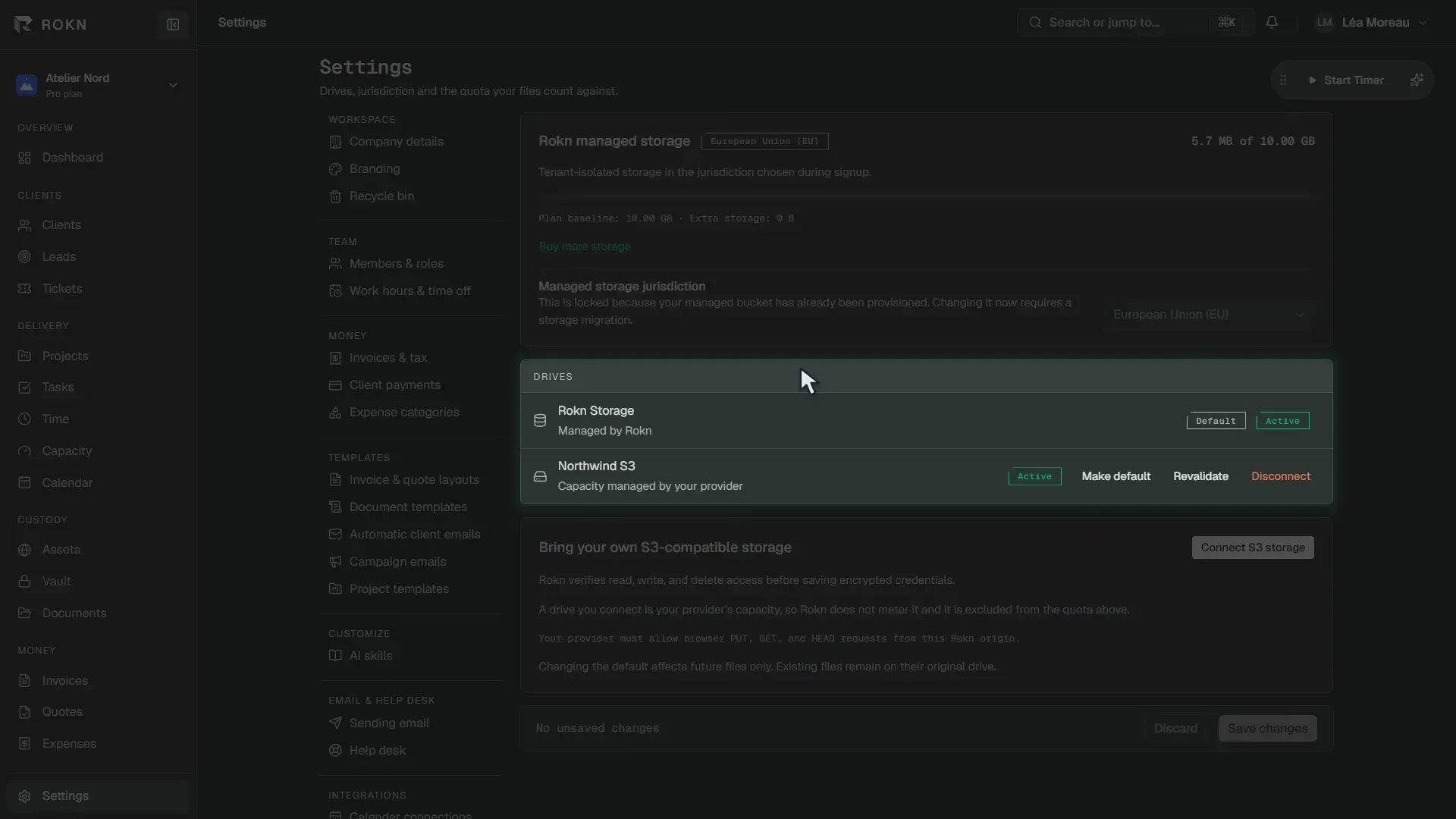
Choose where your files live when you set up the workspace: the EU, the US or automatic. Rokn warns you before you run out of space.
Connect one or more S3-compatible drives, verify each connection and choose where new uploads go. Browse each drive from inside Rokn.
Storage locations also track versions, generated PDFs and ticket attachments, keeping the files behind the business accounted for.
Managed storage in the EU or the US, or a drive you connect yourself.
In managed storage in the EU or the US, chosen when you create the workspace, or in your own S3-compatible storage.
Yes. Clients upload their content through the portal, into the folders you share with them.
Yes. Every upload is scanned before anyone else can open it. A file with malware is removed, and the uploader and the admins are told.
Yes. A workspace export includes your records, your files and the PDFs Rokn generated.
Share deliverables in the client portal, where the client also follows progress and pays.
See the client portalCreate a client folder, upload the latest files and share them with your client.