

Import clients from a CSV file
Bring your existing clients into Rokn from a spreadsheet saved as a CSV file, and check what Rokn read before anything is saved.
If your clients already live in a spreadsheet, you don't have to retype them. Import them in one go and they're ready for projects and invoices.
Prepare your CSV file
Save your spreadsheet as a CSV file first, with one client per row. A Name column is all Rokn needs; email, phone, website and address are used when they're there.
Open the import
On the Clients page, click Import from CSV. A dialog opens and asks you to choose a file.
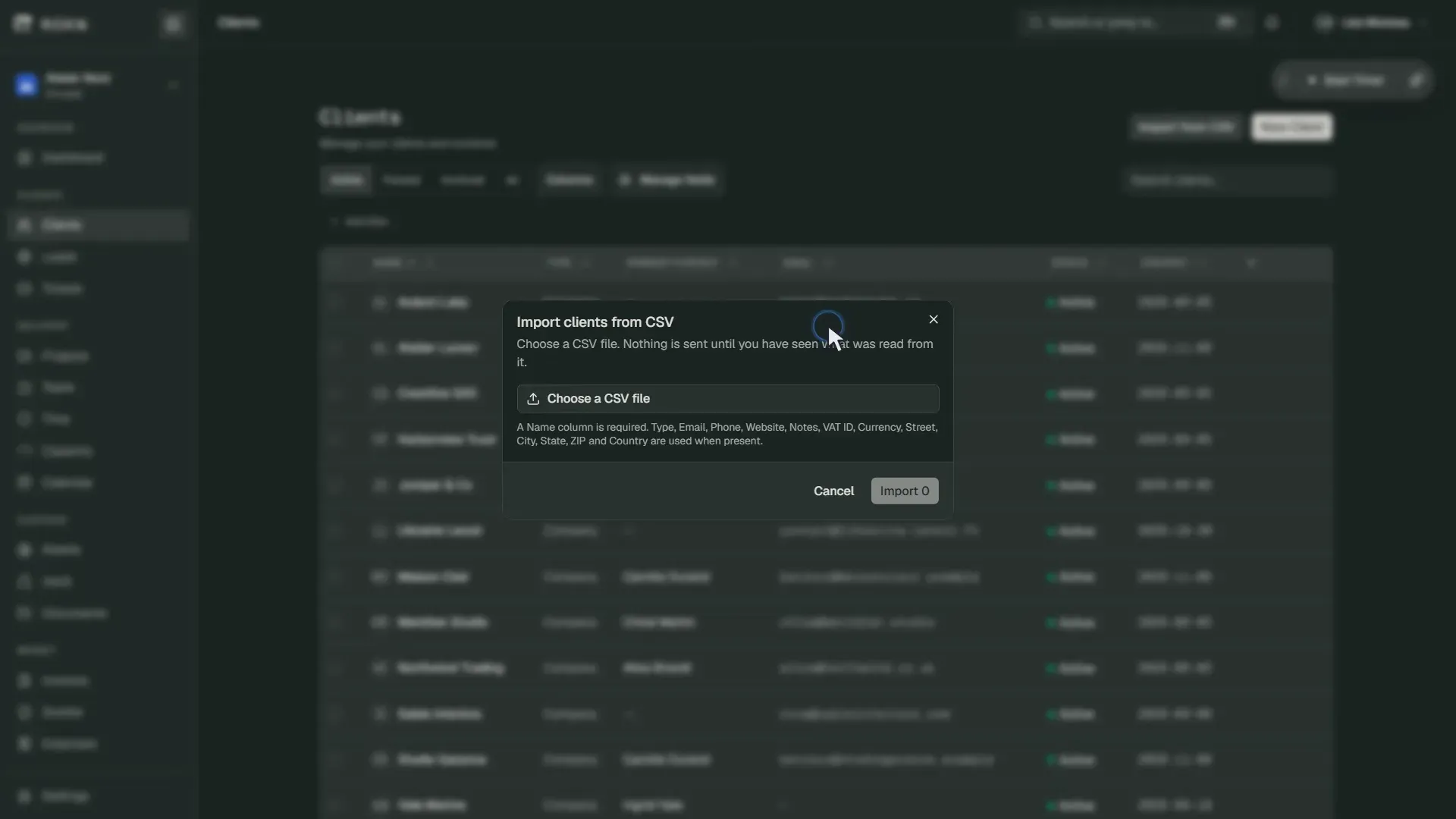
Check the preview
Click Choose a CSV file and pick yours. Rokn shows what it read before anything is saved: how many clients, which columns it will use, and which it will ignore.
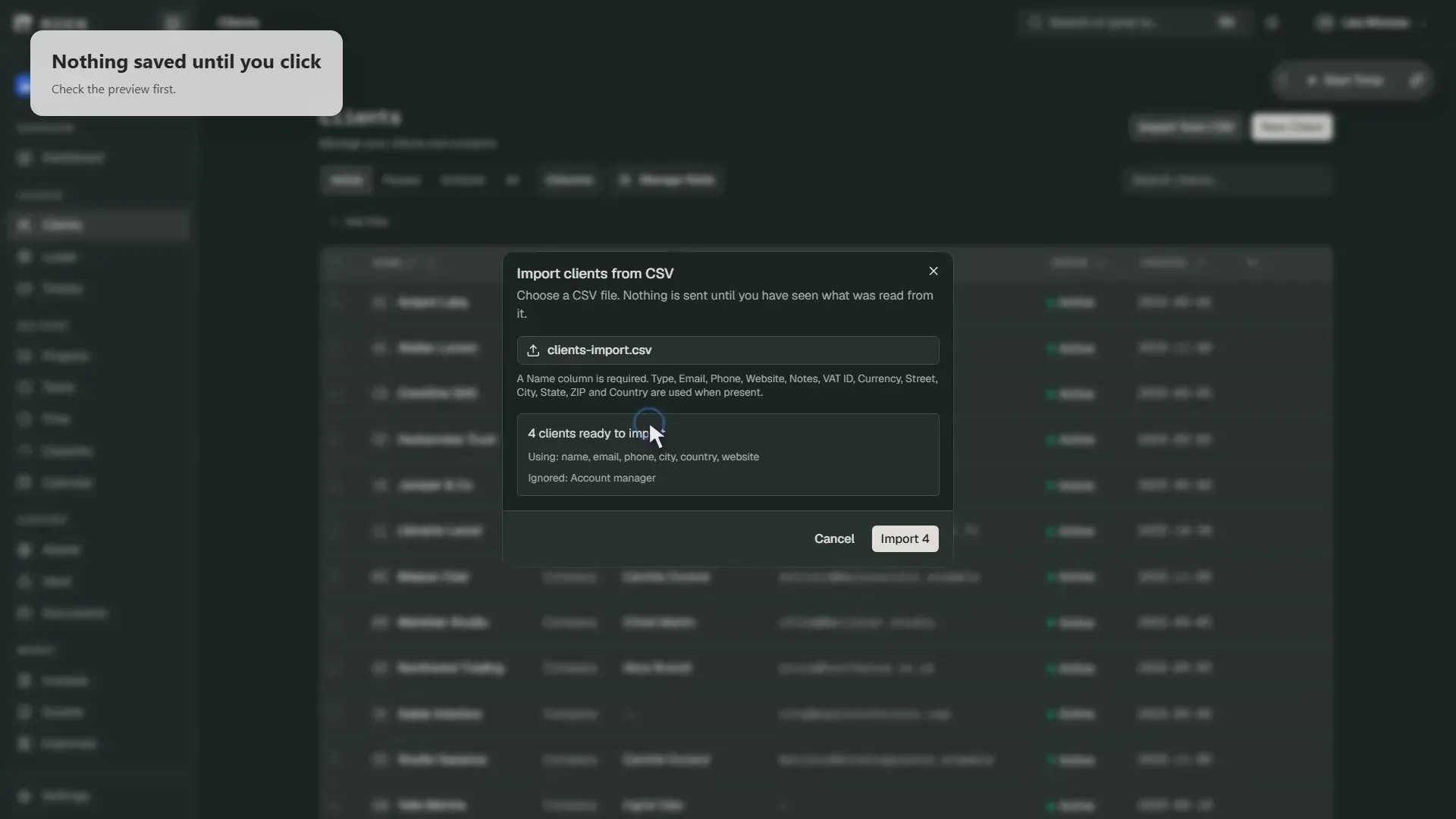
Import the clients
Click the Import button. The clients are now in your client list, ready for projects and invoices.
Good to know
- Nothing is saved until you click Import, so you can check the preview first.
- Columns Rokn doesn't recognise are ignored.
November 10, 2026
Suggest an improvement