

Plan your team's capacity
Plan each person's hours on projects week by week, see who has room, and record time off so it shows in the planner.
The capacity planner shows how much of each person's time is planned, and how much is free. Use it to share out work and to record time off.
Open the planner
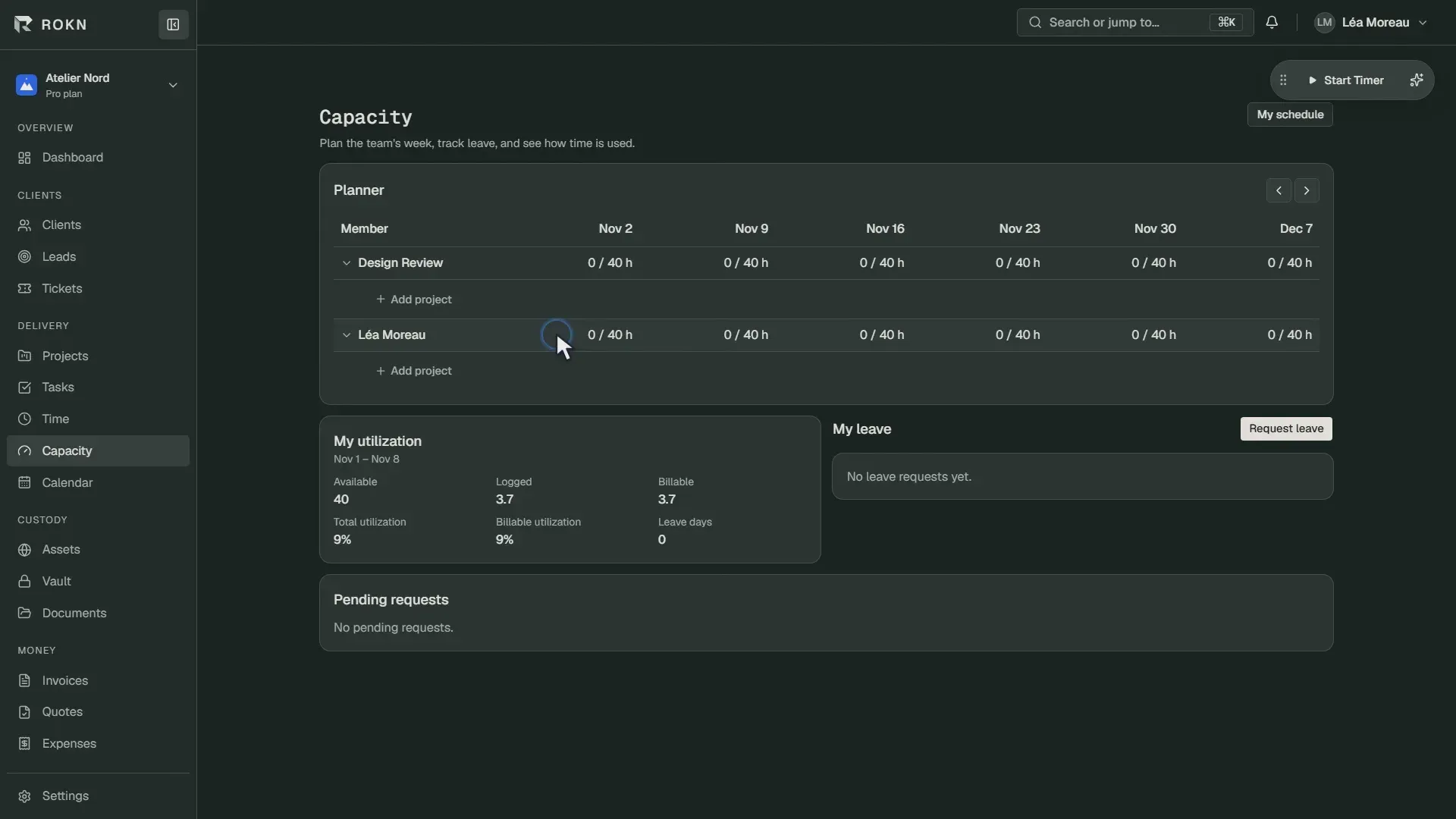
Open Capacity. The Planner shows each person's weeks: the hours planned against the hours they have.
Use the arrows to move to other weeks.
Plan hours on a project
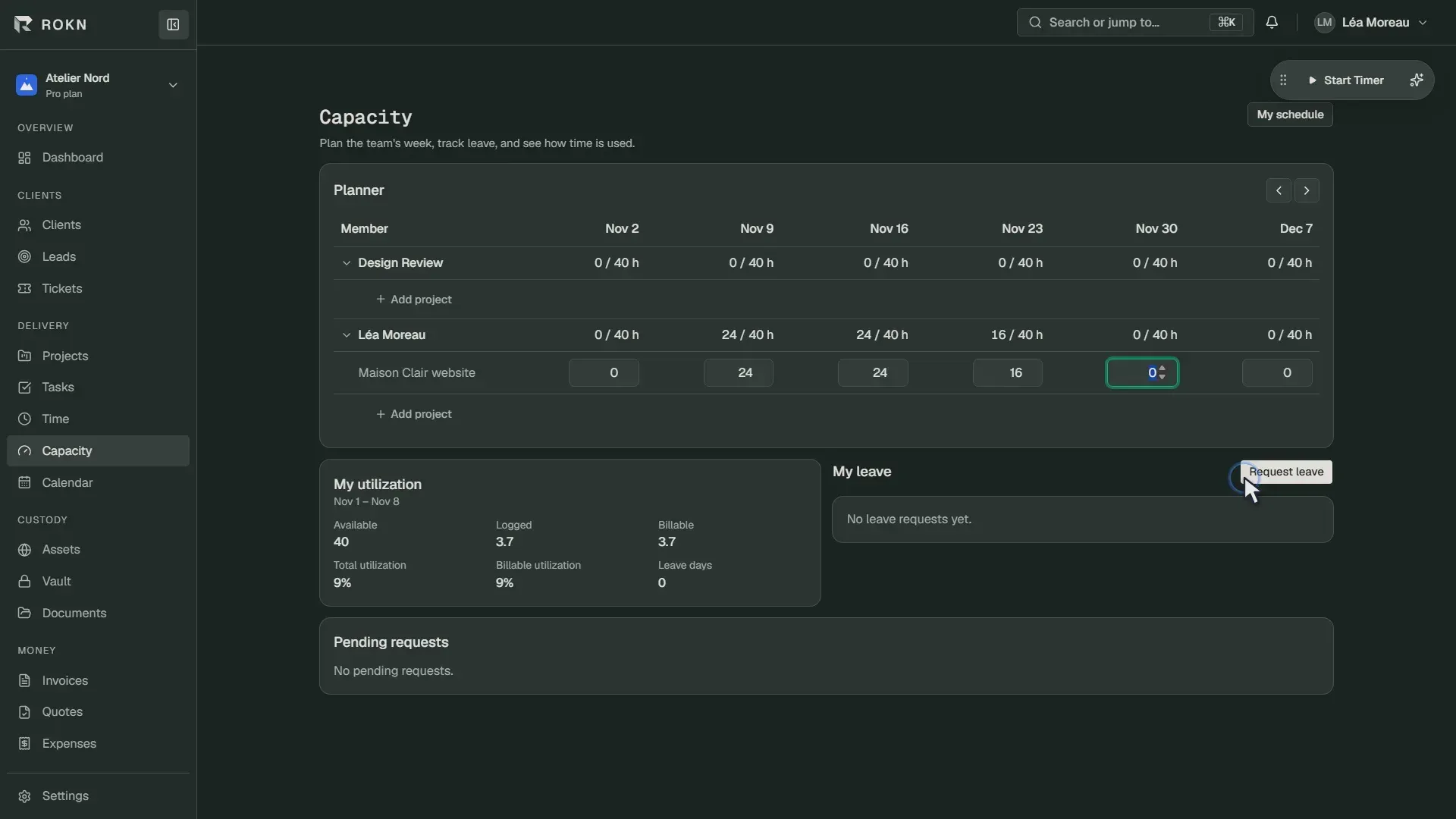
Click Add project on someone's row and choose a project. Then plan their hours on it, week by week.
Watch the totals
The totals follow as you type, so you can see who has room and who is full.
Request leave
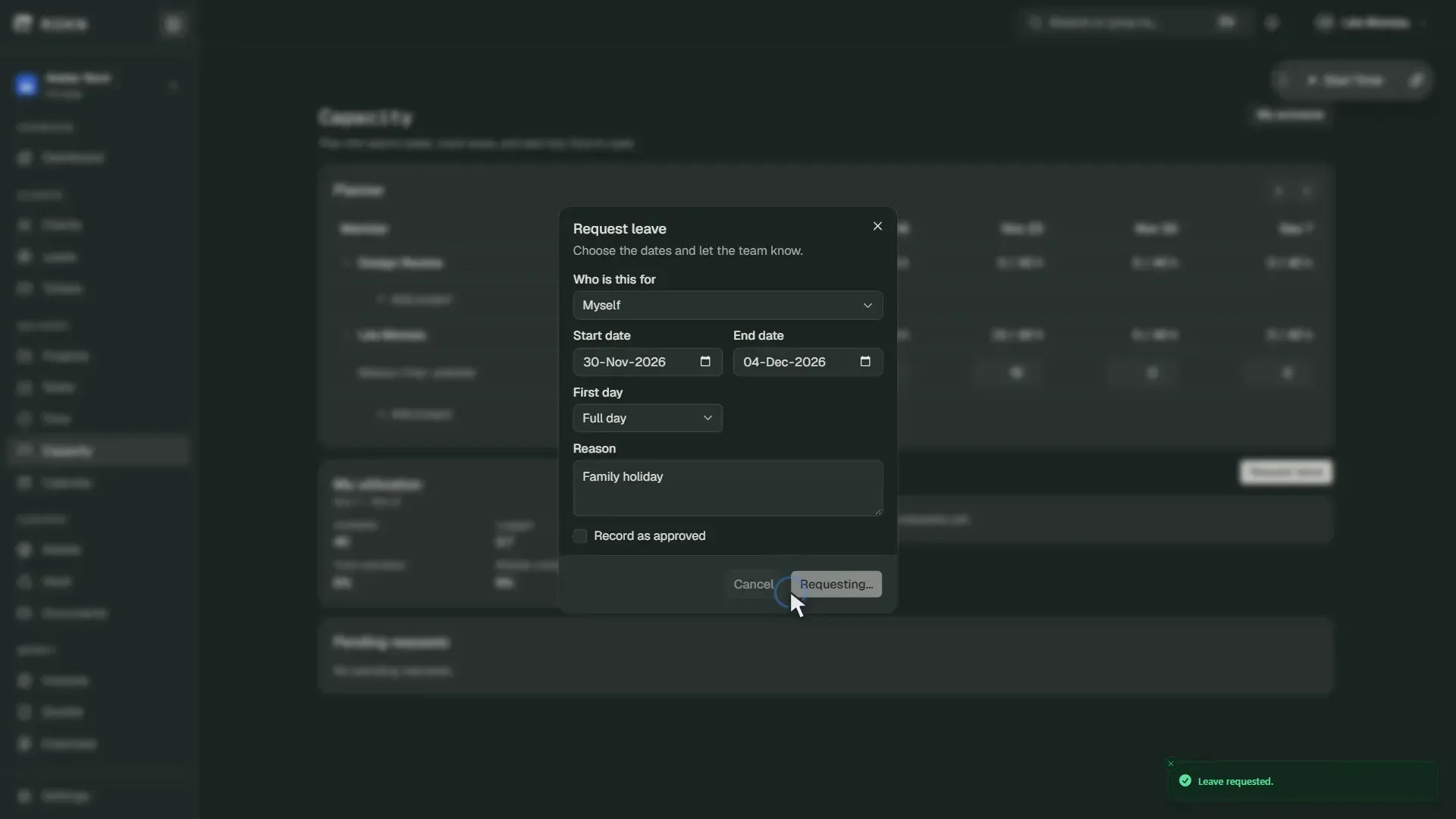
Time off lives here too. Click Request leave, choose the dates, and add a reason if you like.
In the dialog you can pick who it is for, and the first day.
Approve it or leave it pending
An admin can record the leave as approved straight away. Otherwise it waits in Pending requests for an owner or admin to decide.
See the leave in the planner
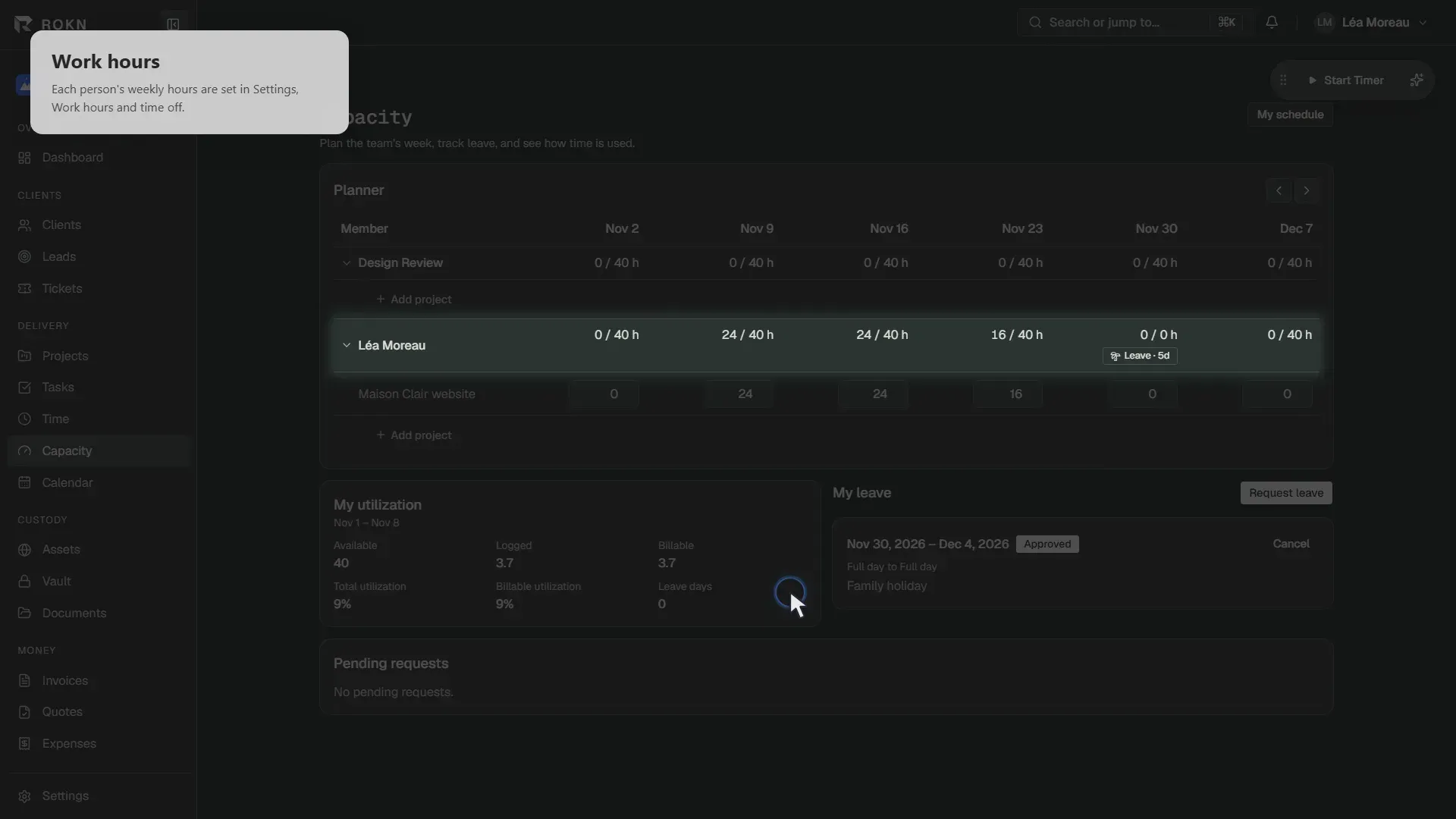
The leave shows in the planner, so that week has fewer hours to plan.
Good to know
- Each person's weekly hours are set in Settings, under Work hours & time off.
November 10, 2026
Suggest an improvement