

Invoices and tax settings
Set your invoice numbering, payment terms, bank details and default tax rate once, so every new invoice follows them.
Settings, Invoices and tax, holds the rules every invoice follows. Set them once and each new invoice uses them.
Check the numbering
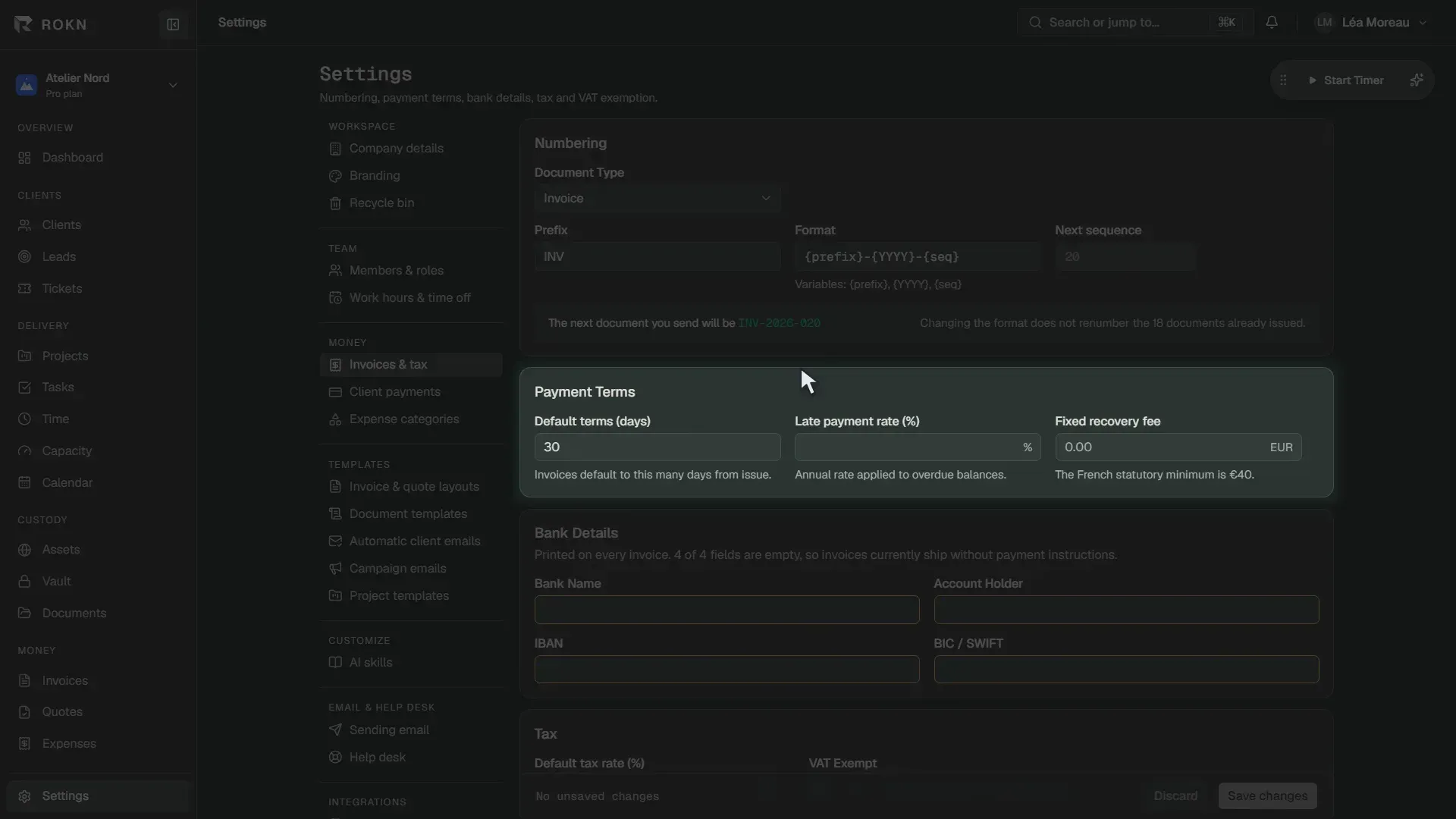
Open Settings, then Invoices and tax. The Numbering card sets a prefix, a format and the sequence number your next invoice will get. A line under the fields shows the number your next document will receive.
Set the payment terms
Under Payment Terms, Default terms (days) sets the due date of new invoices. In the video it is 30 days after the issue date. You can also add a late payment rate and a fixed recovery fee.
Add your bank details
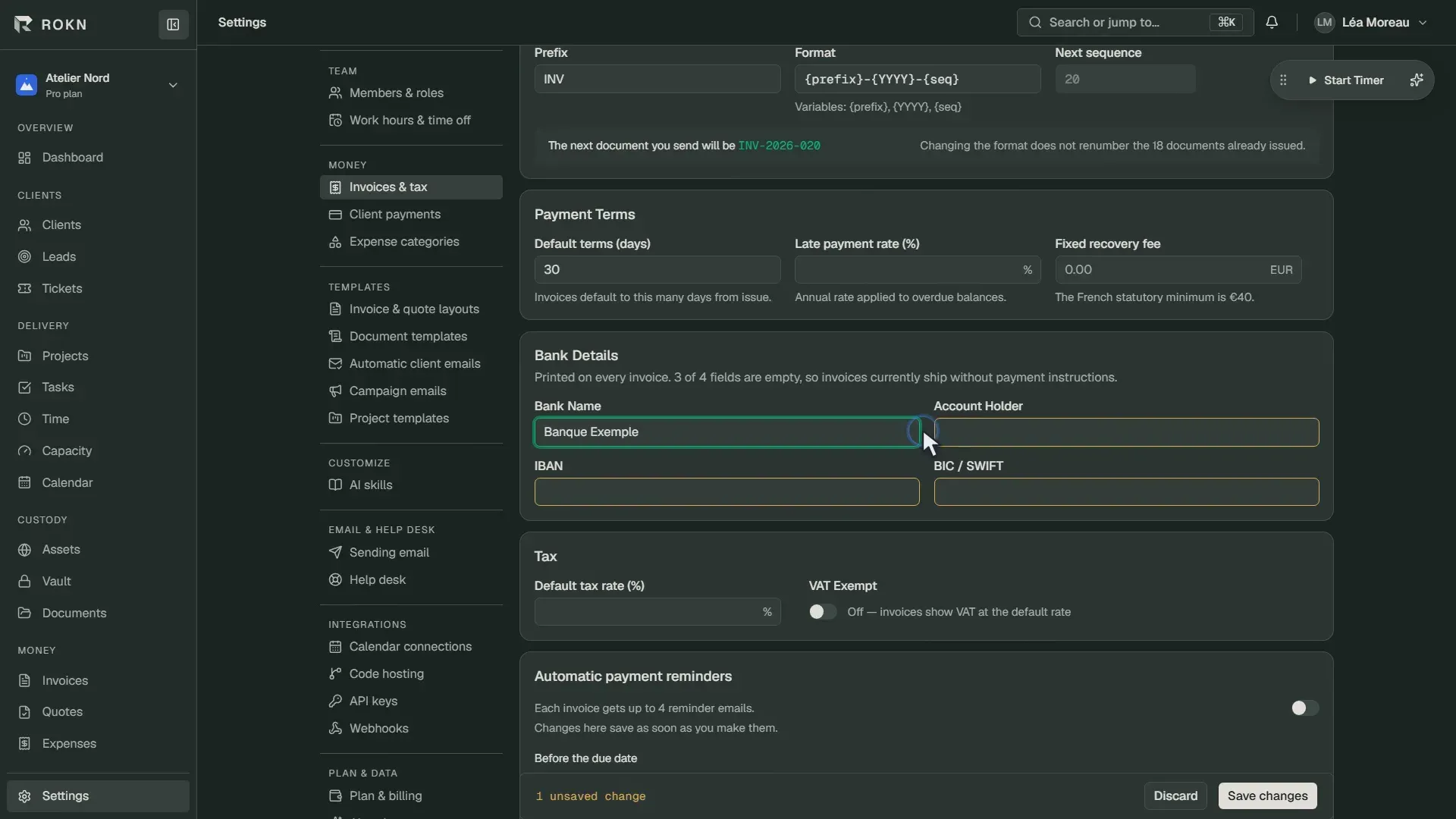
Fill in the Bank Details card. These details are printed on every invoice, so clients know how to pay you by transfer. For clients paying from abroad, add the bank name, account holder, IBAN and BIC. The card tells you when fields are still empty, because invoices then go out without payment instructions.
Set the tax rate and save
In the Tax card, enter your Default tax rate (%). If your business doesn't charge VAT, turn on VAT Exempt and your invoices say so. Then click Save changes.
Know what your country changes
The country you set in your company details decides the legal fields your invoices carry and the compliance rules that apply. Changing the country asks you to confirm, because it affects both.
Good to know
- New invoices follow these settings. Invoices you've already sent keep their numbers and terms.
- Changing the format does not renumber the documents already issued.
Next step: create and send your first invoice, or design its layout.
November 10, 2026
Suggest an improvement