

Get paid online
Connect your own Stripe account so clients can pay your invoices by card, and let Rokn mark each invoice paid automatically.
Let your clients pay invoices by card. You connect your own Stripe account, so the money goes straight to you.
Connect your Stripe account
Open Client payments in your settings and connect your own Stripe account. The money goes straight to you.
Send an invoice
Every invoice you send carries a pay link, in the email and on the PDF. You do not need to add anything yourself.
The client pays on Stripe
Your client clicks the pay link and lands on a secure Stripe checkout. It shows your business name and the amount due, and the client chooses how to pay.
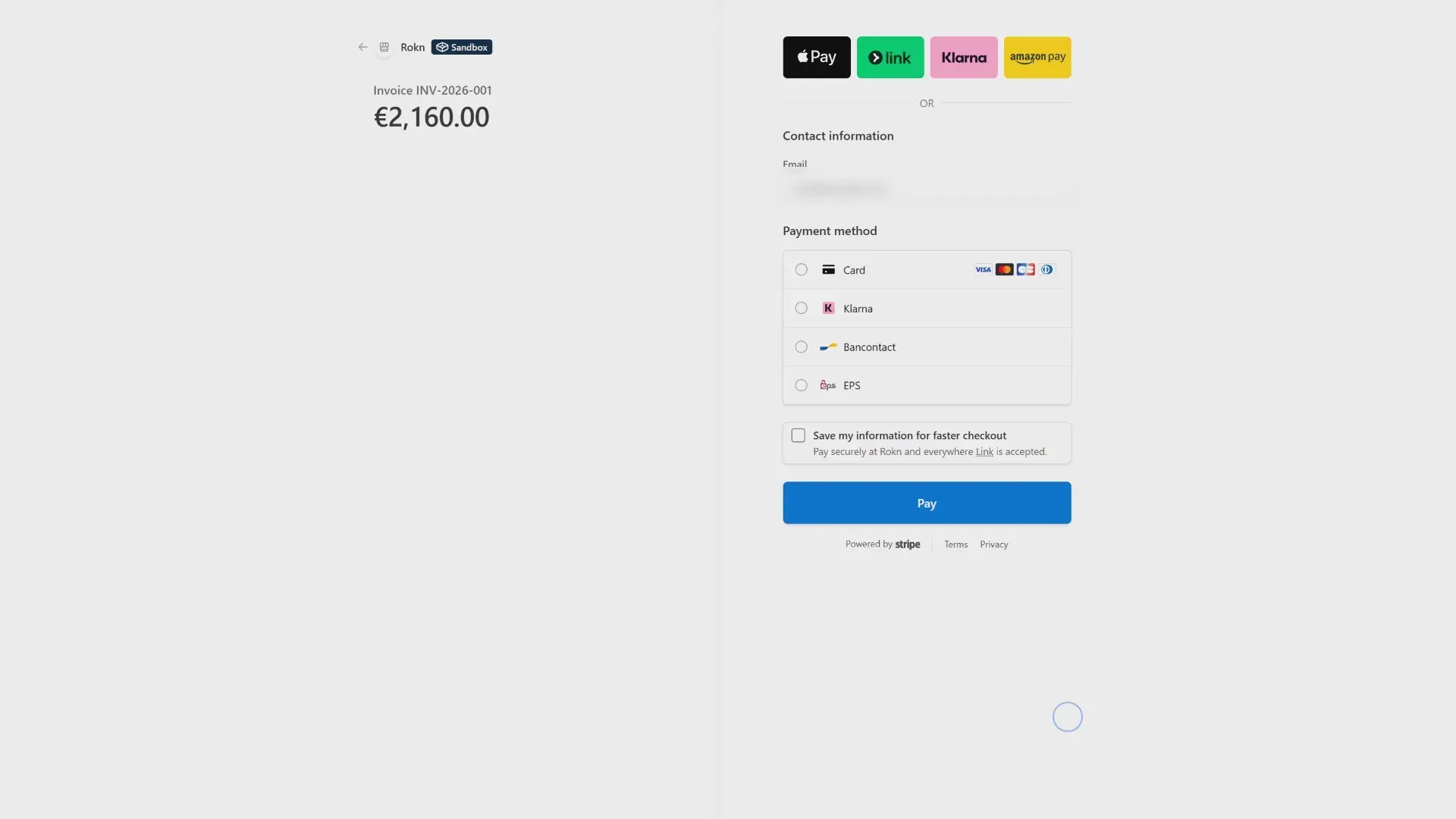
Stripe confirms the payment
Once they pay, the client comes back to a Rokn page that says the payment is being confirmed. This can take a minute or two, and there is nothing more for them to do.
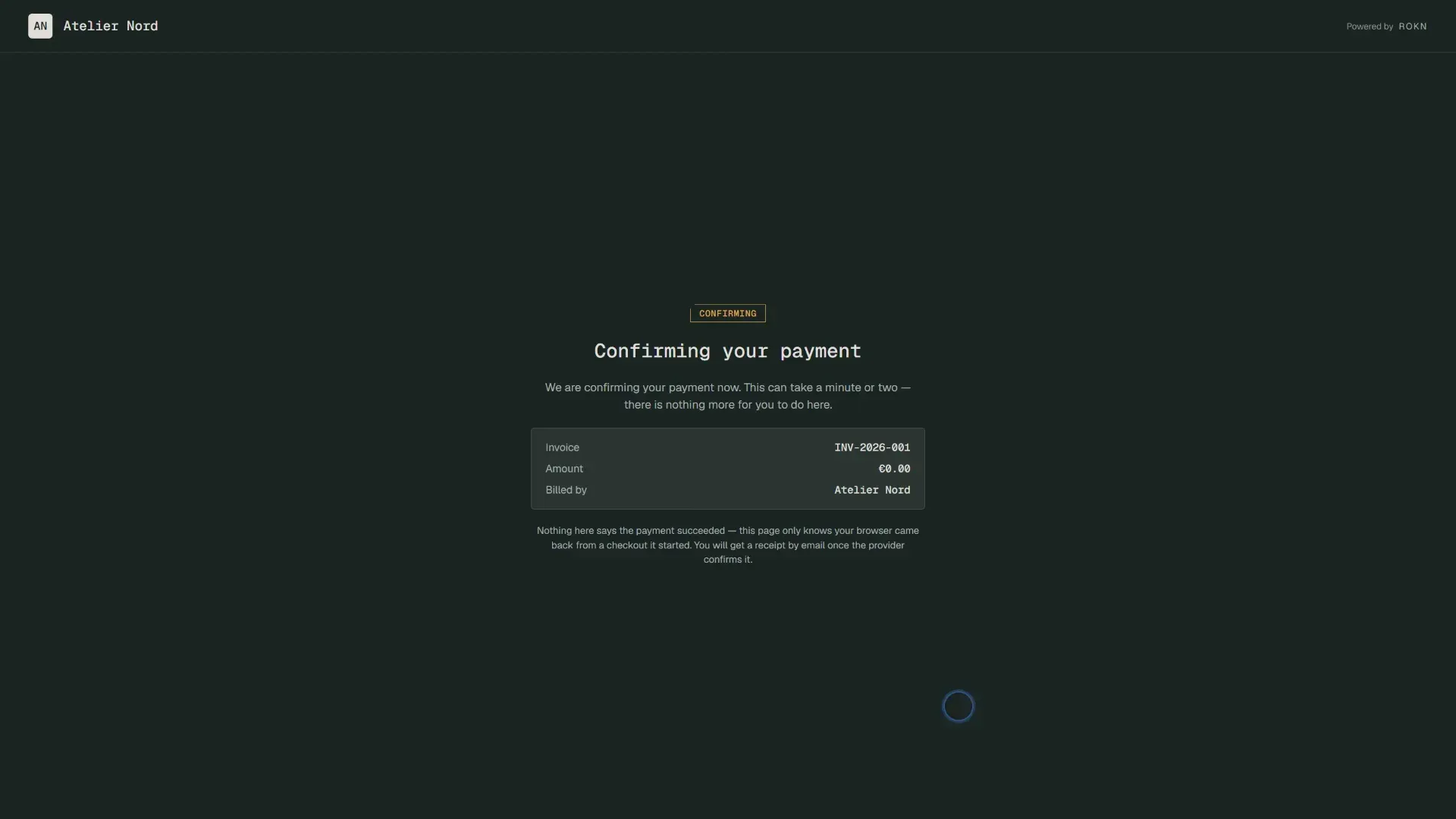
The invoice is marked paid
Rokn marks the invoice paid and records the payment for you. There is nothing to enter by hand.
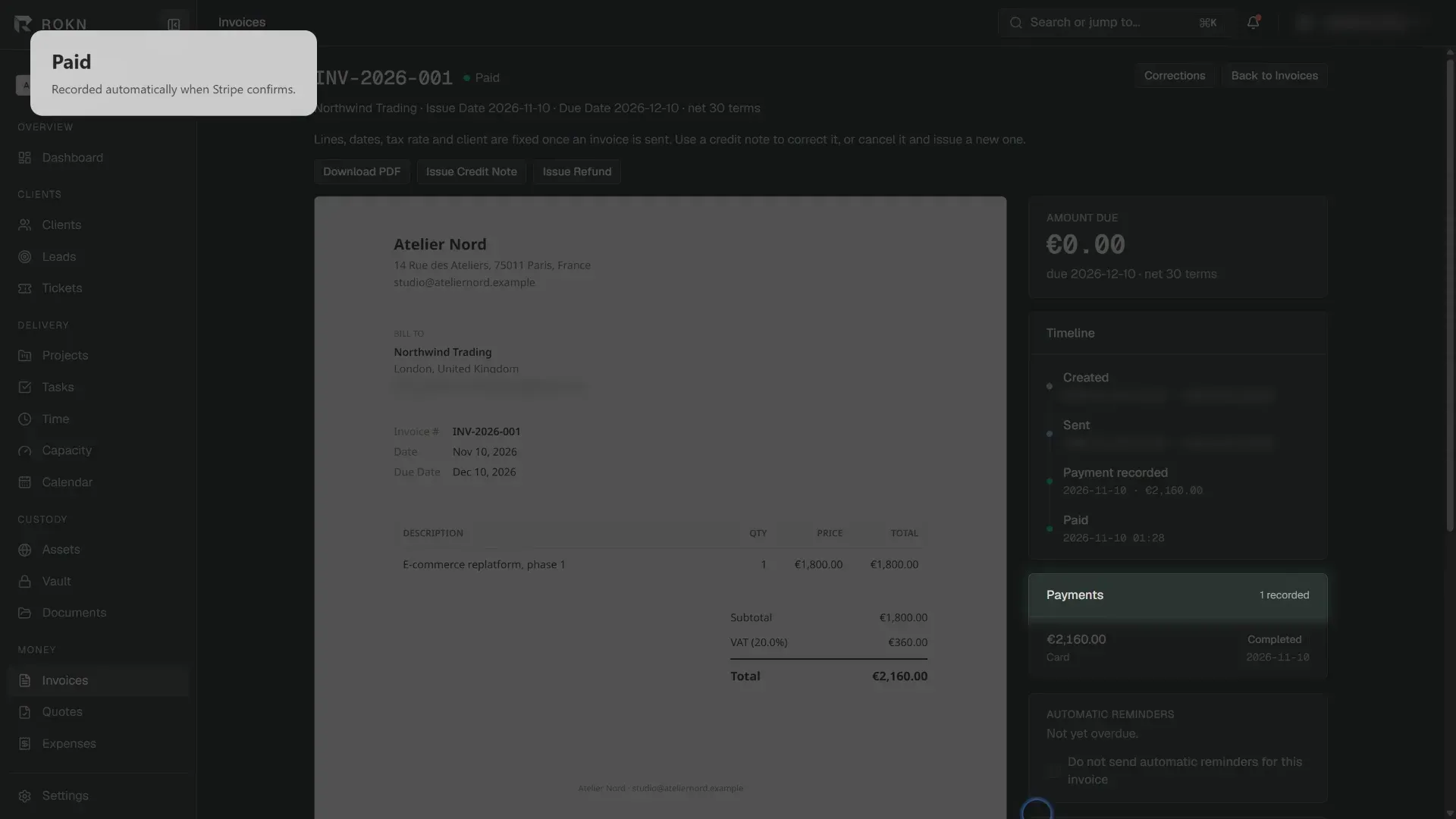
Good to know
- You can still record a payment by hand for money that arrives some other way, such as a bank transfer.
- Payments go to your own Stripe account, so Stripe’s usual fees apply.
November 10, 2026
Suggest an improvement