

Supplier bills and vendors
Record what you owe suppliers, link each cost to a client and project, approve the bill, and record the payment when you pay.
Supplier bills tracks what you owe your suppliers, separate from your expenses. Link a bill to a client and project so the cost counts in that project's profit.
See what you owe
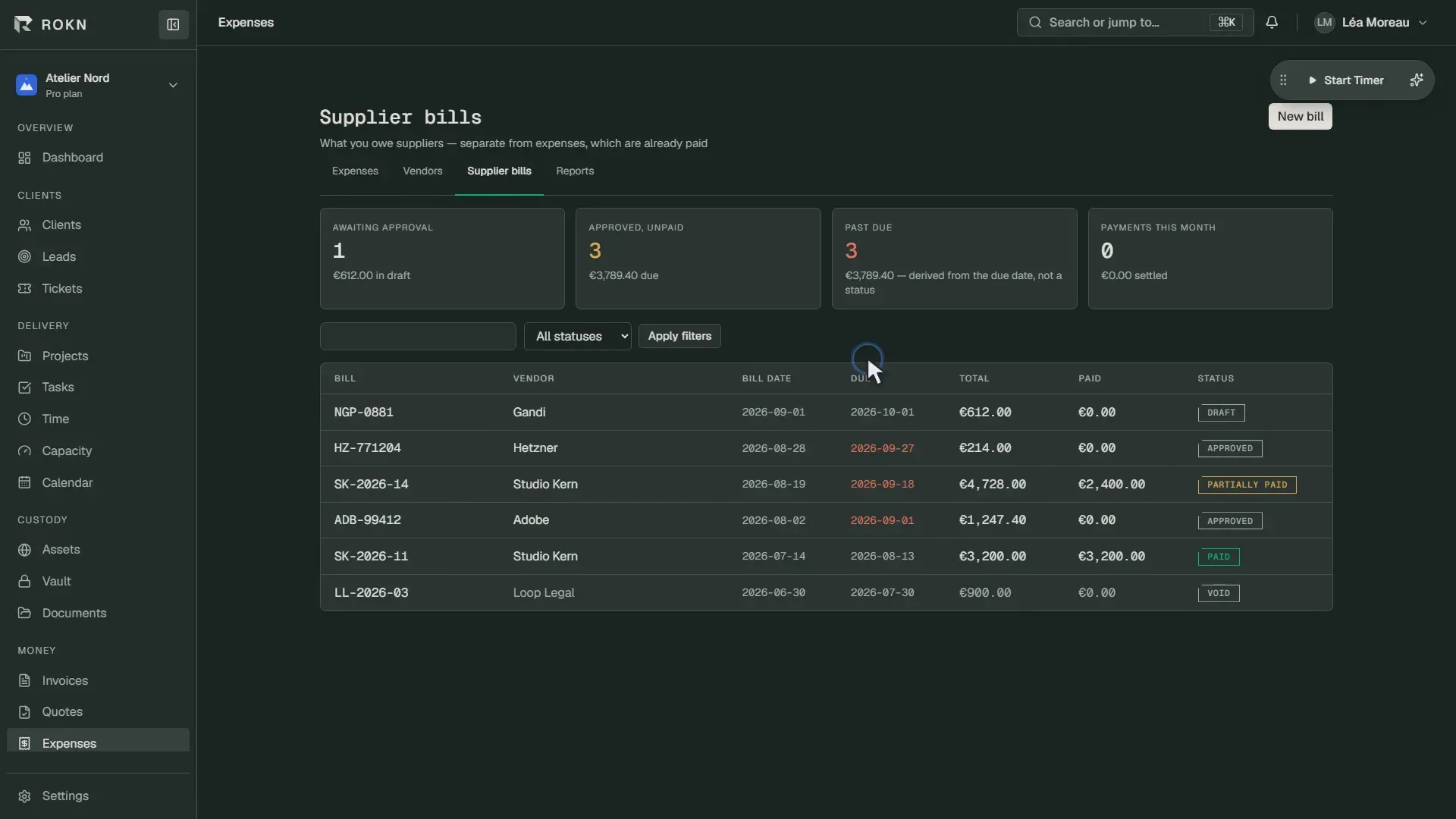
Open Supplier bills, under Expenses. The top figures show what is waiting for approval, what is approved and unpaid, what is past due, and payments this month. The list shows each bill with its vendor, dates, total and status.
Start a new bill
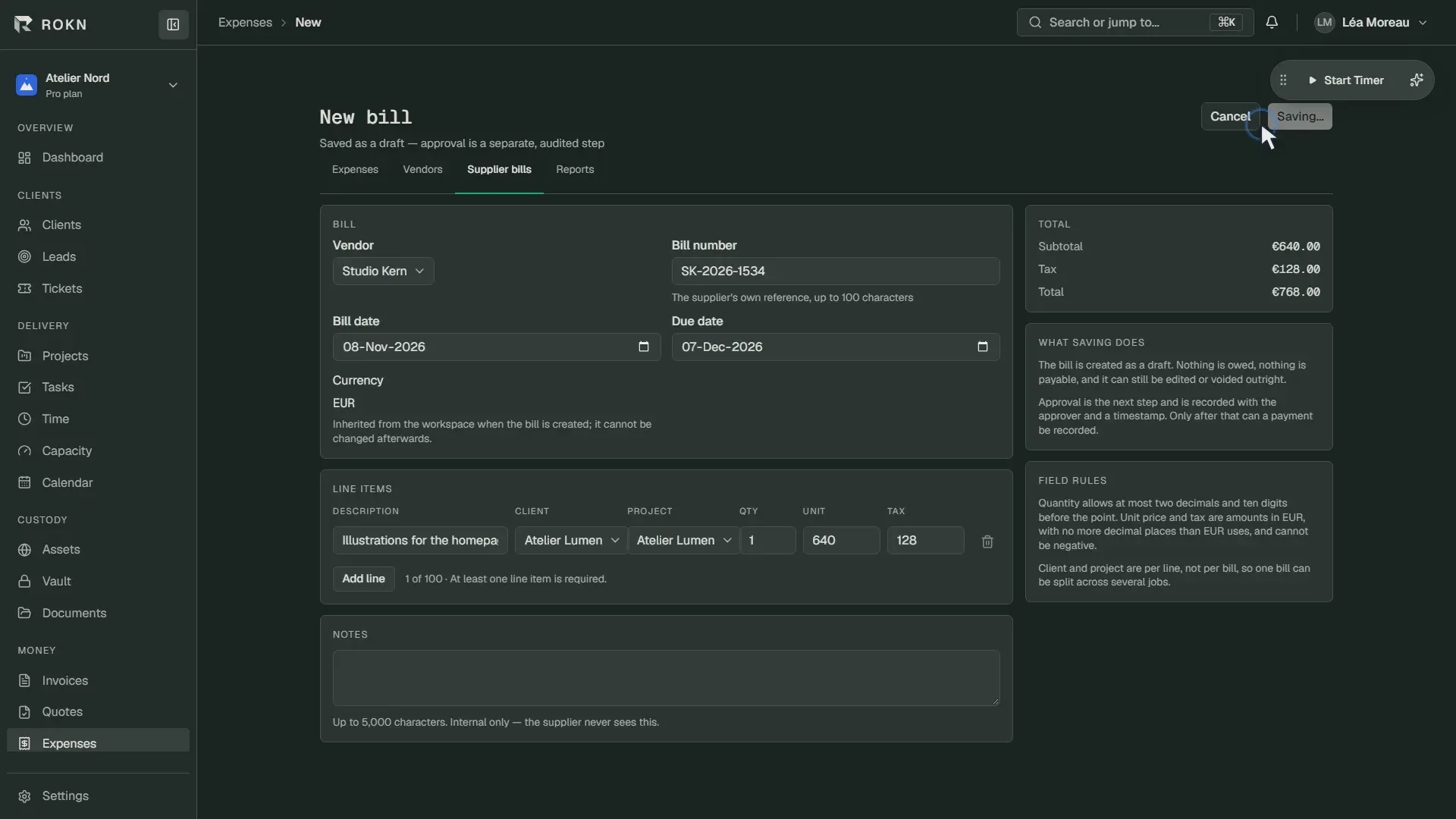
Click New bill. Choose the vendor, add their bill number, and set the date it is due.
Add the lines
Add each line with its amount and tax. Link it to a client and a project, so the cost counts in that project's profit.
Save it as a draft
Click Save draft. Nothing is owed until the bill is approved.
Approve it
Approve it when you have checked it. Approval is recorded with your name and the time.
Record the payment
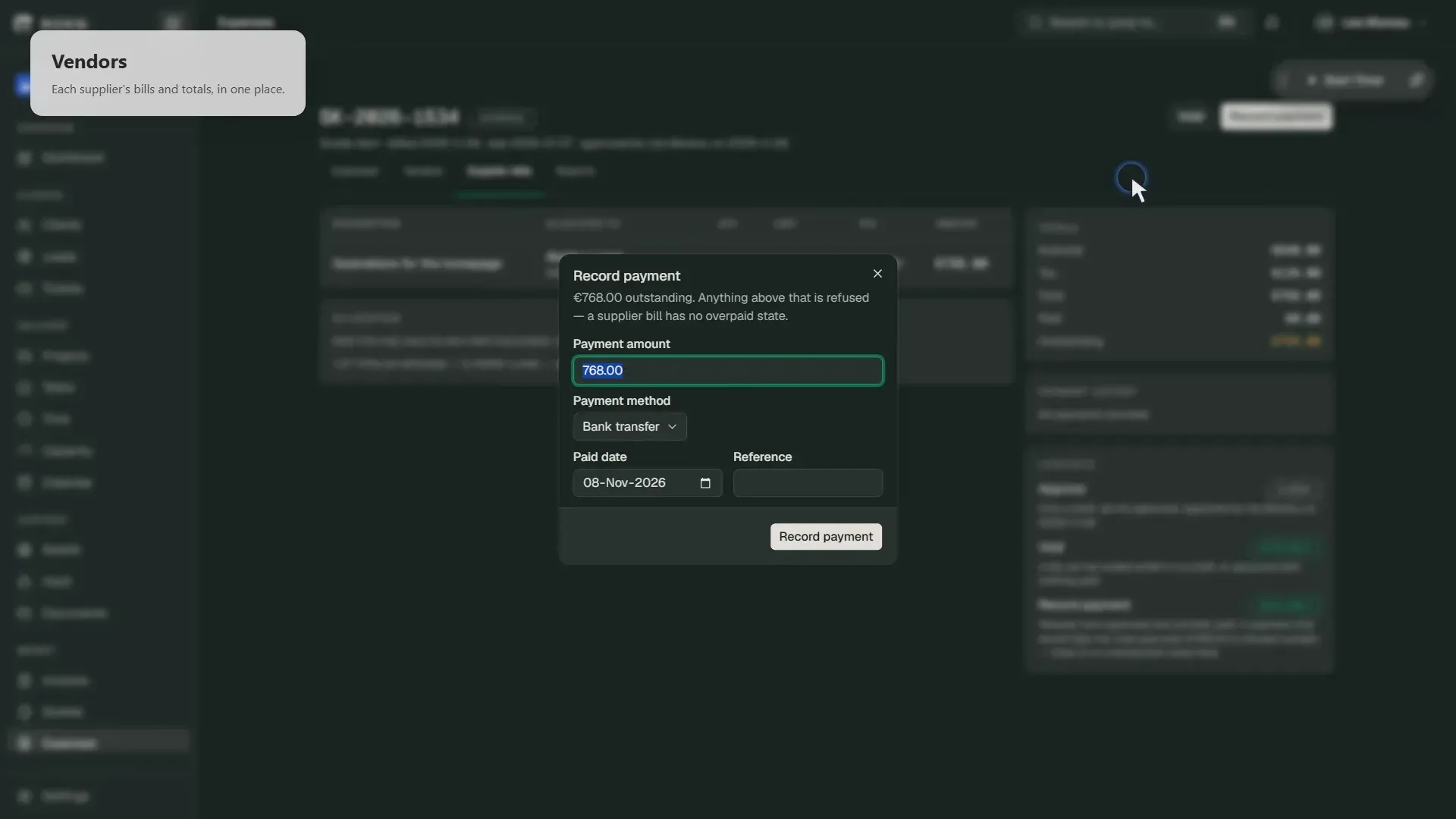
When you pay the supplier, click Record payment. Enter the amount, the method and the date. The bill shows as paid.
Good to know
- A bill's currency comes from the workspace and cannot be changed once the bill is created.
- Vendors has each supplier's bills and totals in one place.
November 10, 2026
Suggest an improvement