

Create and send an invoice
Create an invoice for a client, add a line item with tax, and send it by email as a PDF in one step.
Use this when work is done and you want to be paid. You build the invoice on one screen, and Rokn creates the PDF and emails it for you.
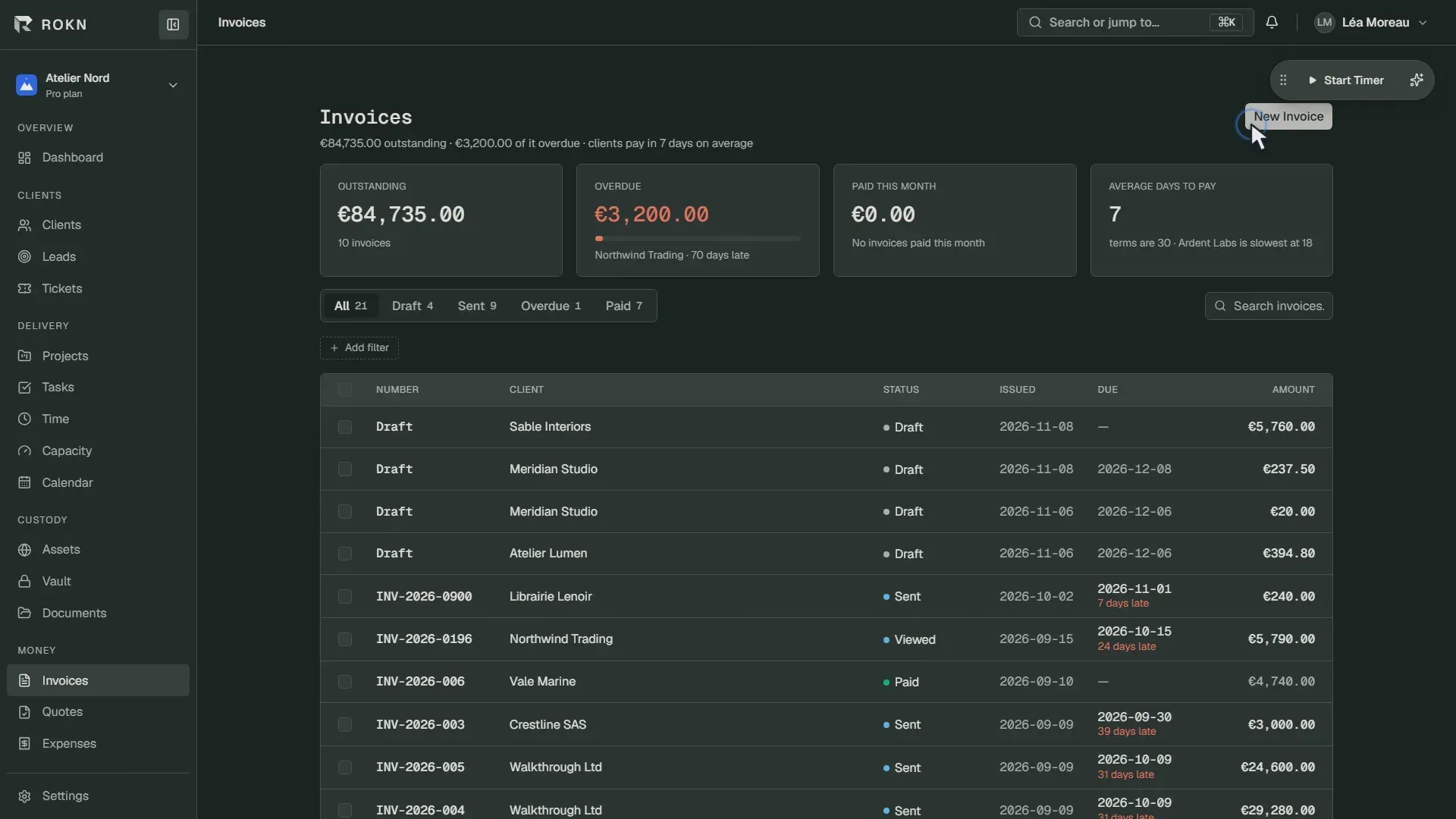
Open the Invoices page
The Invoices page shows what you are owed and what is overdue, at a glance, above the list of all your invoices.
Start a draft
Click New Invoice. Nothing is charged or sent until you choose Save and Send.
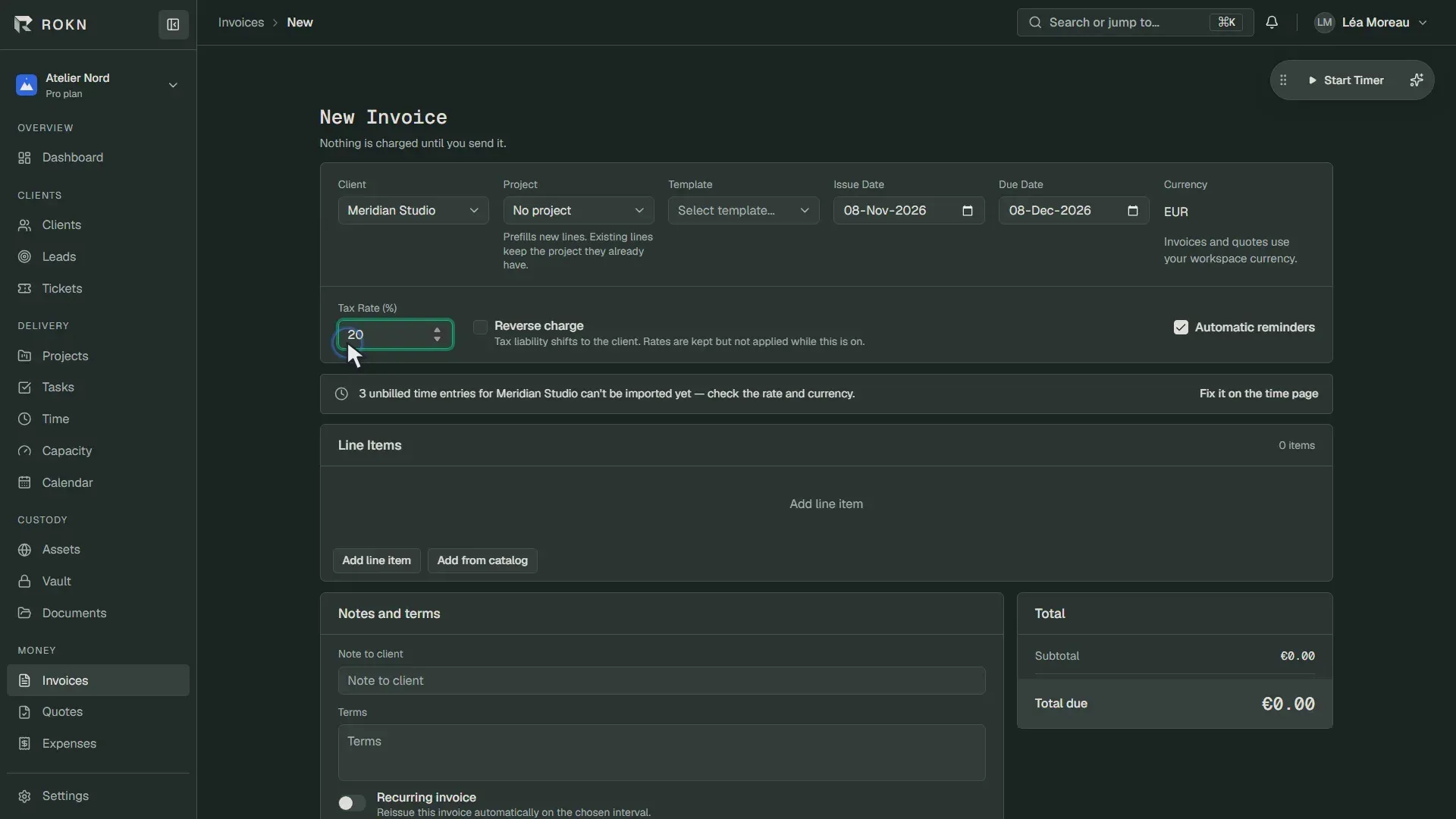
Choose the client
Pick the client from the Client list, for example Meridian Studio.
If you have unbilled time for that client, Rokn tells you right away, so nothing slips through.
Set the tax rate
Enter the Tax Rate (%). You do not need to set the issue and due dates: they are filled in when you send, from your payment terms.
Add a line item
Click Add line item. Describe the work, here a brand identity refresh, then enter the unit price.
Rokn adds the tax and updates the total as you type.
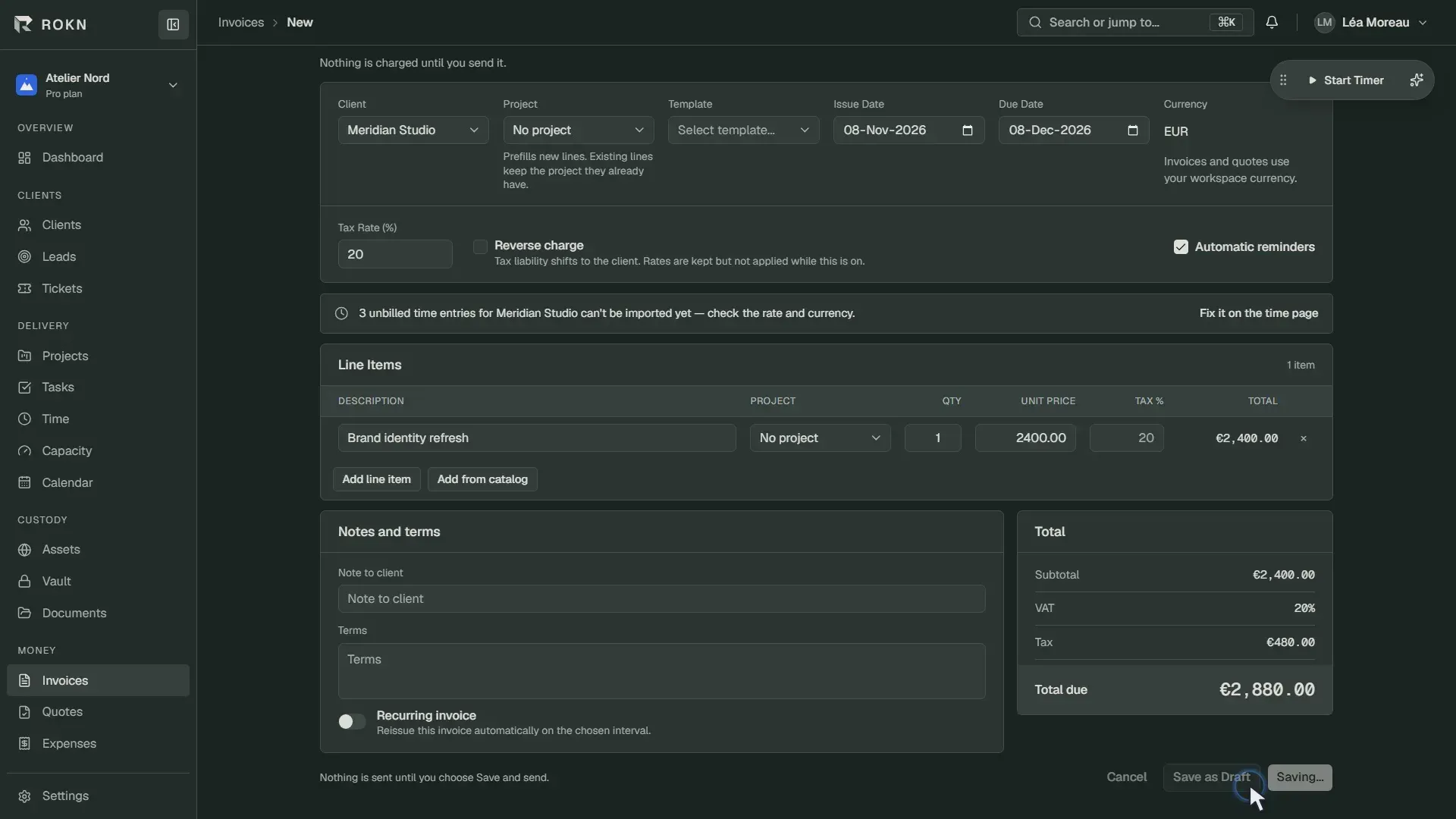
Save and send
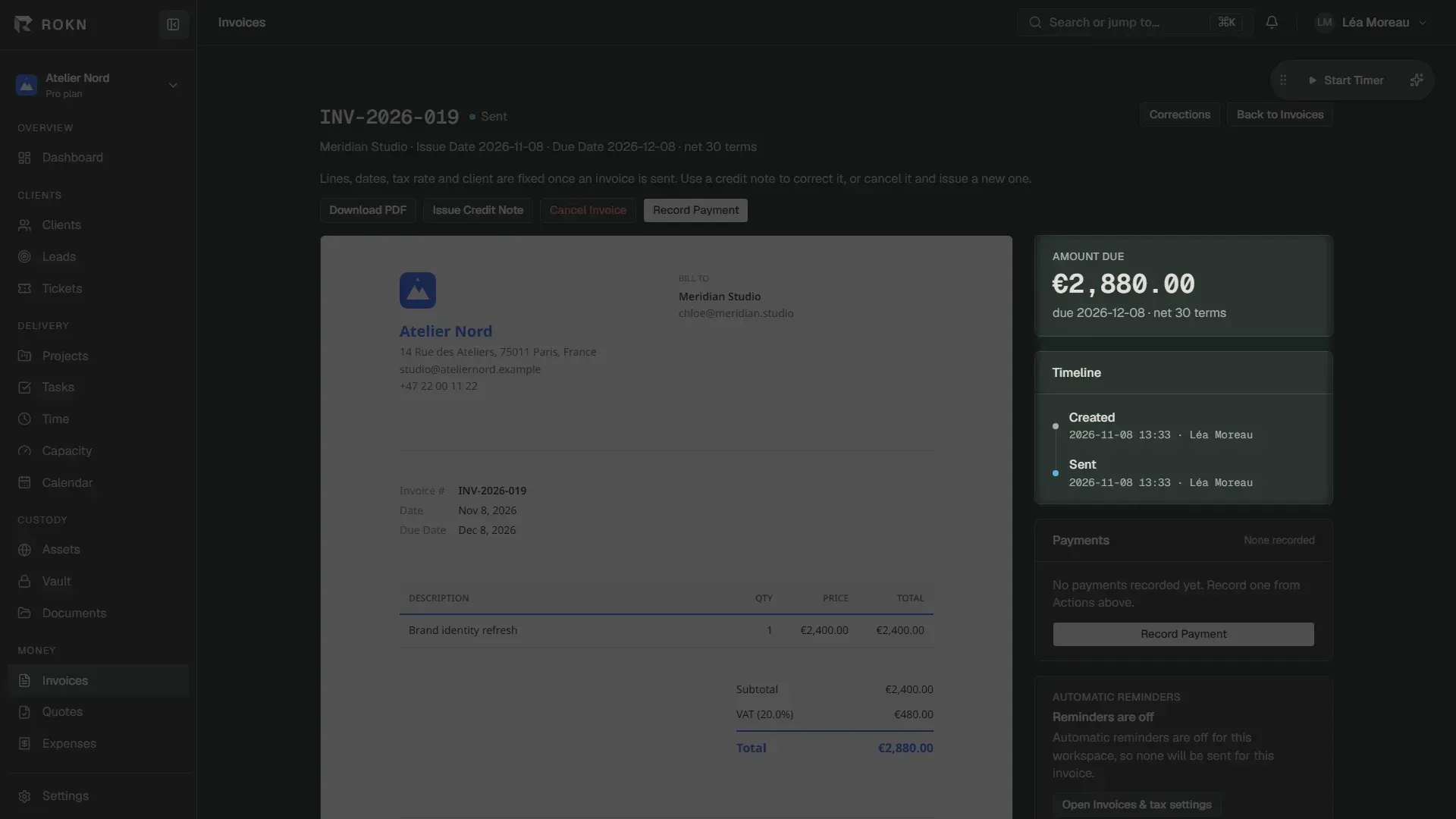
When it looks right, click Save and Send. Rokn saves the invoice, makes the PDF and emails it to your client. It only takes a moment.
The invoice is now marked Sent. You can see the amount due, the timeline, and the reminders Rokn will send if it is not paid on time.
Good to know
- Use Save as Draft instead if you want to finish the invoice later.
November 10, 2026
Suggest an improvement