Freelance quote template
What a quote needs so a client can say yes in one click: the client, the work, a price with tax, a valid-until date and the terms.
What it is for
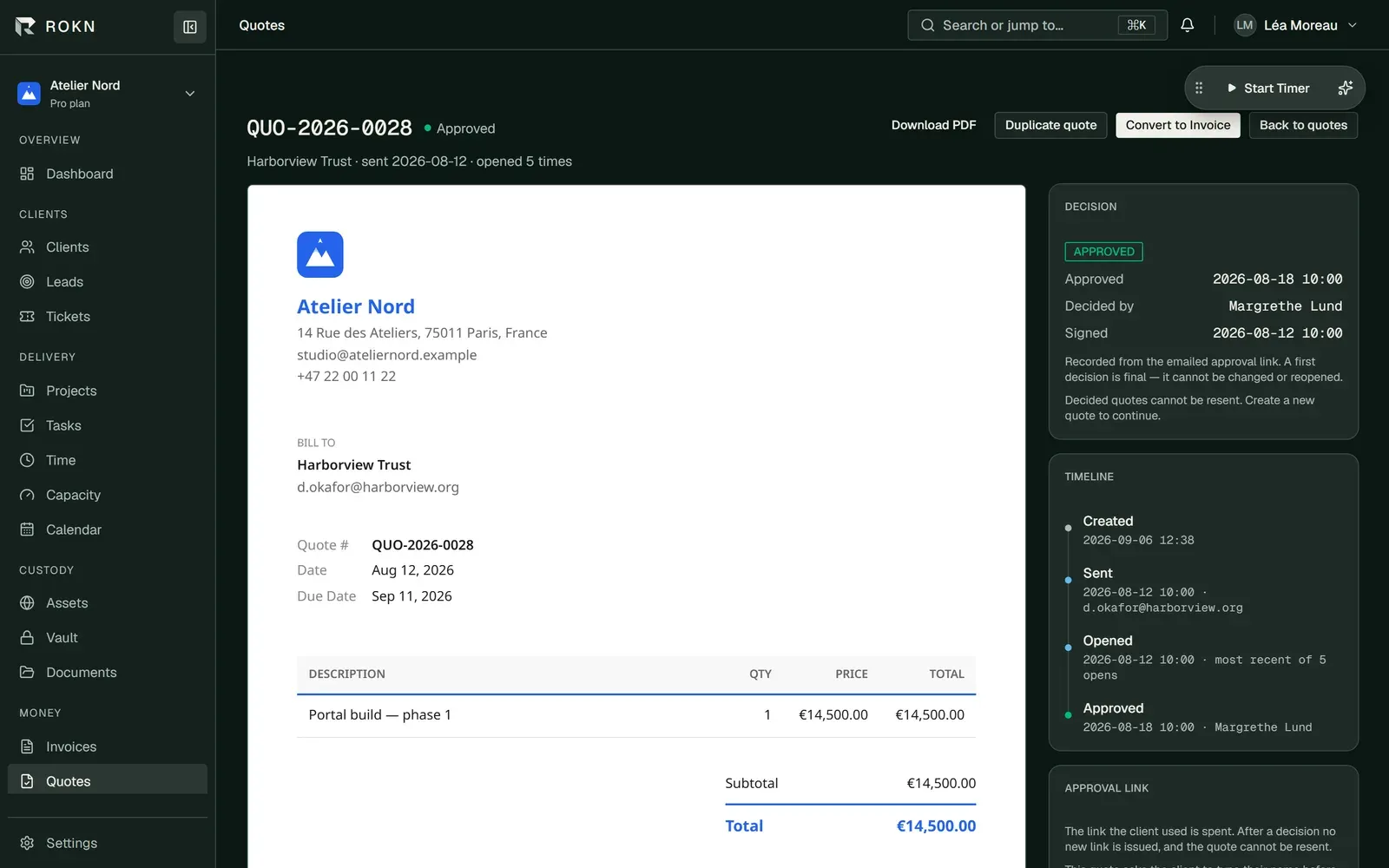
A quote is a price the client can accept. It is shorter than a proposal and more specific: it lists the work as line items, adds tax, says how long the price stands and states the terms. If a proposal explains why, a quote says how much. Once accepted, it is the basis for the invoice, so errors in it are errors in your income. The quote layouts in Rokn (Clean, Professional and Compact) share the same blocks: header, client, dates, line items, totals, payment information, notes and footer.
The template
QUOTE number
Your business name
address — tax number — email
For: Client name, address
Date: issue dateValid until: date
| Description | Qty | Unit price | Amount |
|---|---|---|---|
| Deliverable one | 1 | amount | amount |
| Deliverable two | 1 | amount | amount |
| Hourly work, if any | h | rate | amount |
Subtotal: amount
Tax (rate%): amount
Total: amount currency
Terms
- 30% deposit on acceptance; the balance on completion. Invoices are due within 14 days.
- Not included: list. Changes are quoted separately.
- Prices are valid until the date above.
To accept, reply to this email / sign below / approve online.
What it must contain
- Your details
Business name, address, tax number and contact. A quote is a business document.
- Client
Name, address and contact, as they should appear on the invoice.
- Quote number and dates
A unique number, the issue date and a valid-until date after which the price lapses.
- Line items
One line per deliverable, with description, quantity, unit price and amount. Plain descriptions the client recognises.
- Tax and total
The tax rate, the tax amount and the total. State the currency.
- Terms
Payment schedule, deposit if any, what is not included and how changes are handled.
- Acceptance
How the client says yes: a reply, a signature, or approval online.
Use it in Rokn
1. On the Quotes page, choose New Quote, pick the client, set Valid until, add a line for each deliverable and enter the tax rate. 2. Turn on Require a signature for a typed-signature approval, then Send Quote: the client approves from a link with no account, and the timeline shows when it was opened. 3. Once it is approved, Convert to Invoice copies the lines, tax and terms into a draft invoice.